
Overview
Tickets route support requests through a panel instead of a flood of DMs. Everything below requires the Manage Guild permission unless it’s a per-ticket action any member can use. The dashboard has the same under Community → Tickets: panels with a live preview, support types, ticket forms, access, settings, quick replies and the open tickets.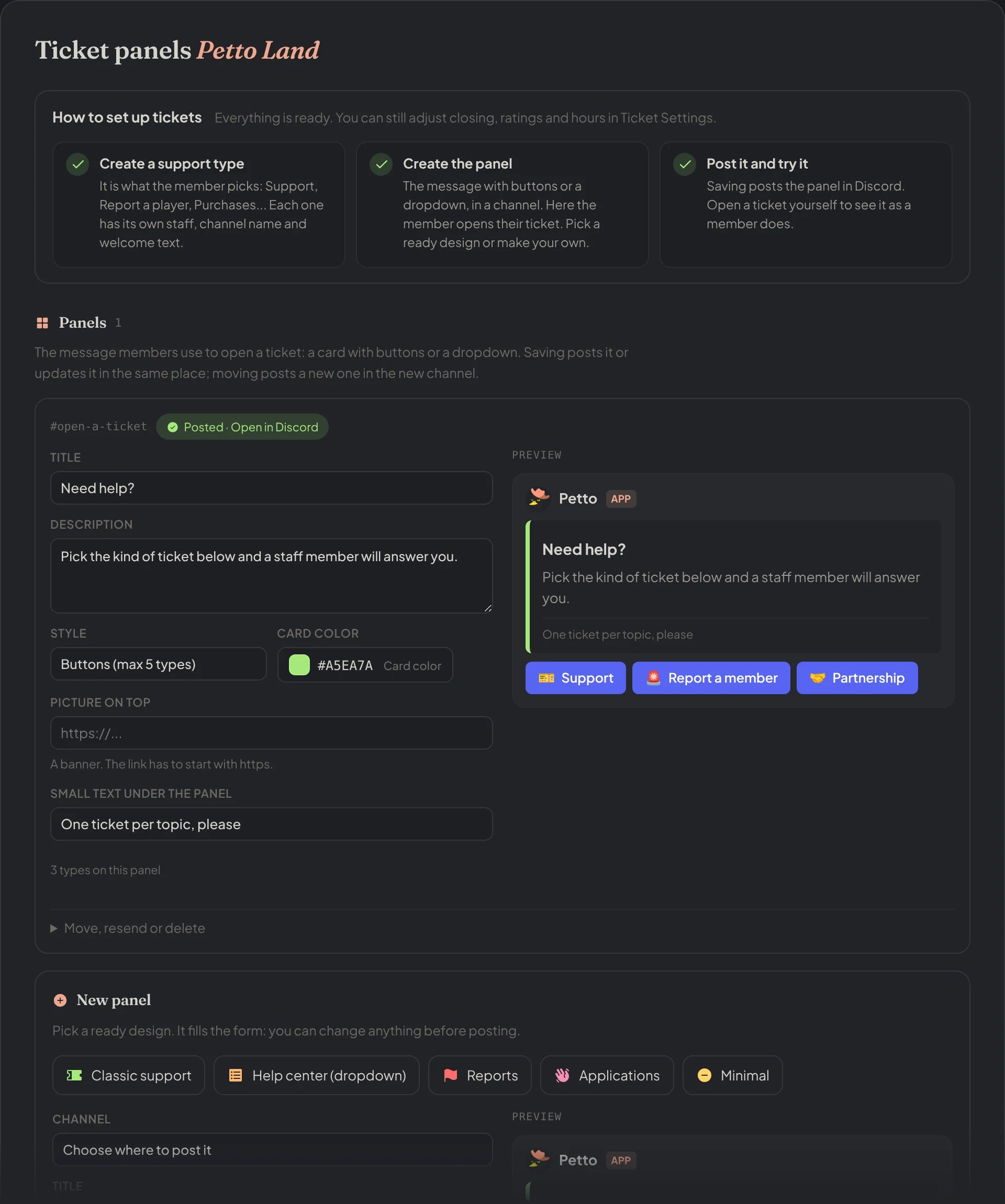
Dashboard → Community → Tickets: the setup steps and a panel with its preview in Discord.
!ticketconfig shows in one card what the server has set for tickets and every ticket command.
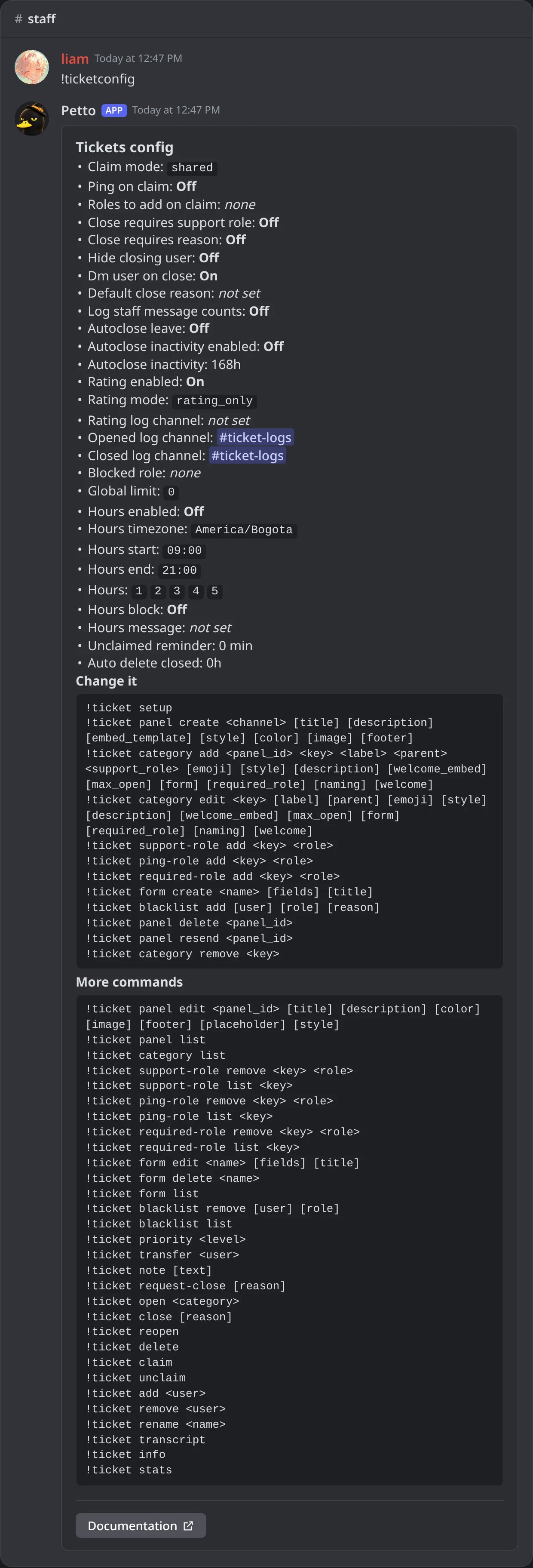
In Discord: !ticketconfig with the settings of tickets and the commands to change them.
!ticketconfig shows in one card what the server has set for tickets and every ticket command.
!ticketconfig shows in one card what the server has set for tickets and every ticket command.
!ticketconfig shows in one card what the server has set for tickets and every ticket command.
!ticketconfig shows in one card what the server has set for tickets and every ticket command.
!ticketconfig shows in one card what the server has set for tickets and every ticket command.
!ticketconfig shows in one card what the server has set for tickets and every ticket command.
Guided setup
!ticket setup opens a panel with menus and buttons that sets up everything in one place: pick the channel for the ticket panel, the support roles and a log channel, write the title and text, add the ticket types (name, emoji and short description), choose the button color and whether members see buttons or a dropdown, and publish it all with one press. If the panel cannot be posted, nothing is kept. Each type can then be fine-tuned from the dashboard or with !ticket category edit.
Run !ticket setup
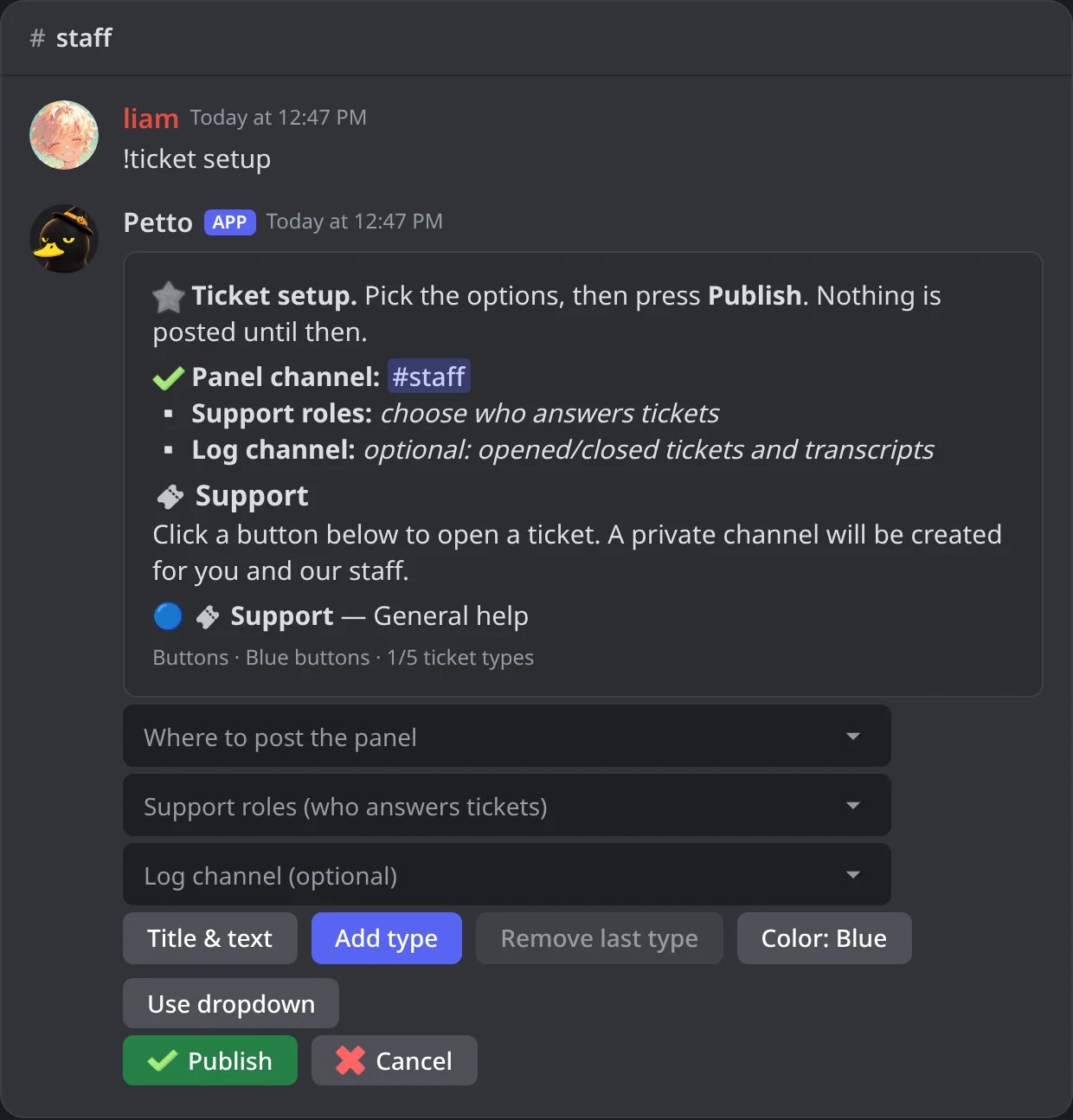
In Discord: the setup panel of !ticket setup as it opens.
Pick the channels and the roles
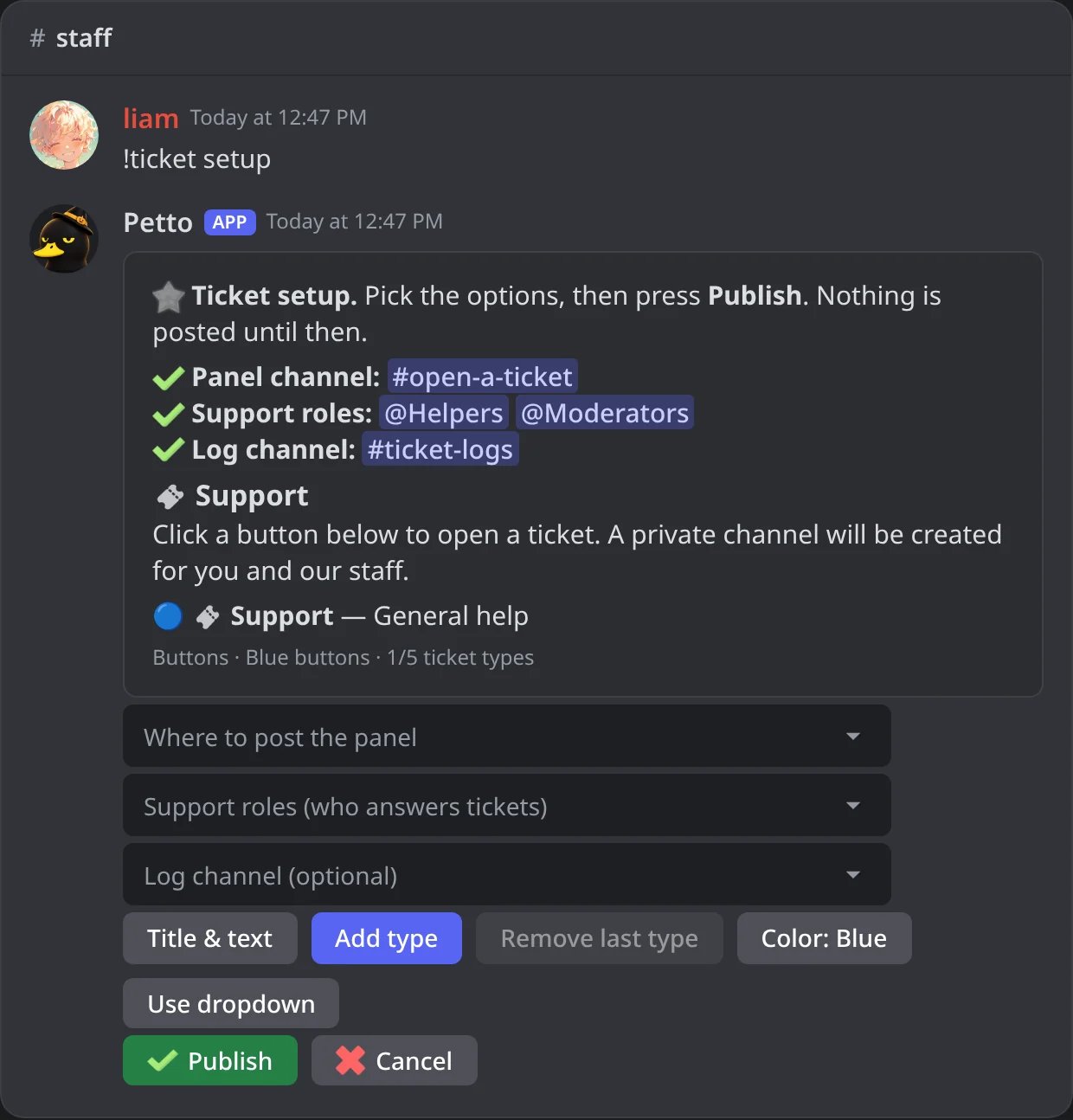
In Discord: the panel channel, two support roles and the log channel are set.
Write the title and the text
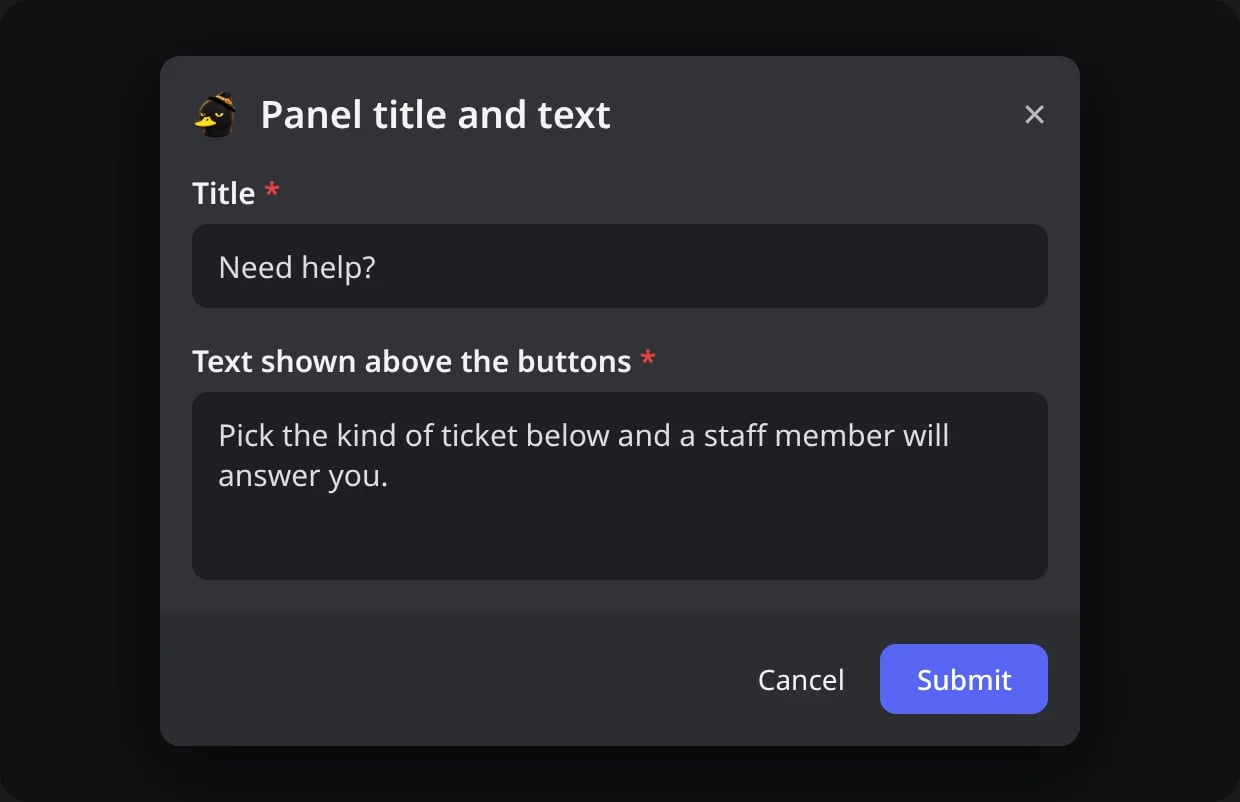
In Discord: the form of Title & text.
Add the ticket types
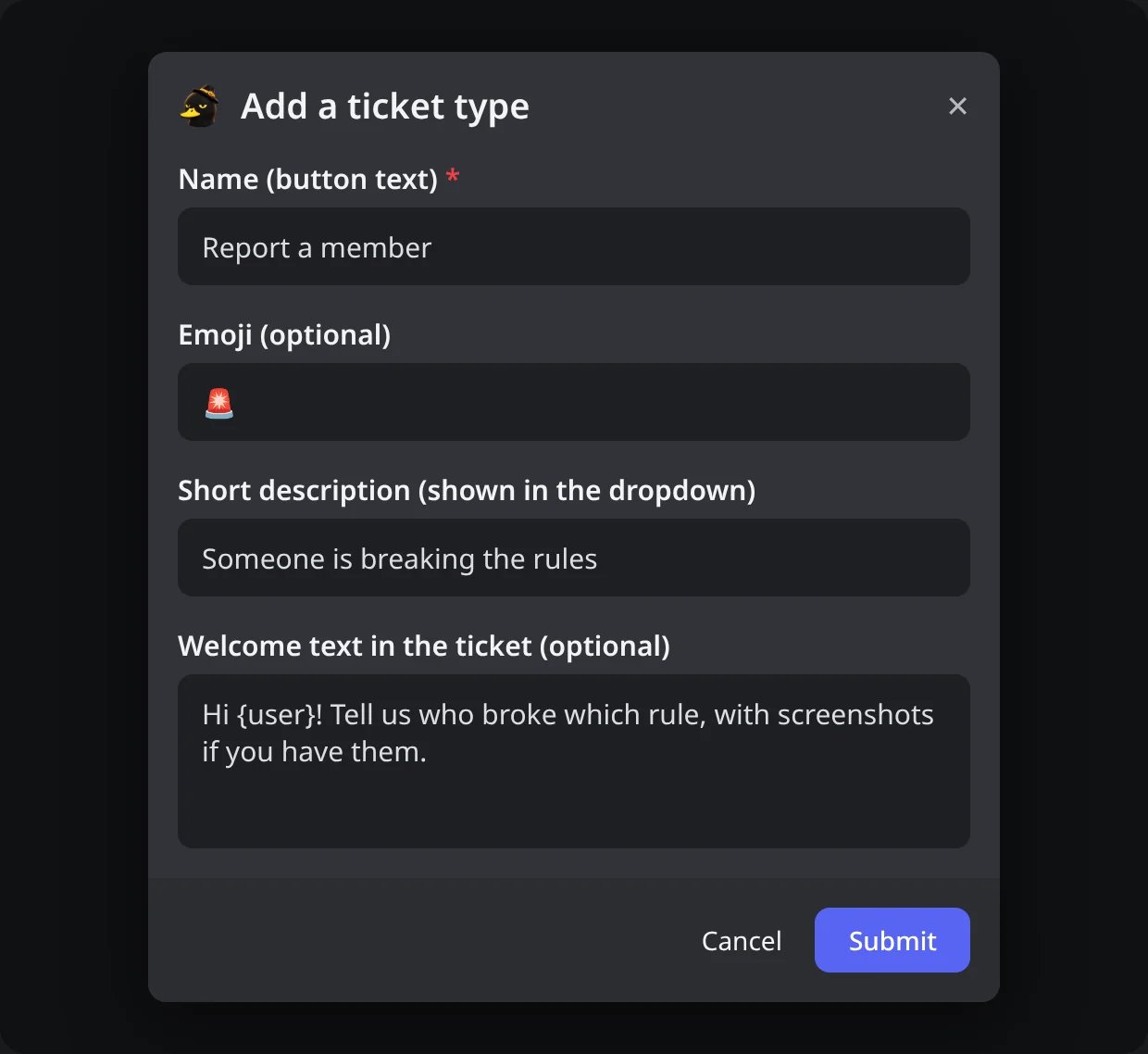
In Discord: the form of Add type.
Choose the look
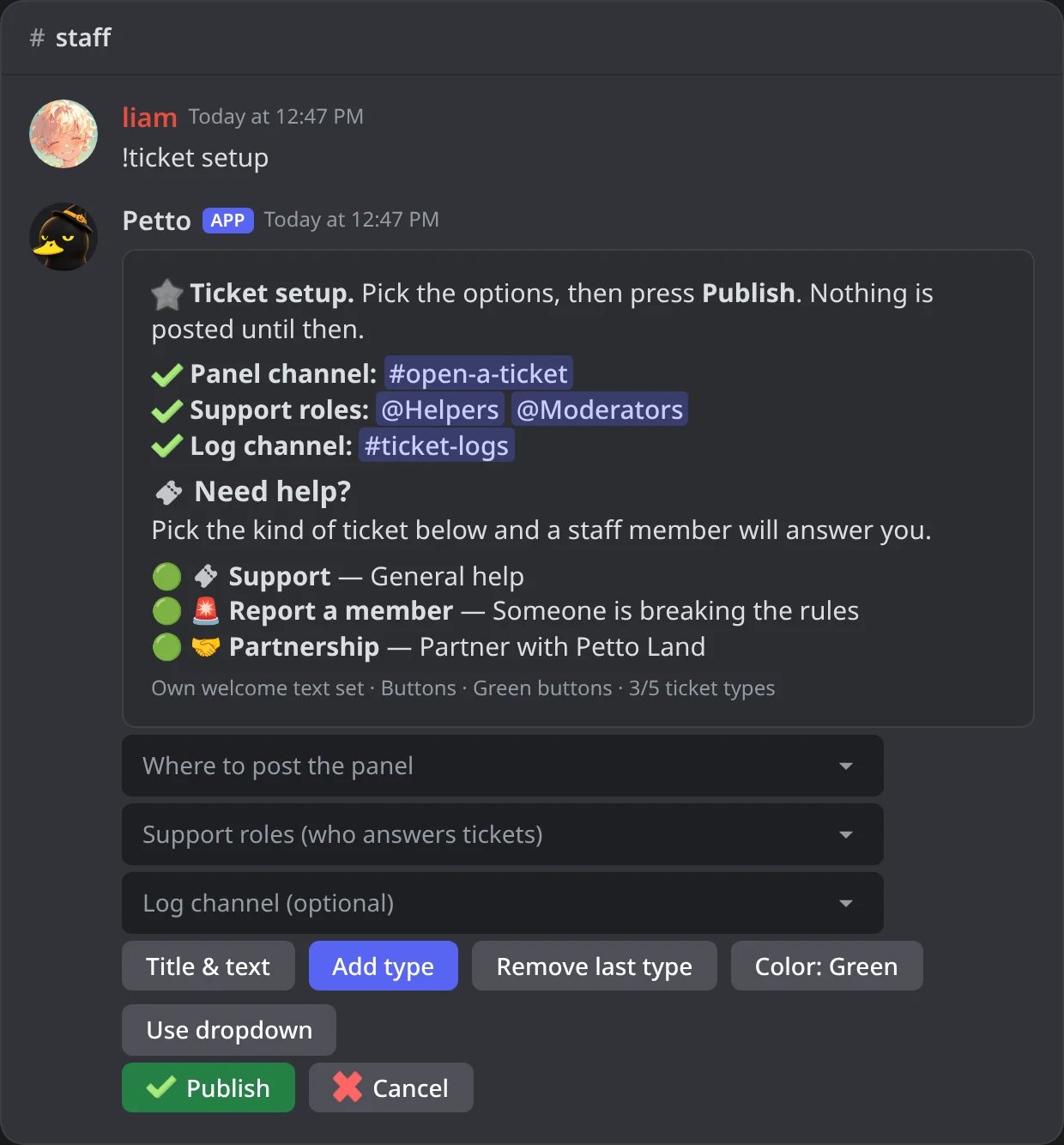
In Discord: three types, green buttons and the welcome text of one type.
Publish
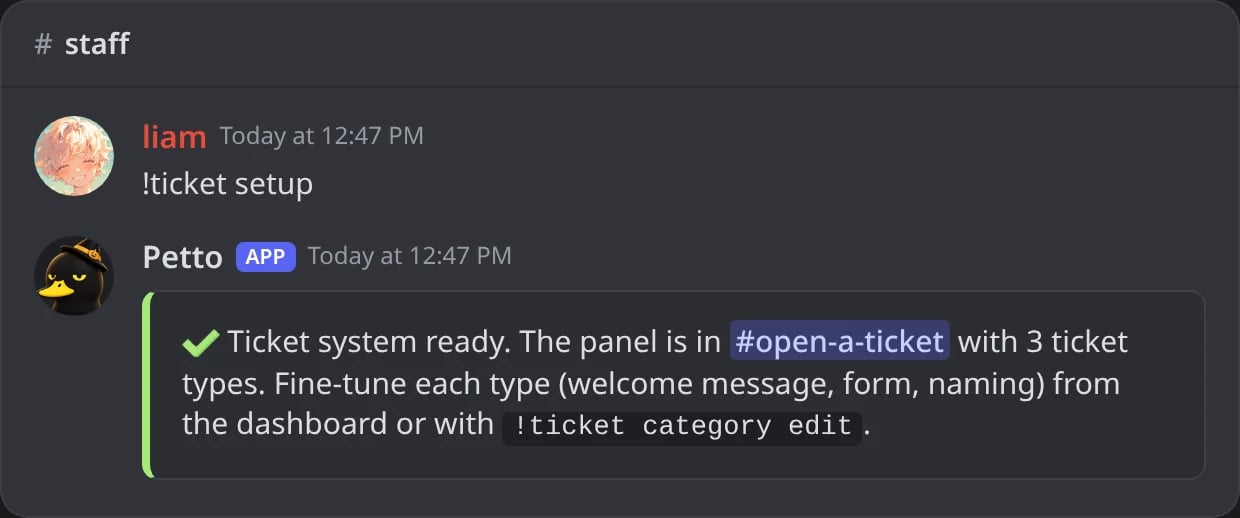
In Discord: the setup panel becomes the ready message.
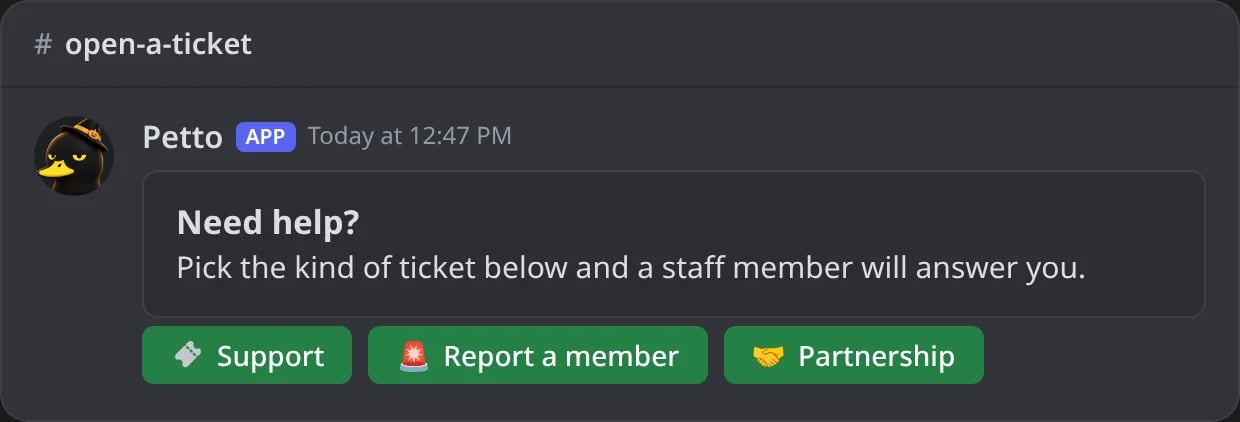
In Discord: the panel the setup posted.
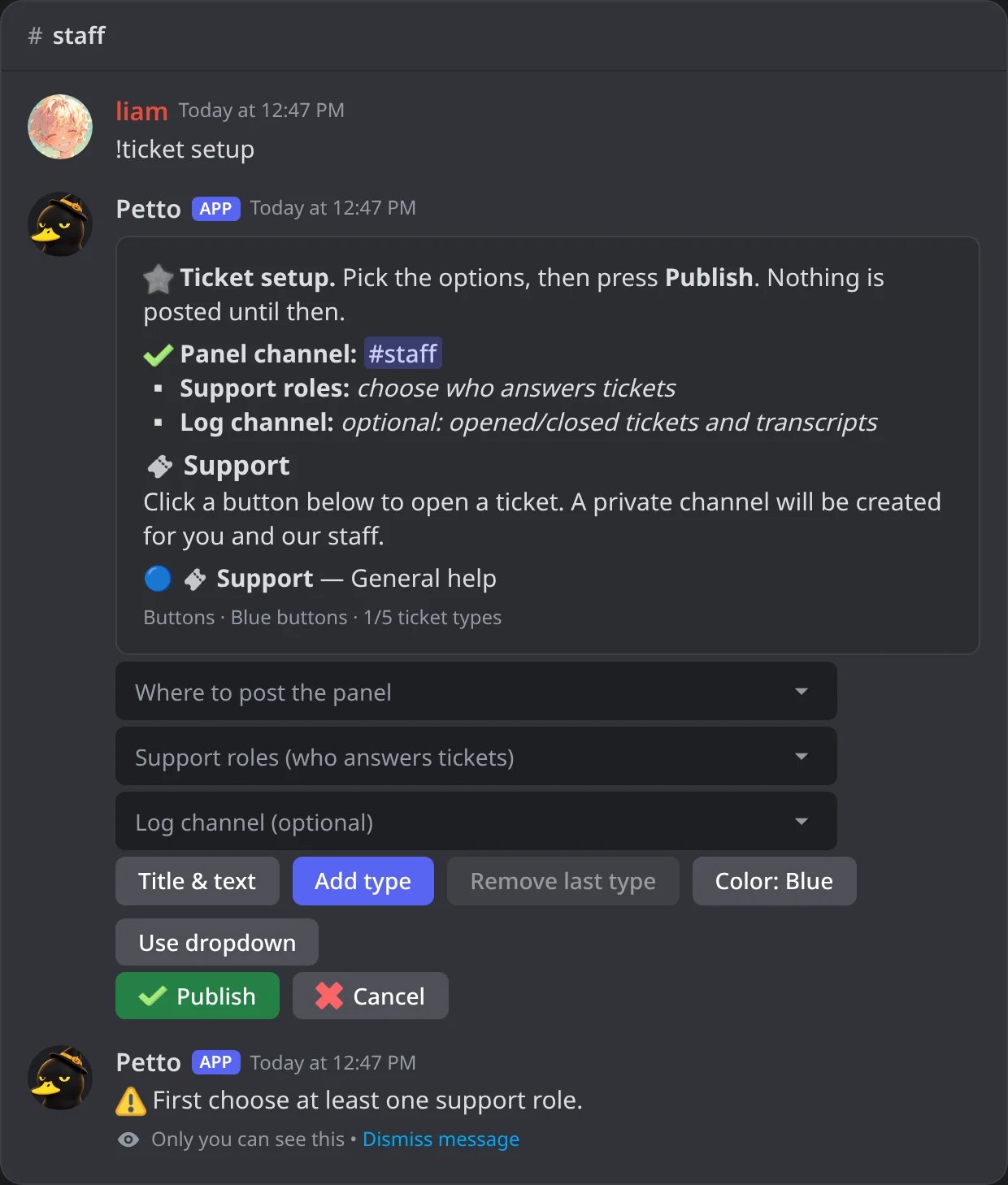
In Discord: Publish with no support role yet.
Panels
The message members click to open a ticket.!ticket panel create
!ticket panel create
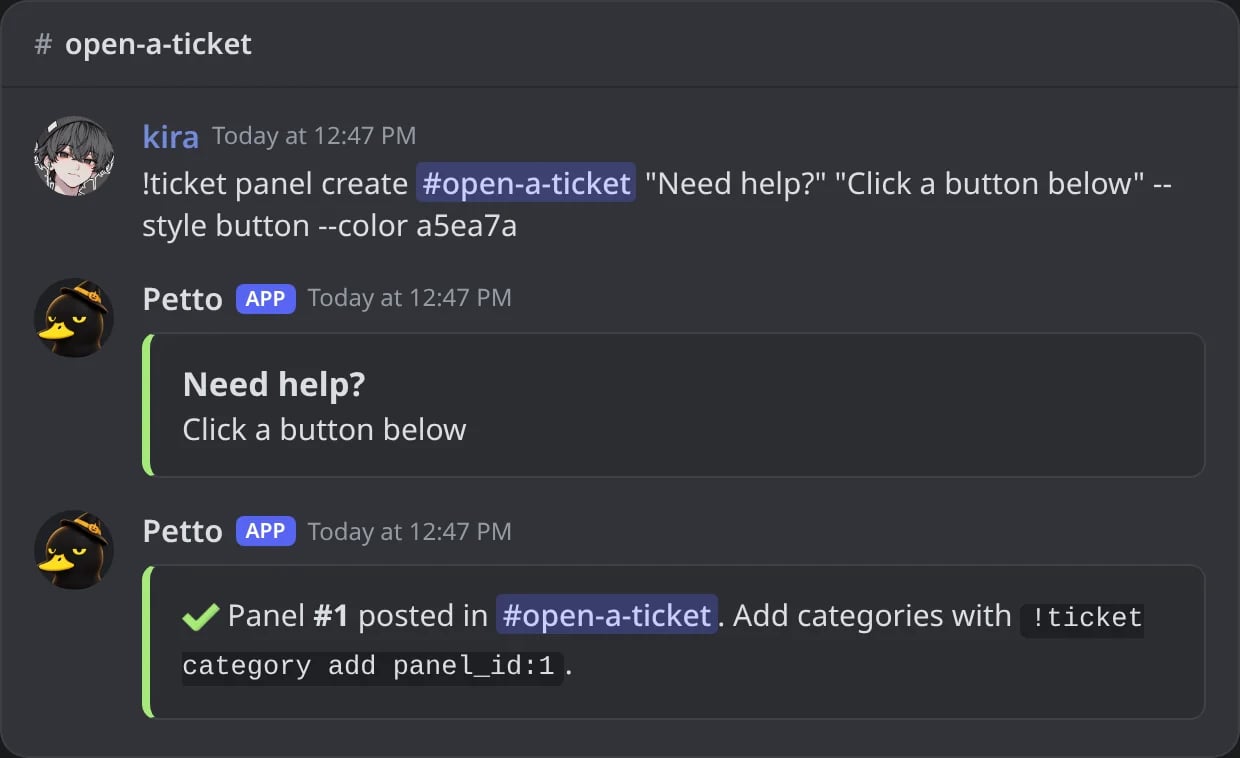
In Discord: a panel posted with a command, before it has types.
!ticket panel edit
!ticket panel edit
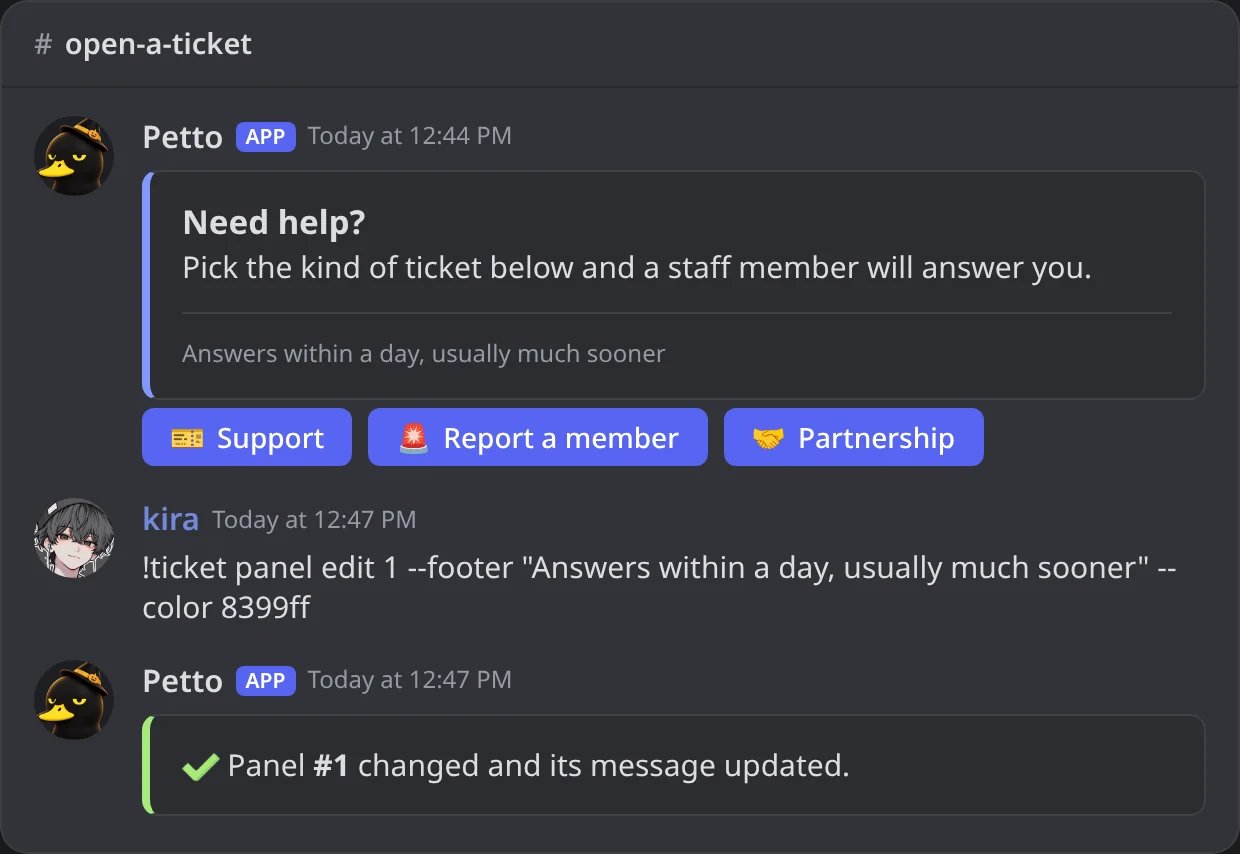
In Discord: the panel changes in its place.
!ticket panel delete
!ticket panel delete
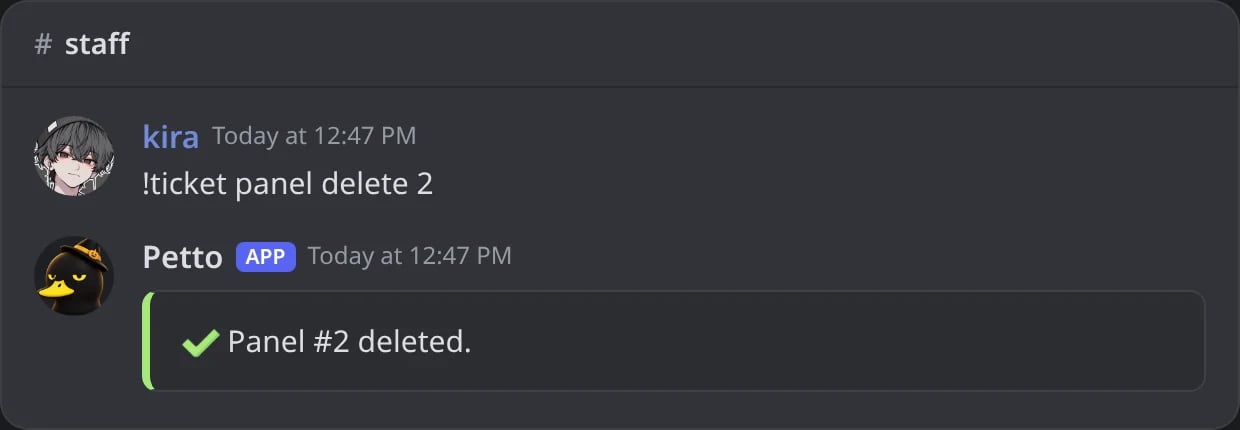
In Discord: a panel deleted.
!ticket panel resend
!ticket panel resend
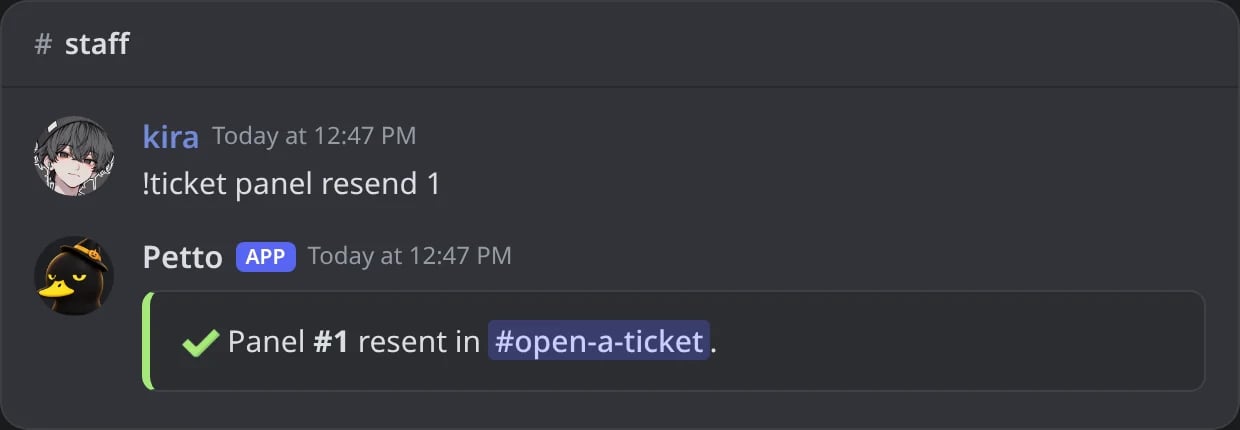
In Discord: a panel posted again.
!ticket panel list
!ticket panel list
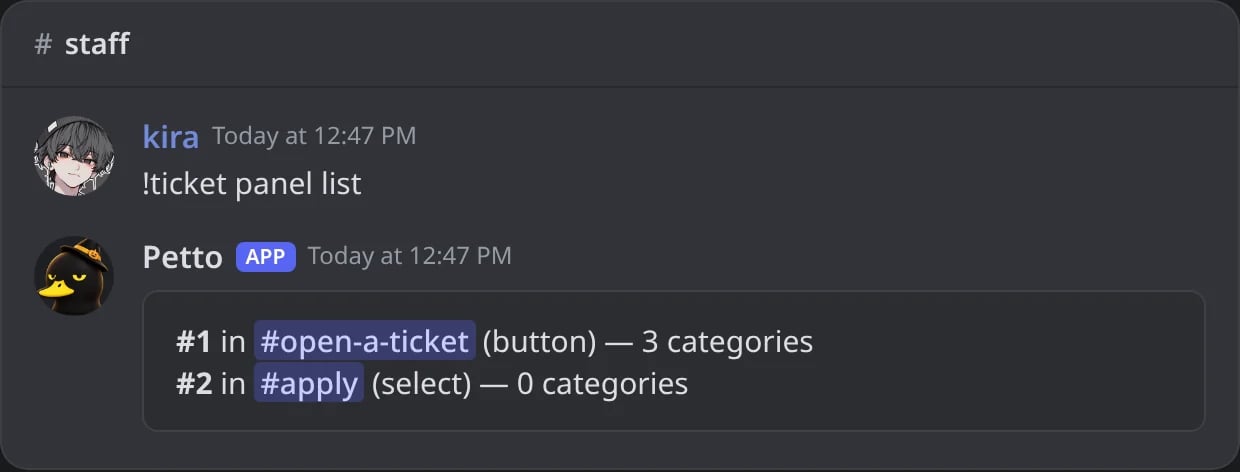
In Discord: the panels of the server.
style is button (max 5 categories) or select (dropdown, max 25 categories).
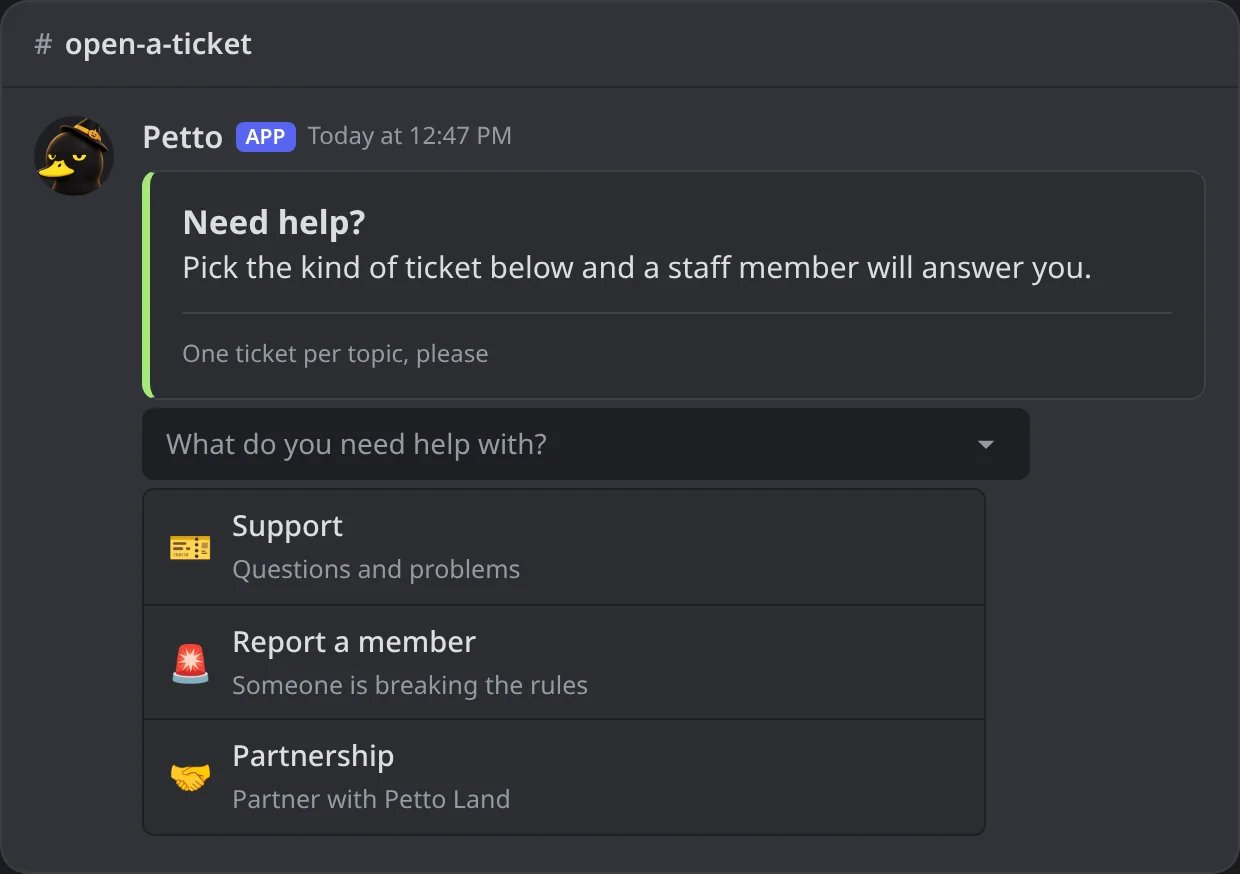
In Discord: a panel with style select, its dropdown open.
How a panel looks
A panel is a card: a picture on top (optional), the title, the text, a small line under it, and the buttons or the dropdown under the card. In the dashboard you can pick the color of the card (the stripe on its side; with no color the card has none, even if the preview shows green), the picture (a link that starts withhttps), the small text and, for a dropdown, the text it shows before choosing. A live preview shows what members will see.
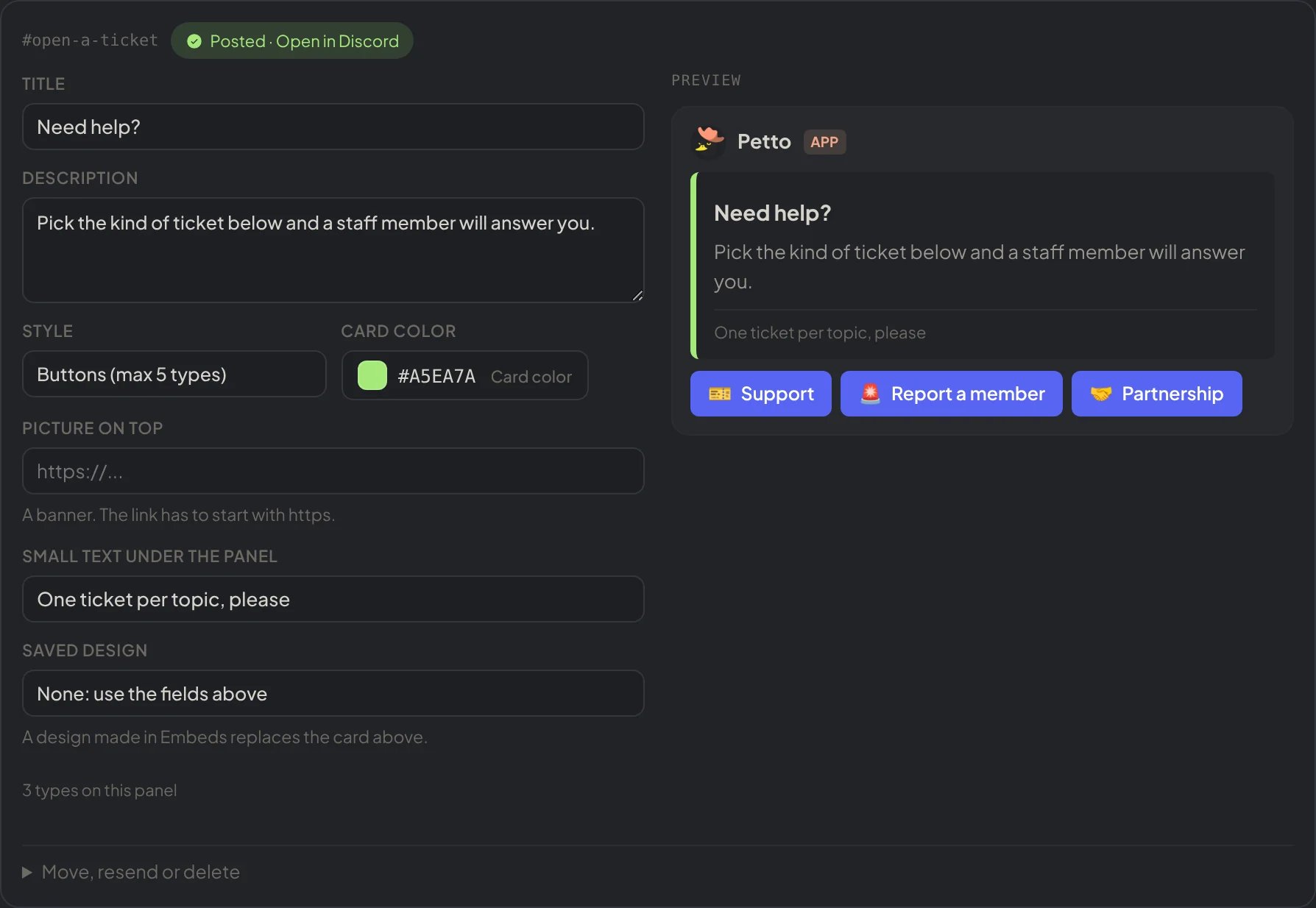
Dashboard → Community → Tickets: a panel with its live preview.
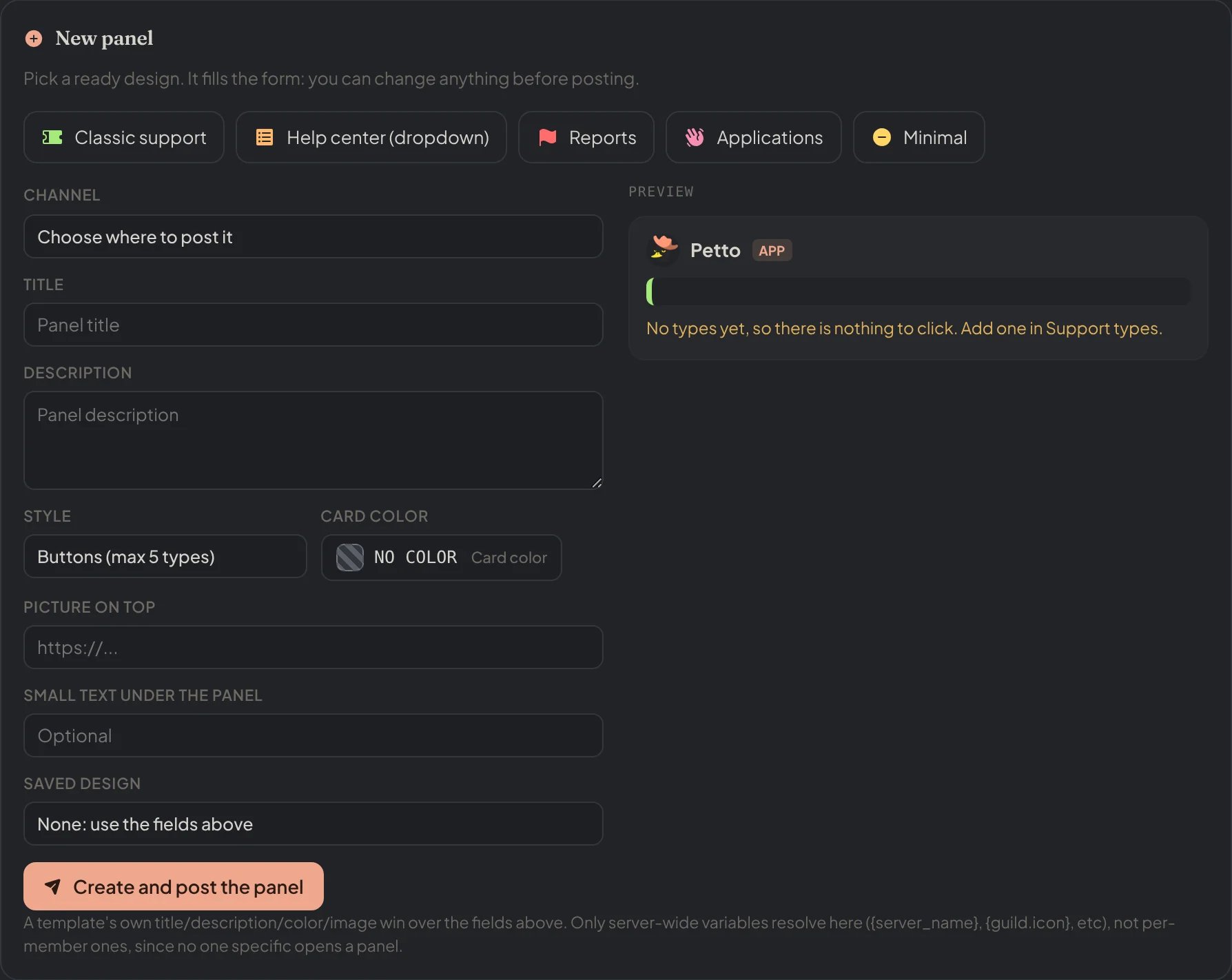
Dashboard → Community → Tickets: New panel, with the ready designs.
Categories
What a panel’s button or dropdown option actually opens.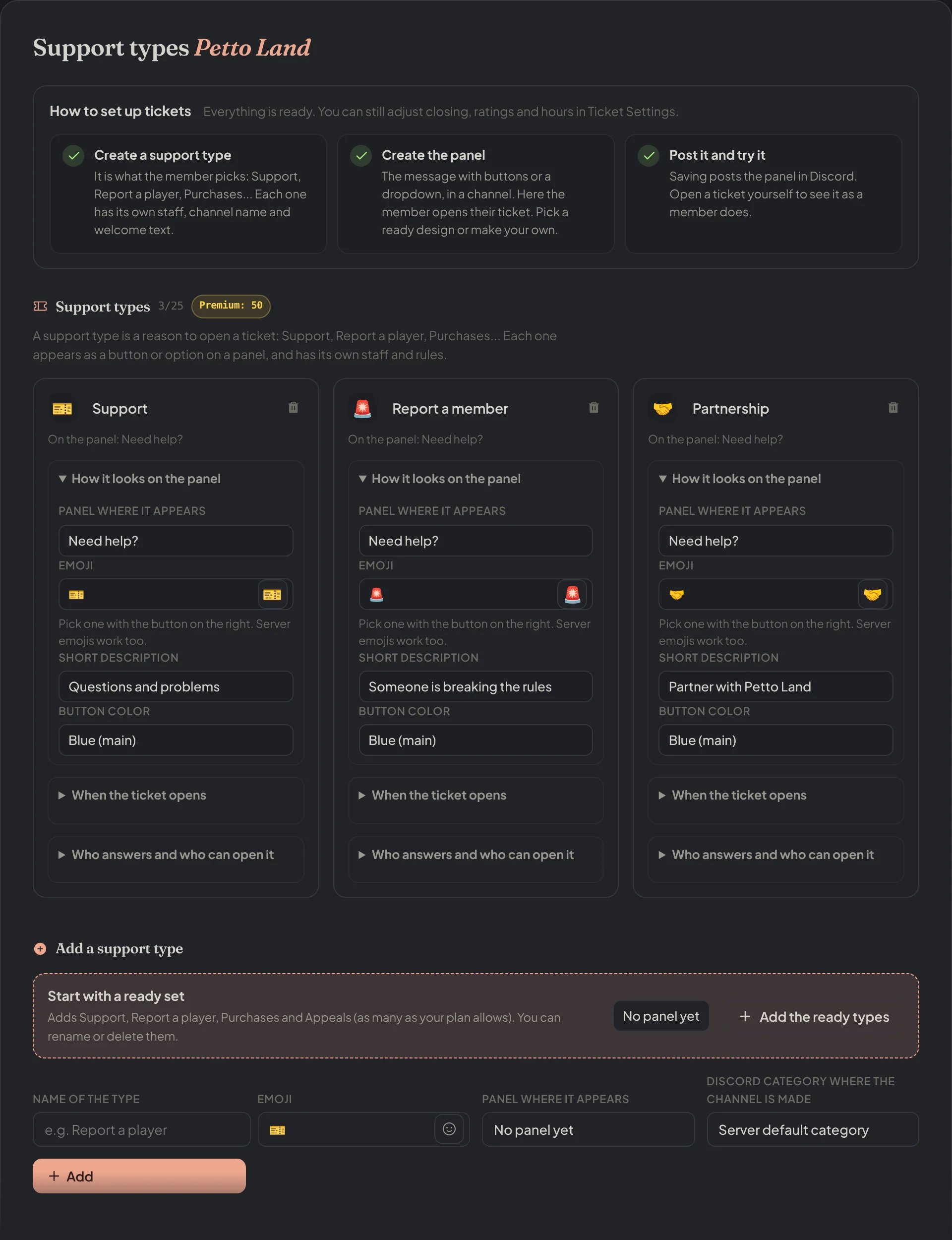
Dashboard → Community → Support Types: each type with its panel, look, opening and staff, and the ready set.
!ticket category add
!ticket category add
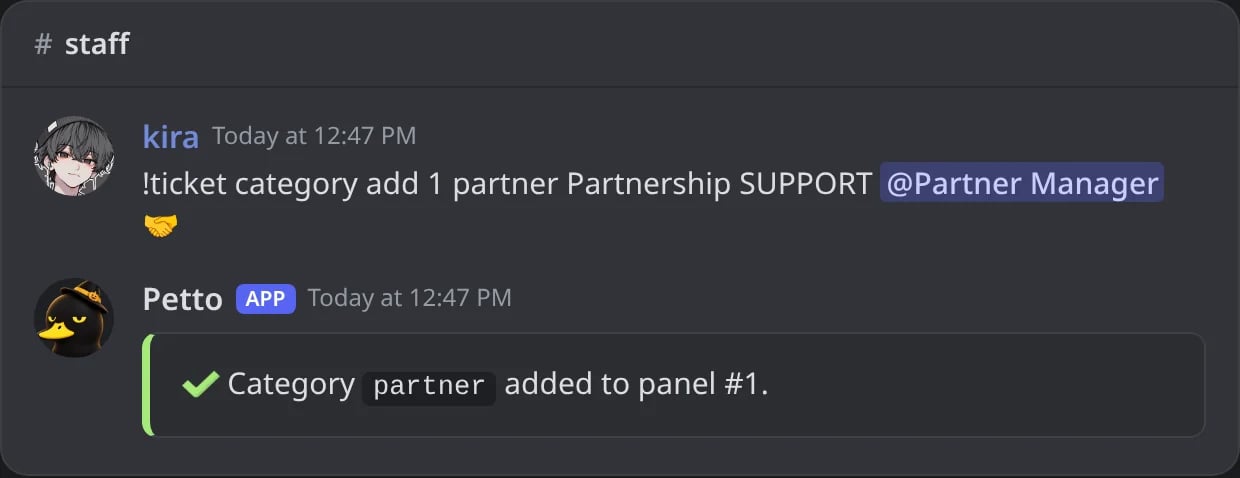
In Discord: a category added to panel 1.
!ticket category edit
!ticket category edit
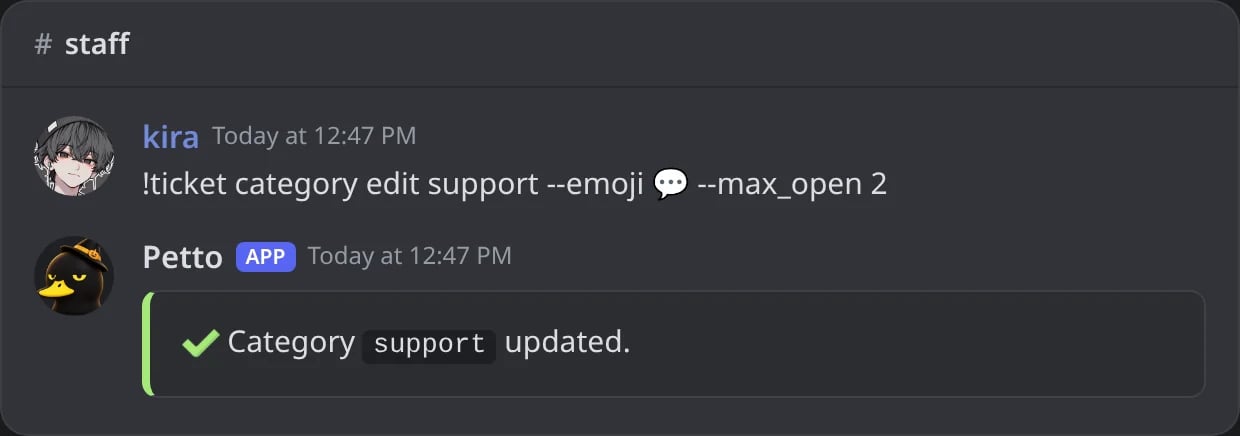
In Discord: a category changed with flags.
!ticket category remove
!ticket category remove
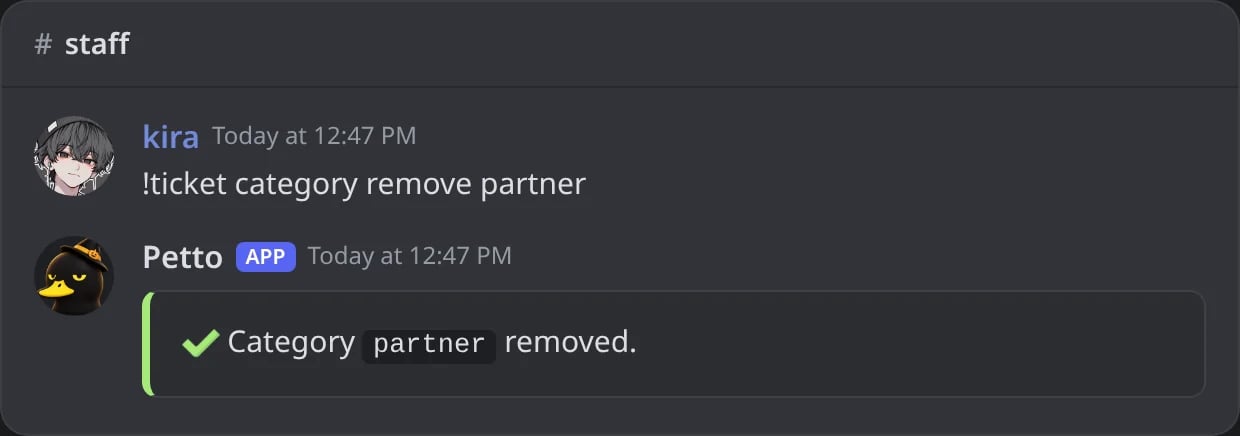
In Discord: a category removed.
!ticket category list
!ticket category list
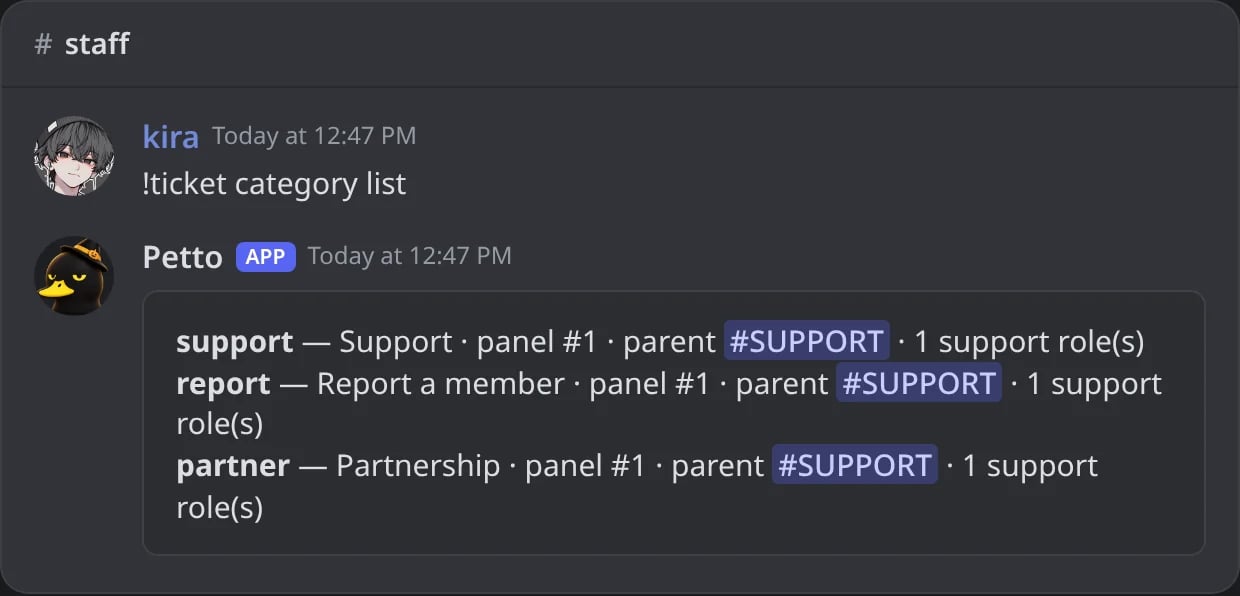
In Discord: the categories of the server.
naming supports {number}, {username}, {userid} and {category}, defaults to ticket-{number}. max_open is the cap per user for that category, defaults to 1.
Each category can have its own welcome text with --welcome (in !ticket category add and edit, or in the setup panel), without needing a saved embed. It supports {user}, {username}, {category}, {server} and {number}.
Naming and welcome examples
- Channel names
- Welcome text
- Saved embed
-.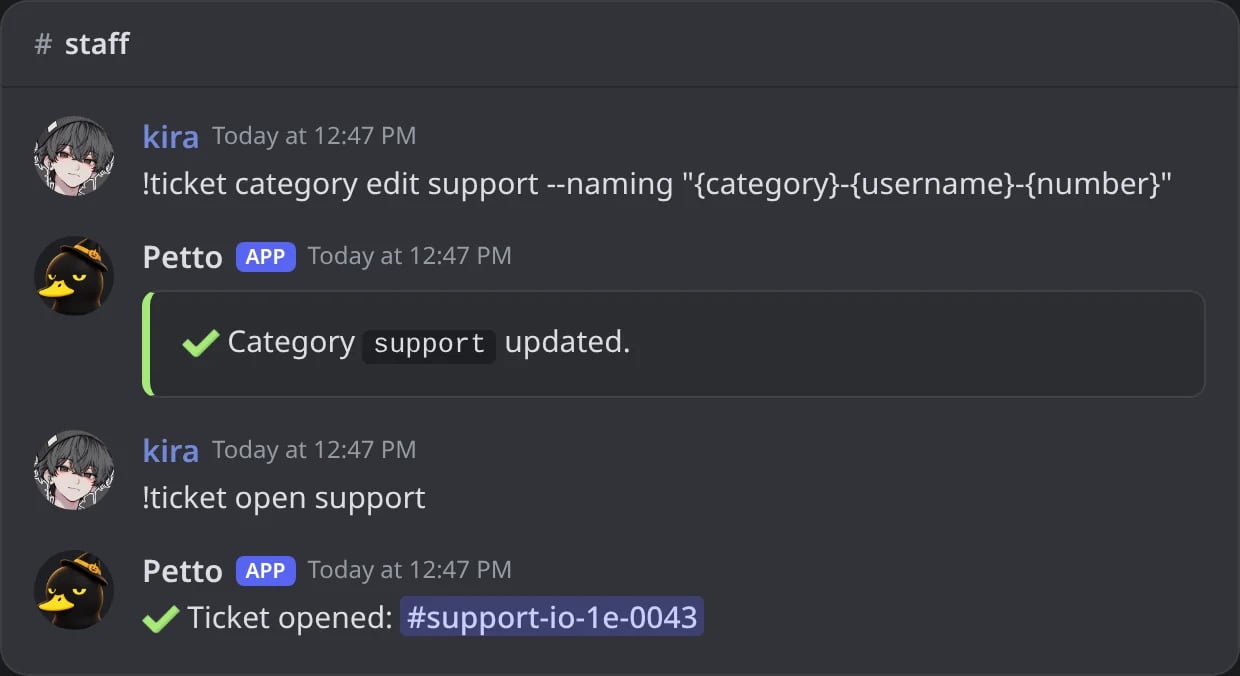
In Discord: the new naming, then a ticket that uses it.
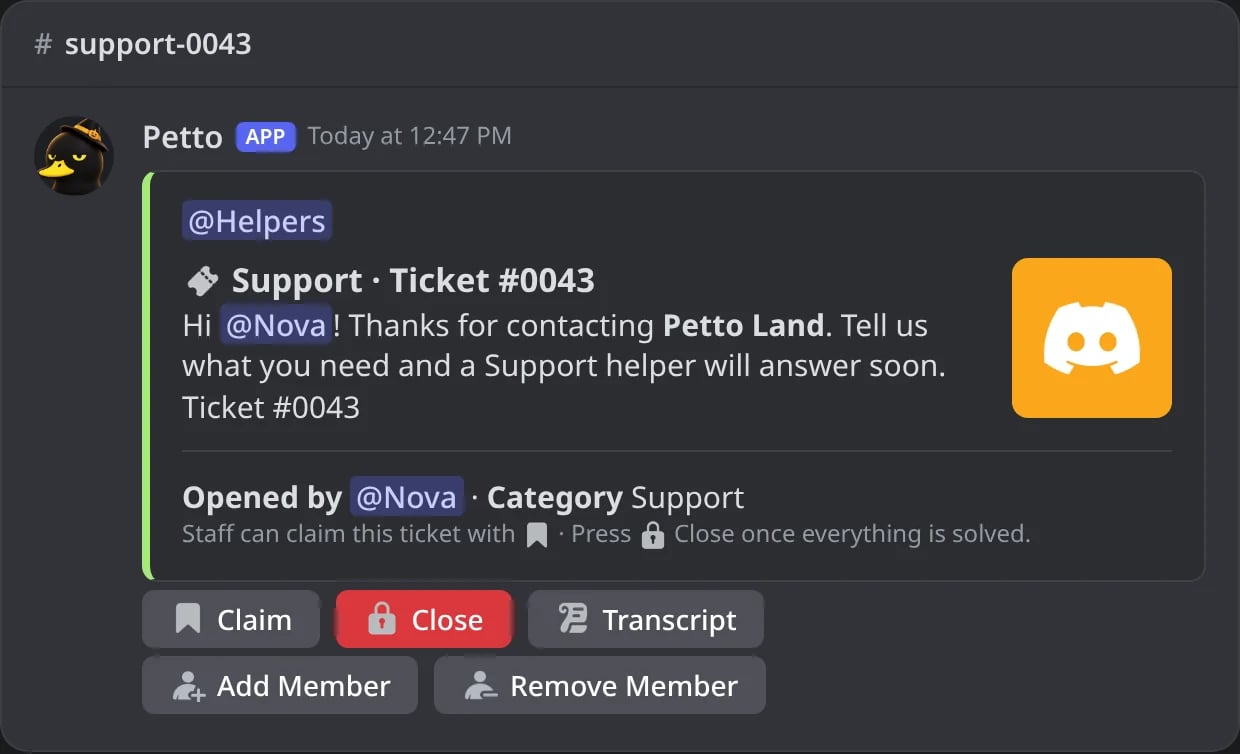
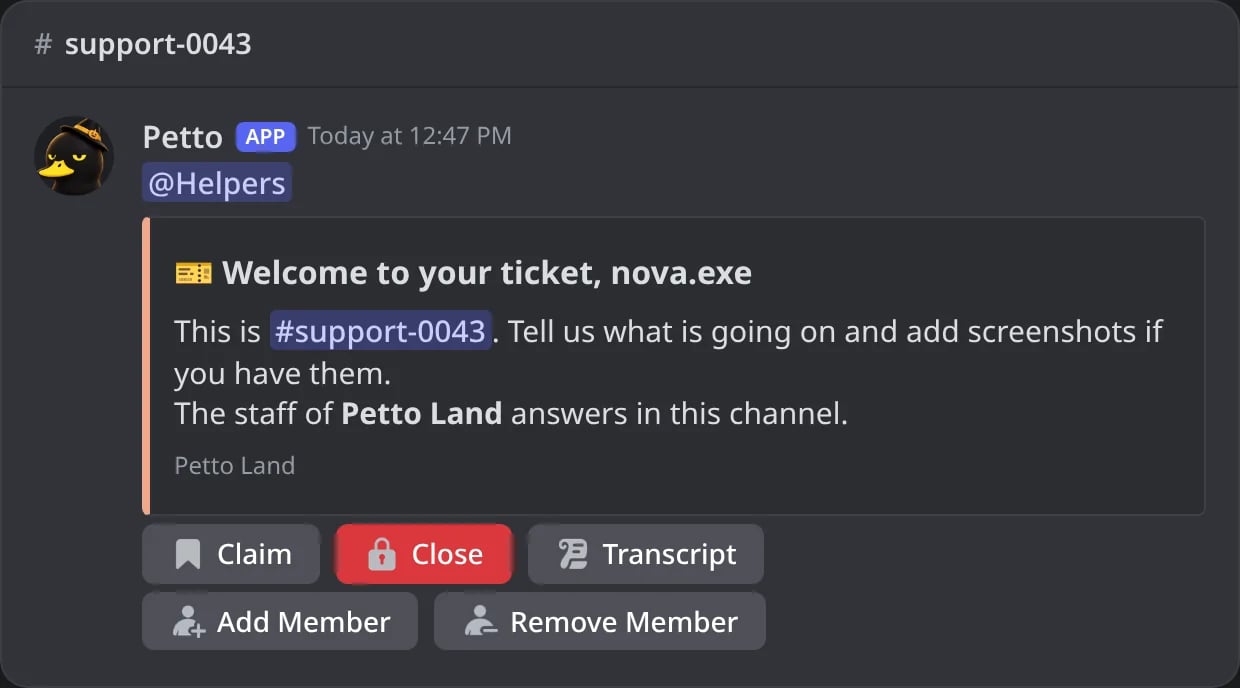
{server_name} stay as written there.
!ticket category add and !ticket category edit also take form (the name of a form, or none in edit to remove it) and required_role (a role members need to open the category). In the prefix form, write them as flags: !ticket category edit support --form bug-report.
Support roles & ping roles
Beyond the one required at creation, add more roles that can see a category’s tickets, or roles pinged when one opens.!ticket support-role add
!ticket support-role add
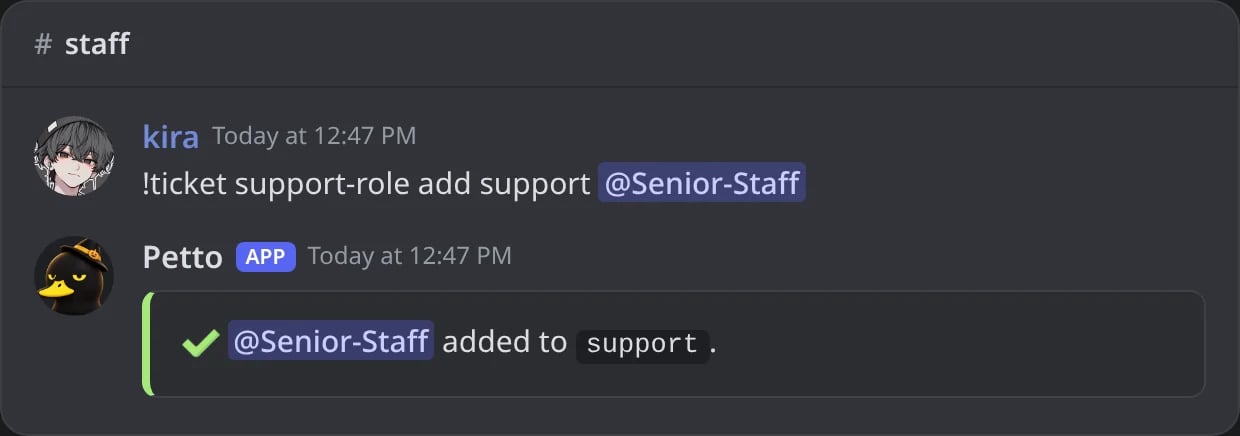
In Discord: a role added.
!ticket support-role remove
!ticket support-role remove
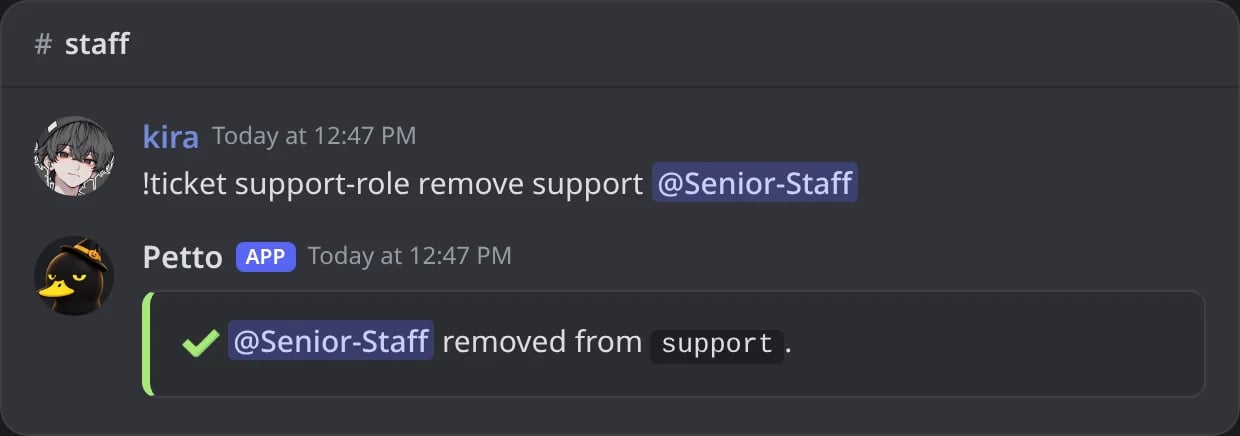
In Discord: a role removed.
!ticket support-role list
!ticket support-role list
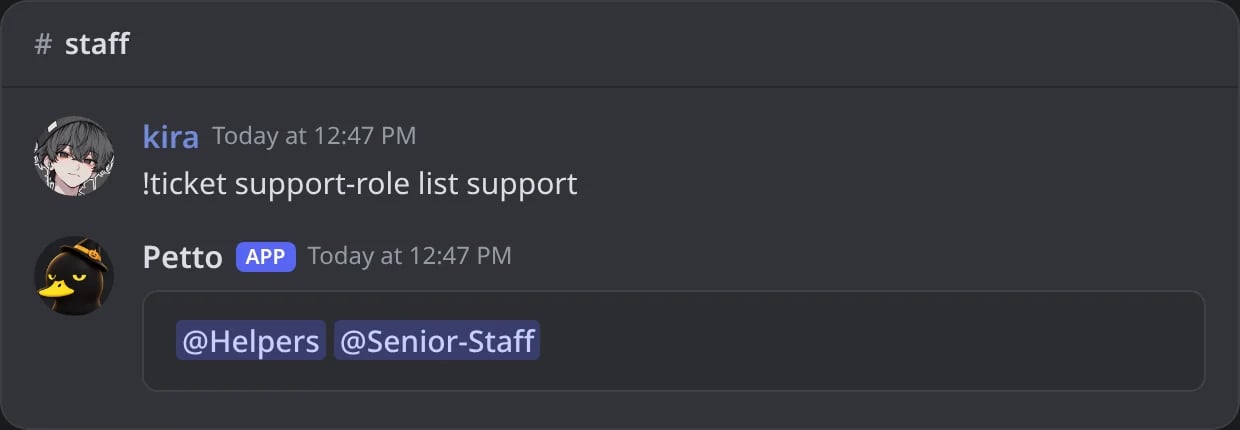
In Discord: the roles of a category.
!ticket ping-role add
!ticket ping-role add
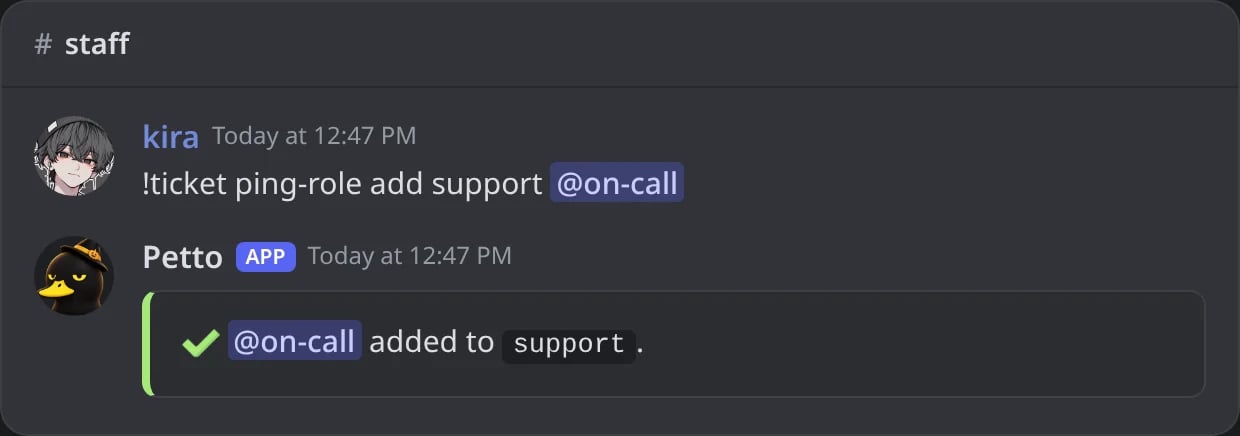
In Discord: a role added.
!ticket ping-role remove
!ticket ping-role remove
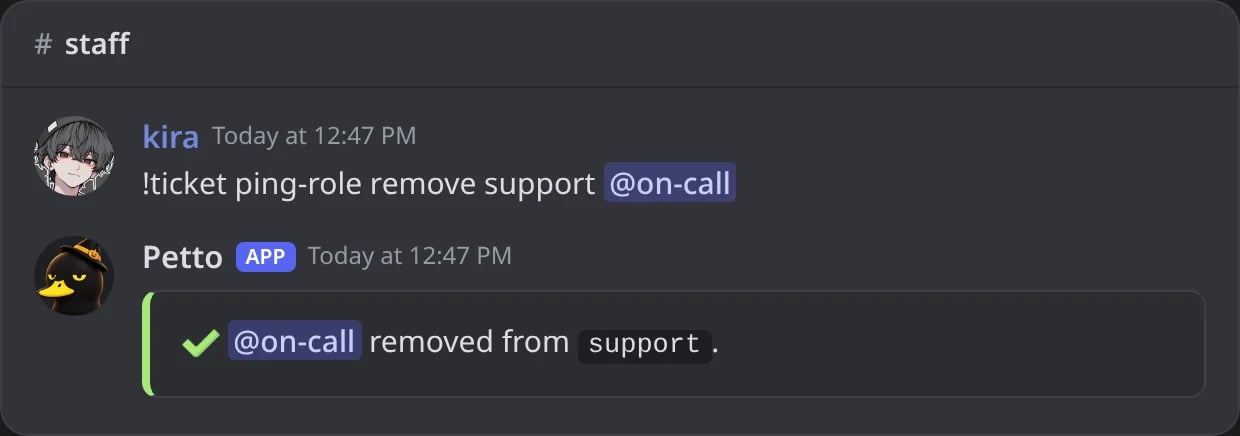
In Discord: a role removed.
!ticket ping-role list
!ticket ping-role list
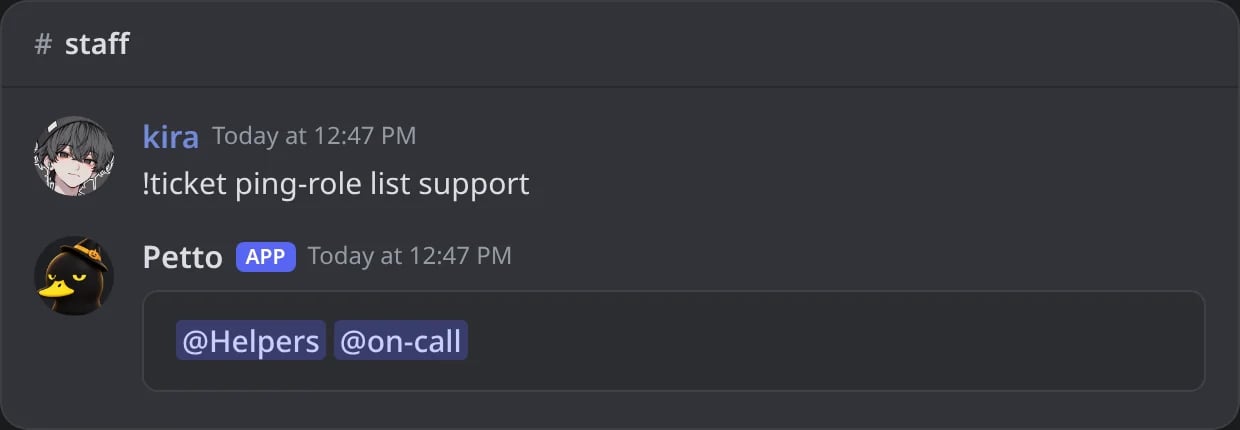
In Discord: the roles of a category.
Required roles
Limit a category to members that have a role (for example, a paid or verified role).!ticket required-role add
!ticket required-role add
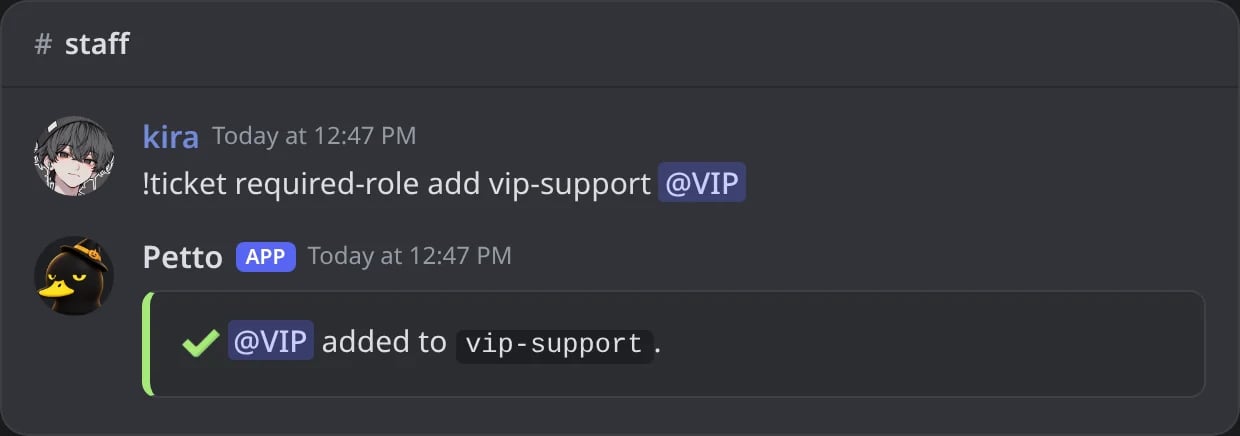
In Discord: a role added.
!ticket required-role remove
!ticket required-role remove
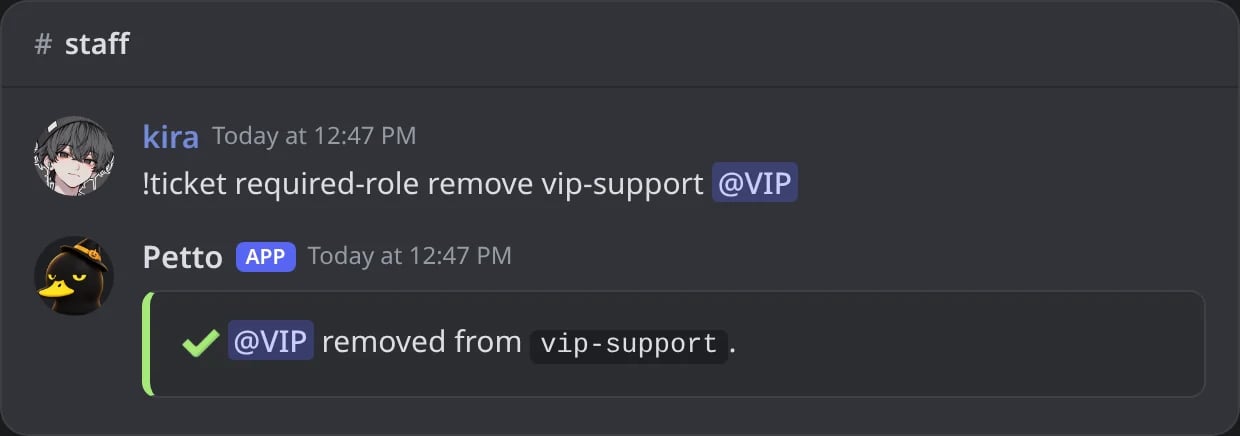
In Discord: a role removed.
!ticket required-role list
!ticket required-role list
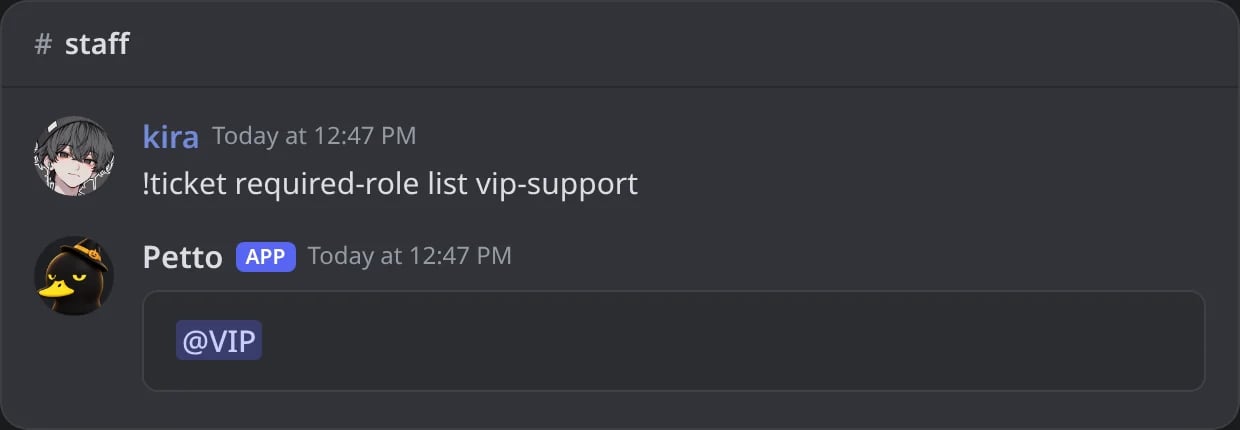
In Discord: the roles of a category.
A member without the role
A member without the role
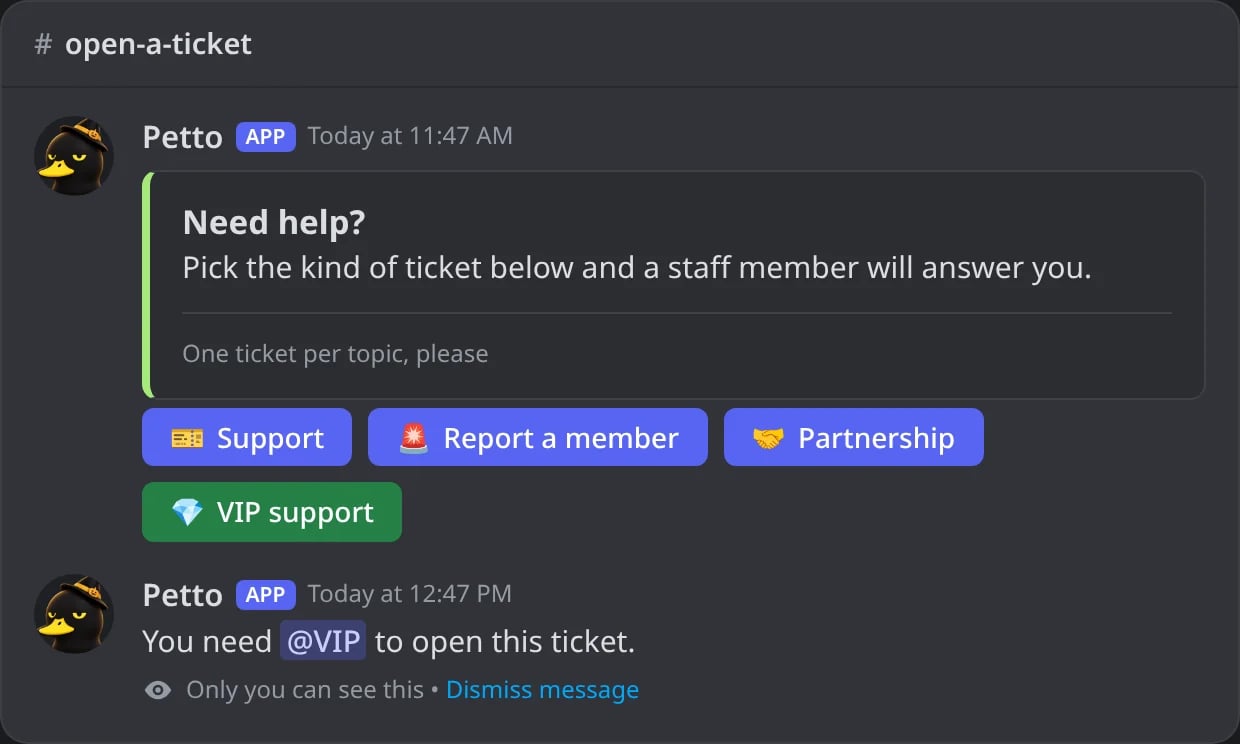
In Discord: a member without @VIP presses VIP support.
!ticket blacklist add
!ticket blacklist add
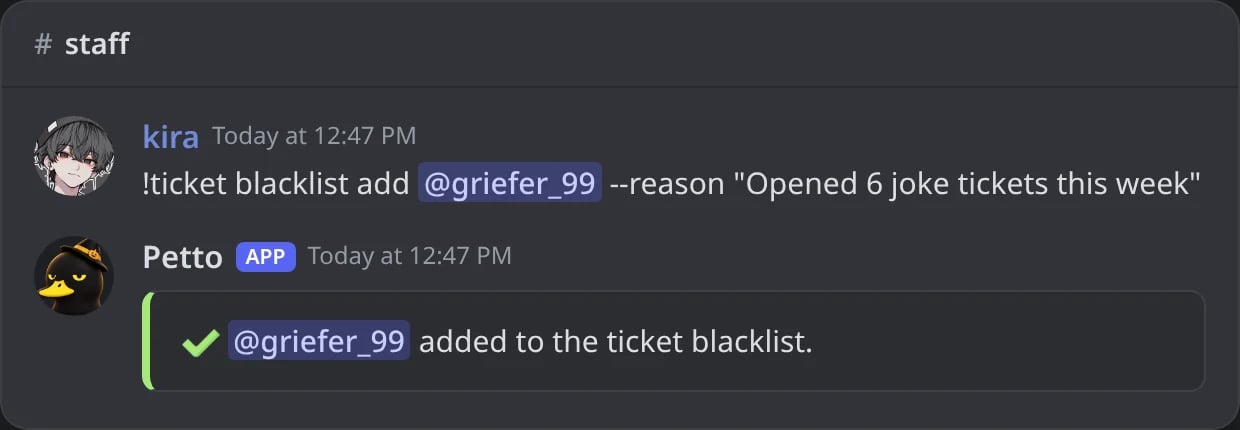
In Discord: a member blocked from tickets, with a reason.
!ticket blacklist remove
!ticket blacklist remove
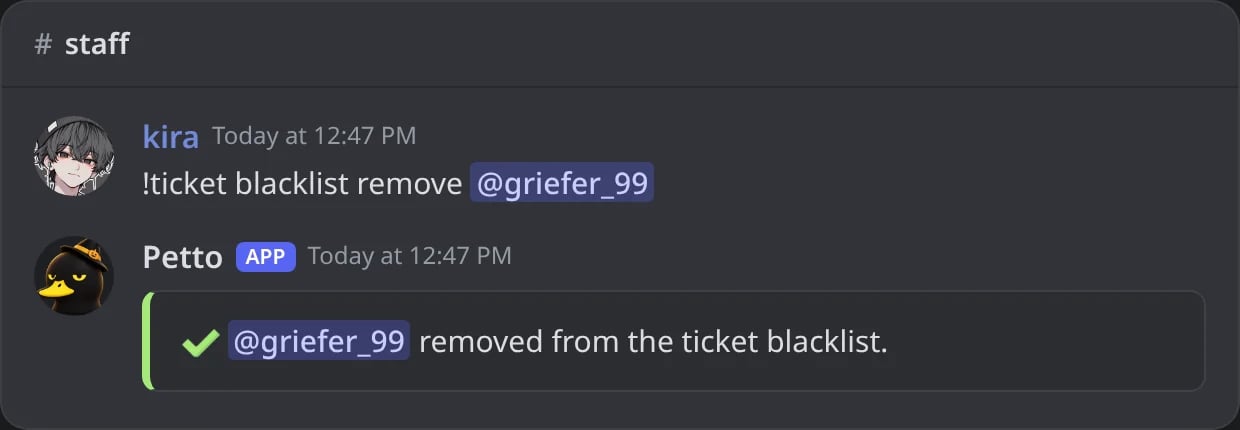
In Discord: a member taken out of the blacklist.
!ticket blacklist list
!ticket blacklist list
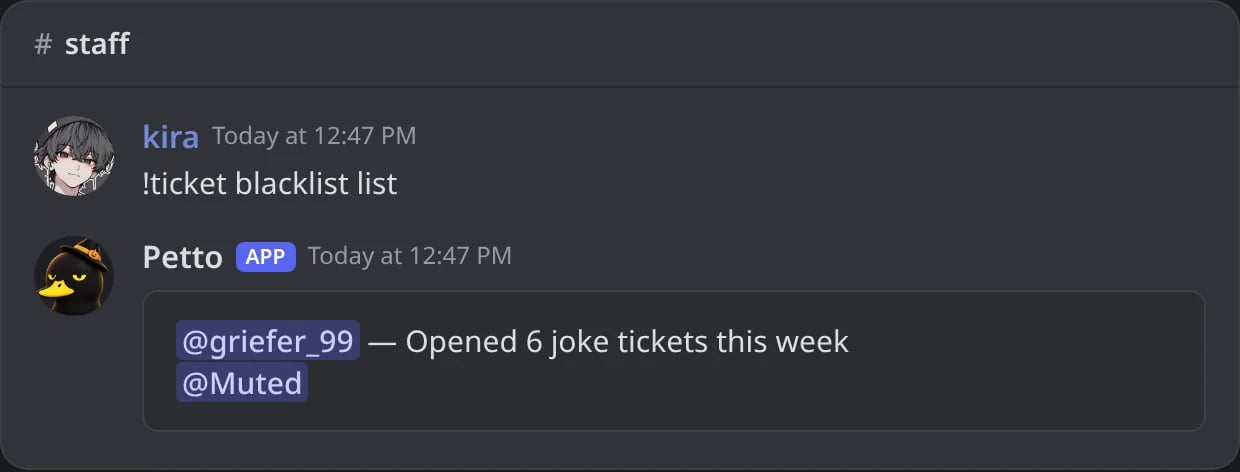
In Discord: who cannot open tickets.
Dashboard
Dashboard
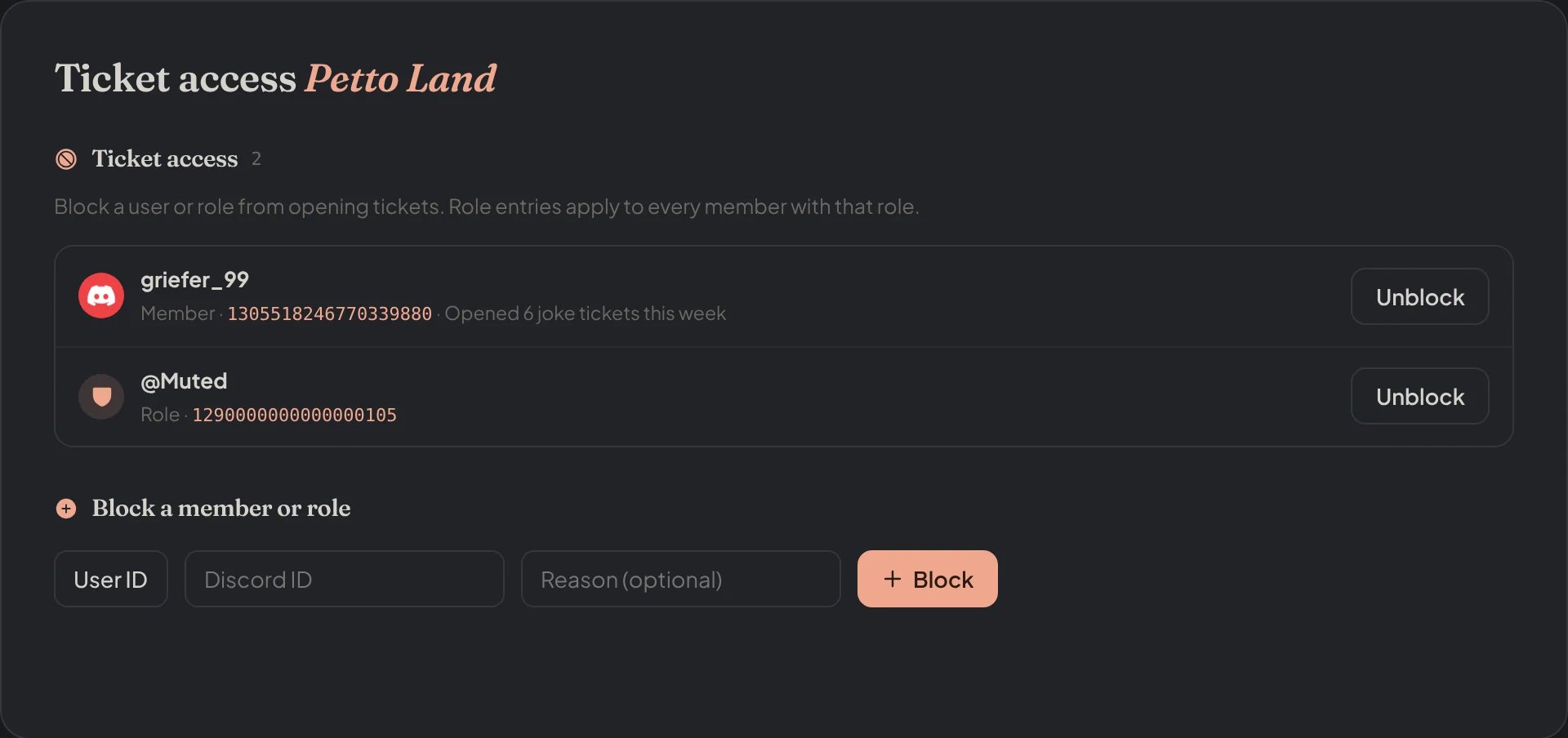
Dashboard → Community → Ticket Access: the blocked members and roles.
Staff hours and limits
In Ticket Settings you can set:- Open tickets at the same time per member, for the whole server (0 for no limit). Each type has its own limit too.
- Staff hours: days, from and until, and a timezone. Outside them the ticket opens with a note that says when the staff answers (you can write the message, with
{start},{end}and{timezone}, for exampleOur team is offline. We answer from {start} to {end} ({timezone}).), or you can choose to not let tickets open at all.
Server limit reached
Server limit reached
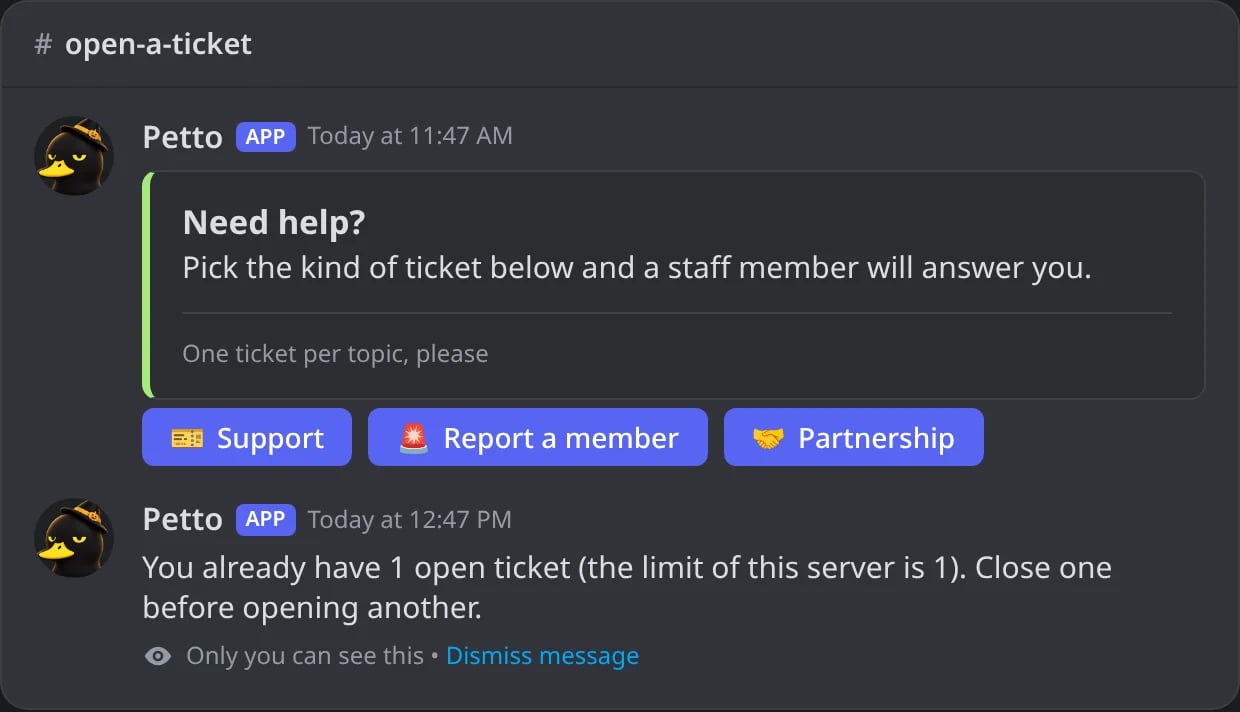
In Discord: a member at the limit of the server tries to open another ticket.
Outside the staff hours
Outside the staff hours
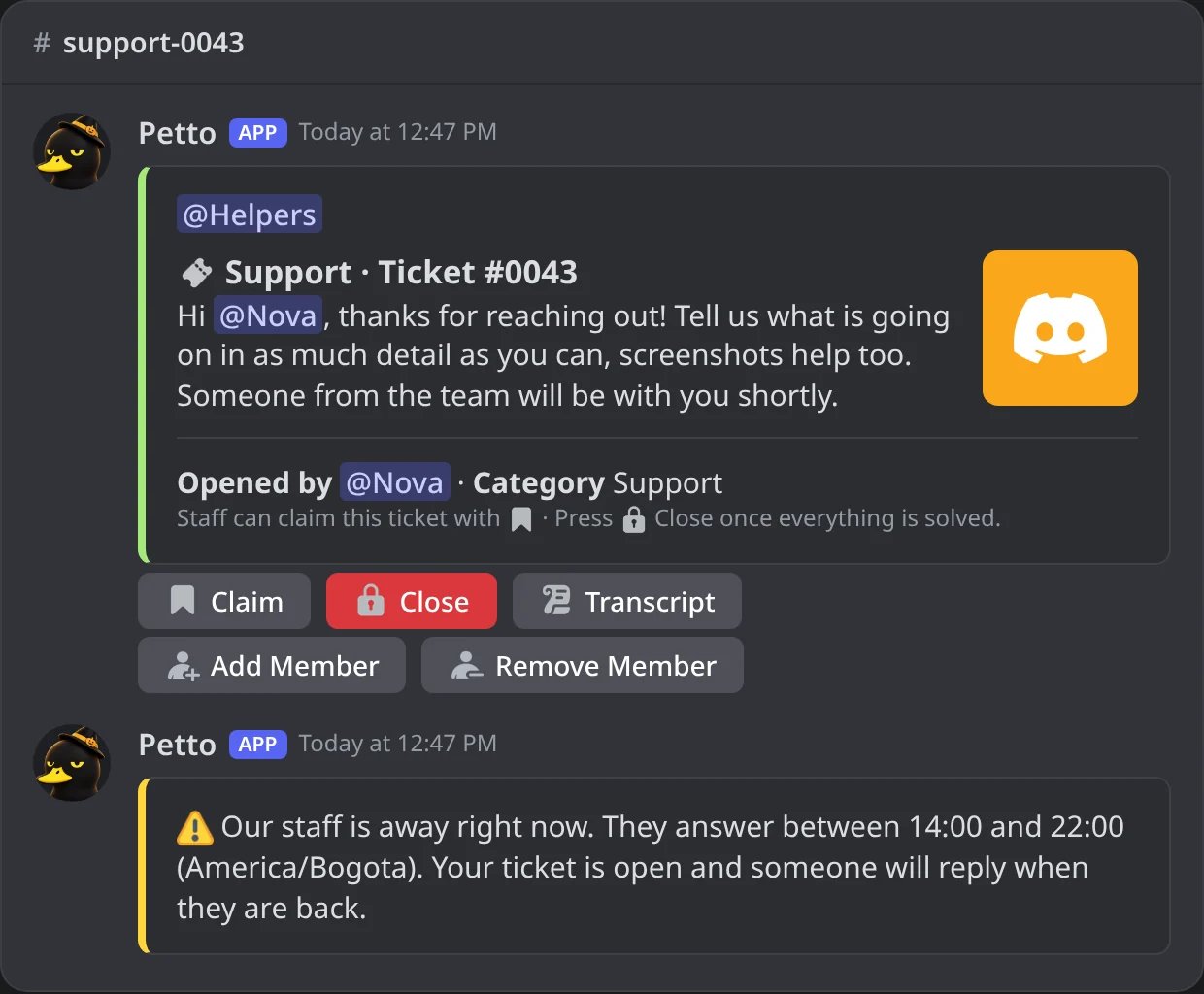
In Discord: a ticket opened outside the staff hours gets the note.
- Reminder for unclaimed tickets: after the minutes you choose, the support roles of the type are pinged once in a ticket nobody has claimed (0 for no reminder).
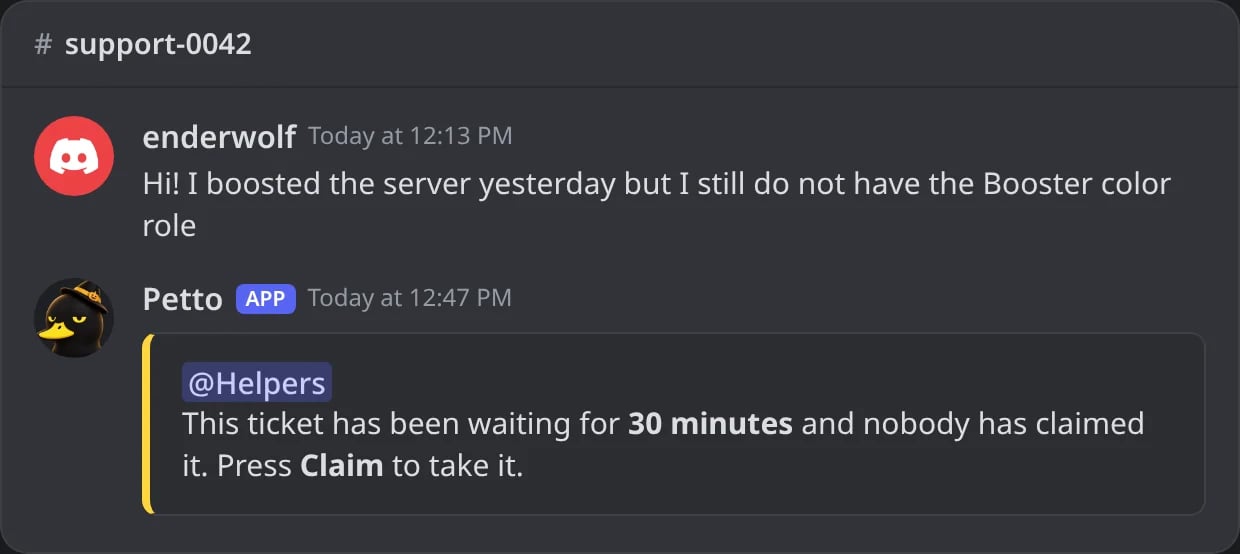
In Discord: nobody claimed the ticket in 30 minutes, so its support roles are pinged once.
- Automatic deletion: the channel of a closed ticket is deleted after the hours you choose (the transcript is kept). 0 keeps the channels until someone deletes them.
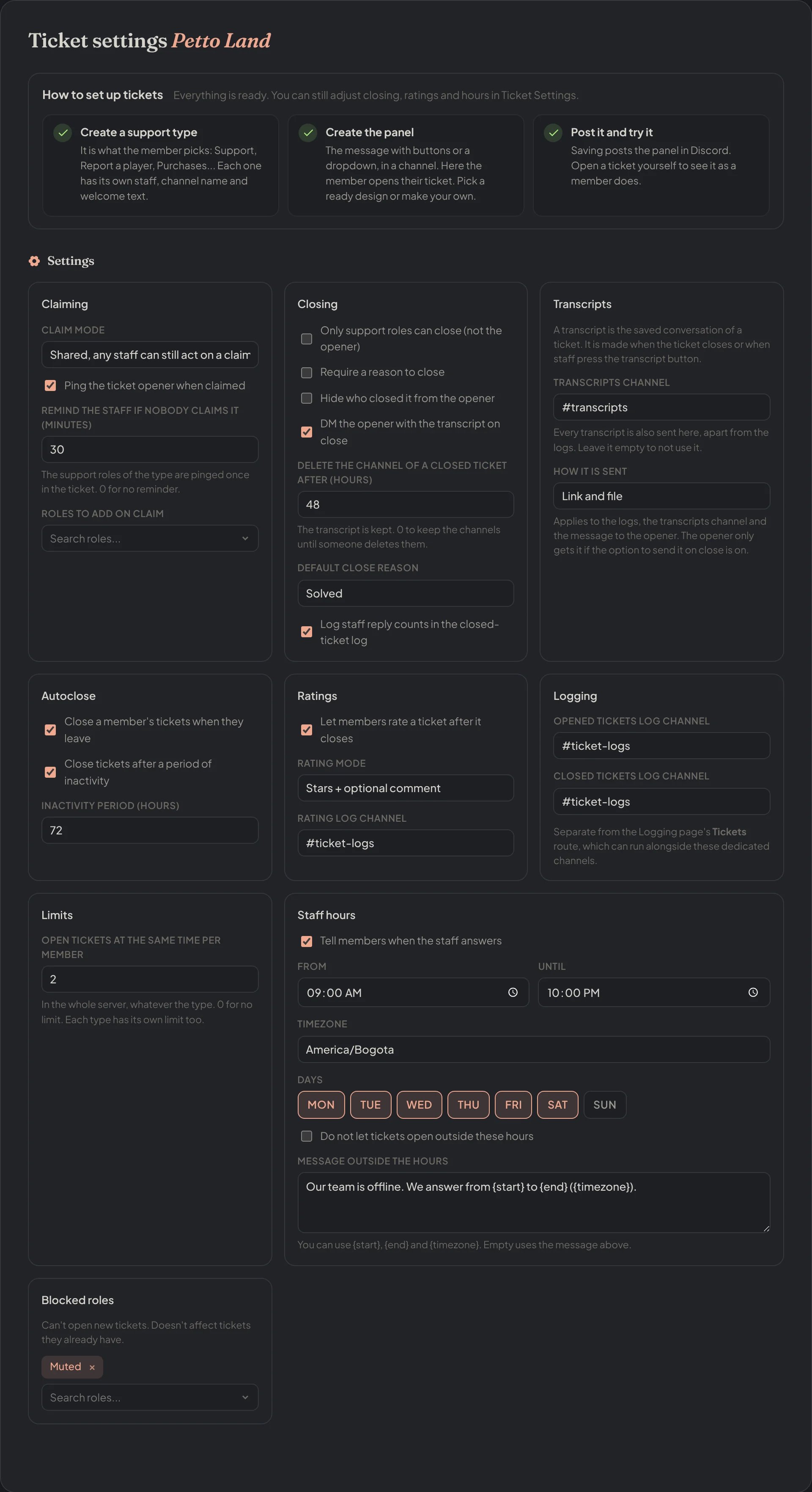
Dashboard → Community → Ticket Settings: claiming, closing, transcripts, autoclose, ratings, logs, limits, staff hours and blocked roles.
Quick replies
Texts the staff send inside a ticket with one command, for the questions that come up again and again.!quickreply add
!quickreply add
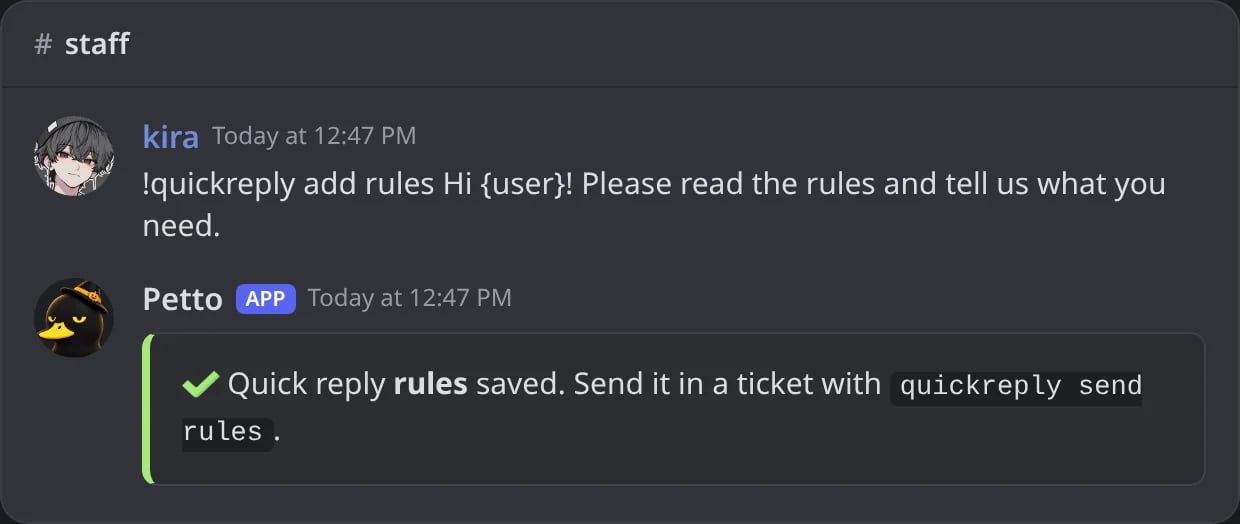
In Discord: a quick reply saved.
!qr send
!qr send
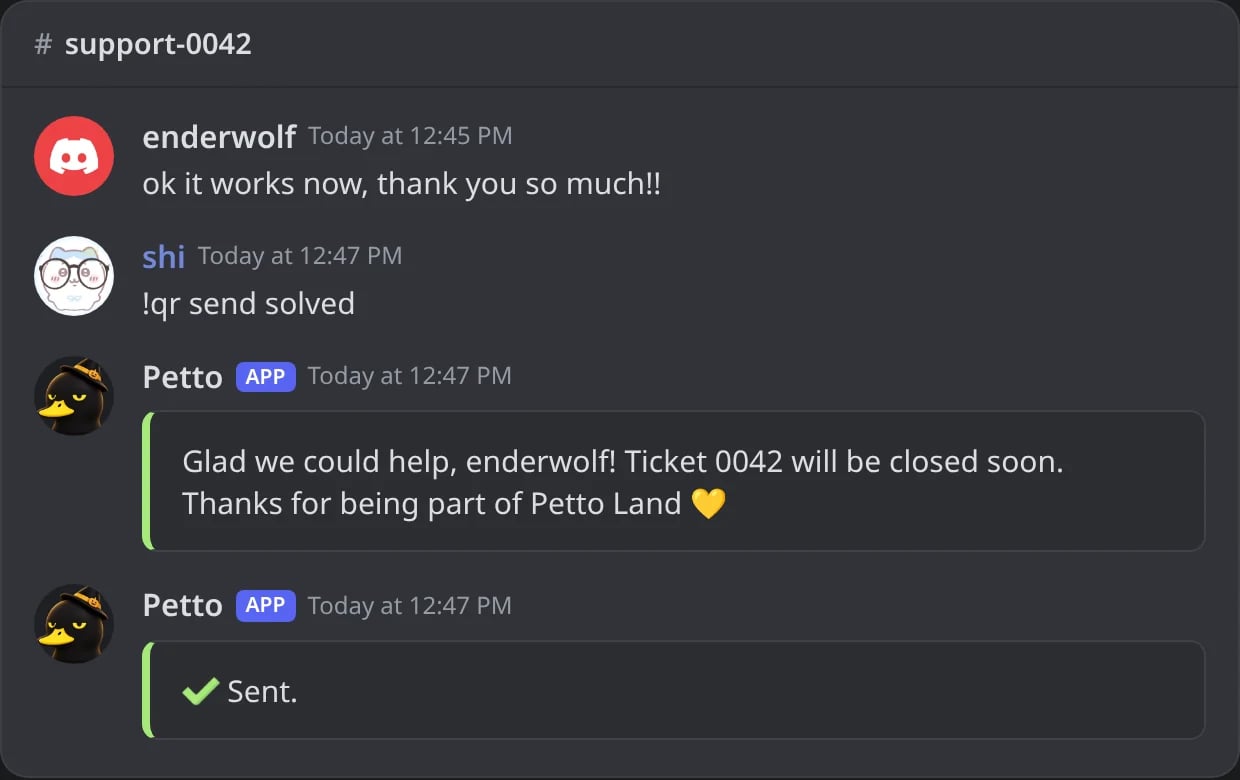
In Discord: a quick reply sent in a ticket.
!quickreply list
!quickreply list
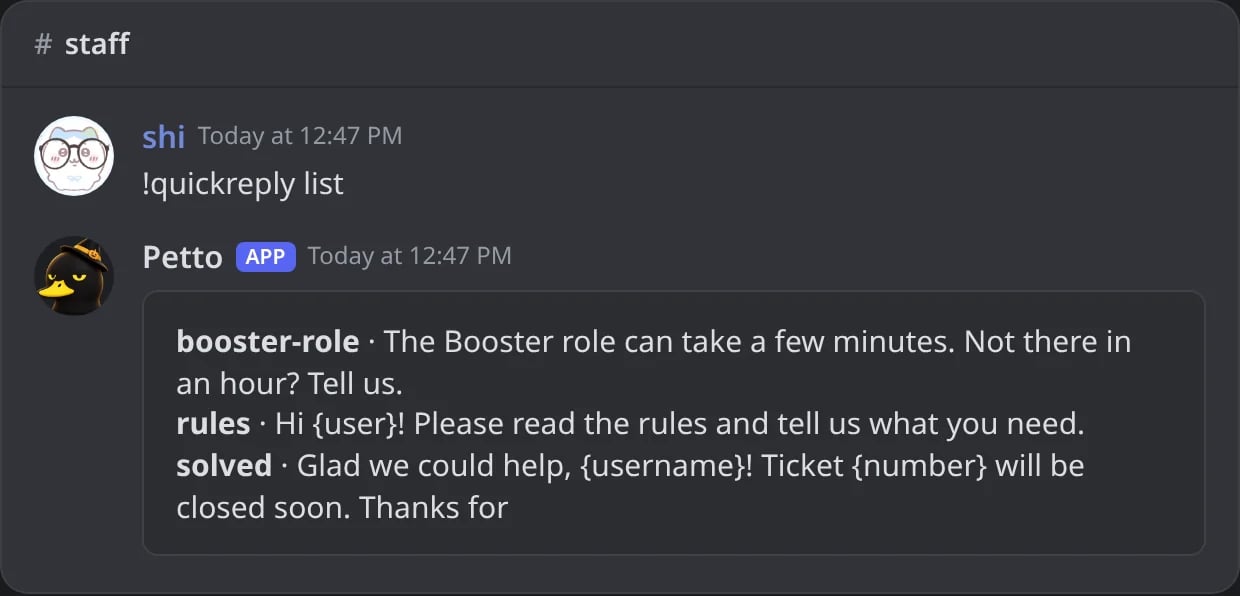
In Discord: the quick replies of the server.
!quickreply remove
!quickreply remove
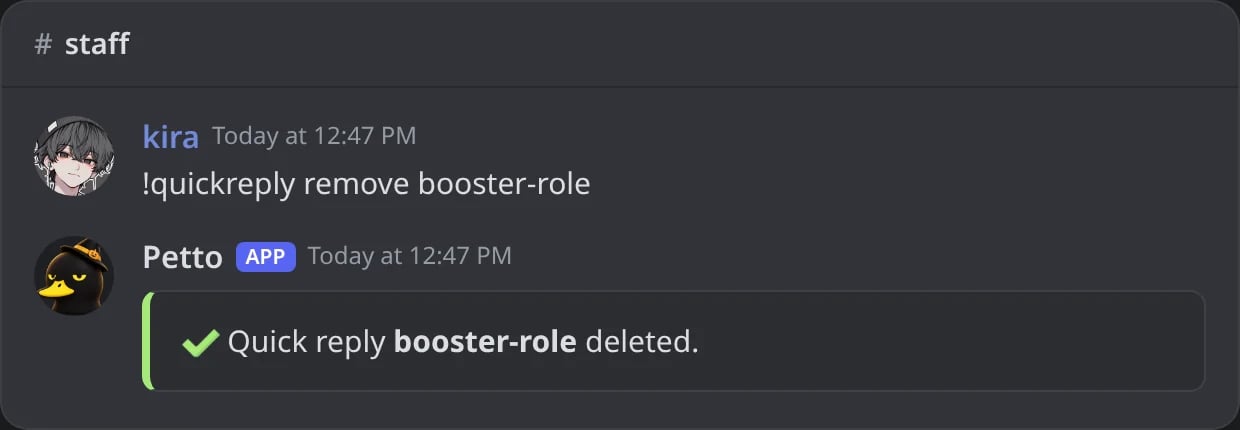
In Discord: a quick reply deleted.
add and remove need Manage Server; send only works inside an open ticket and only for its staff. You can use {user}, {username}, {category}, {server} and {number}. You can keep up to 50, and they can also be managed in the dashboard (Quick replies).
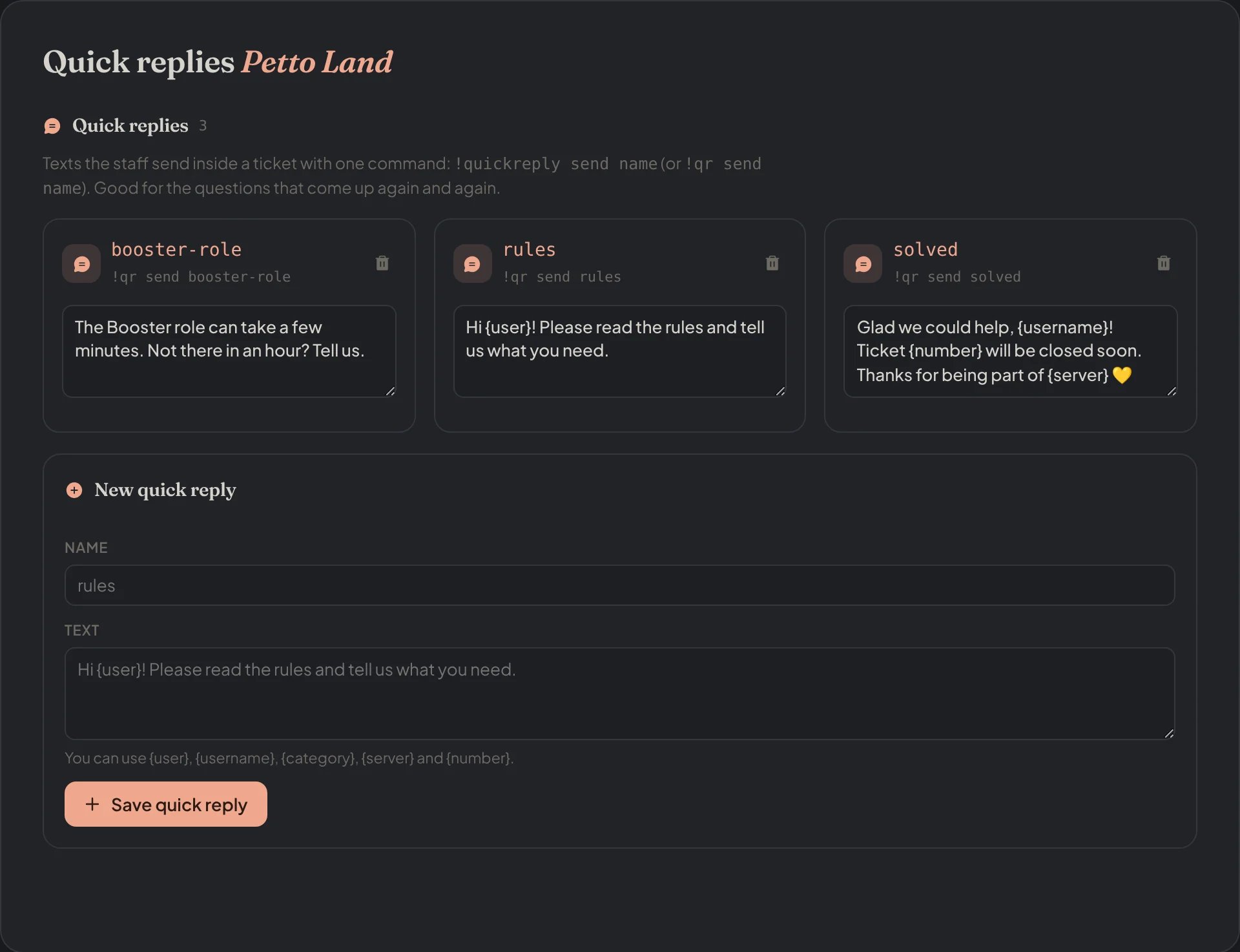
Dashboard → Community → Quick replies: the saved texts and a new one.
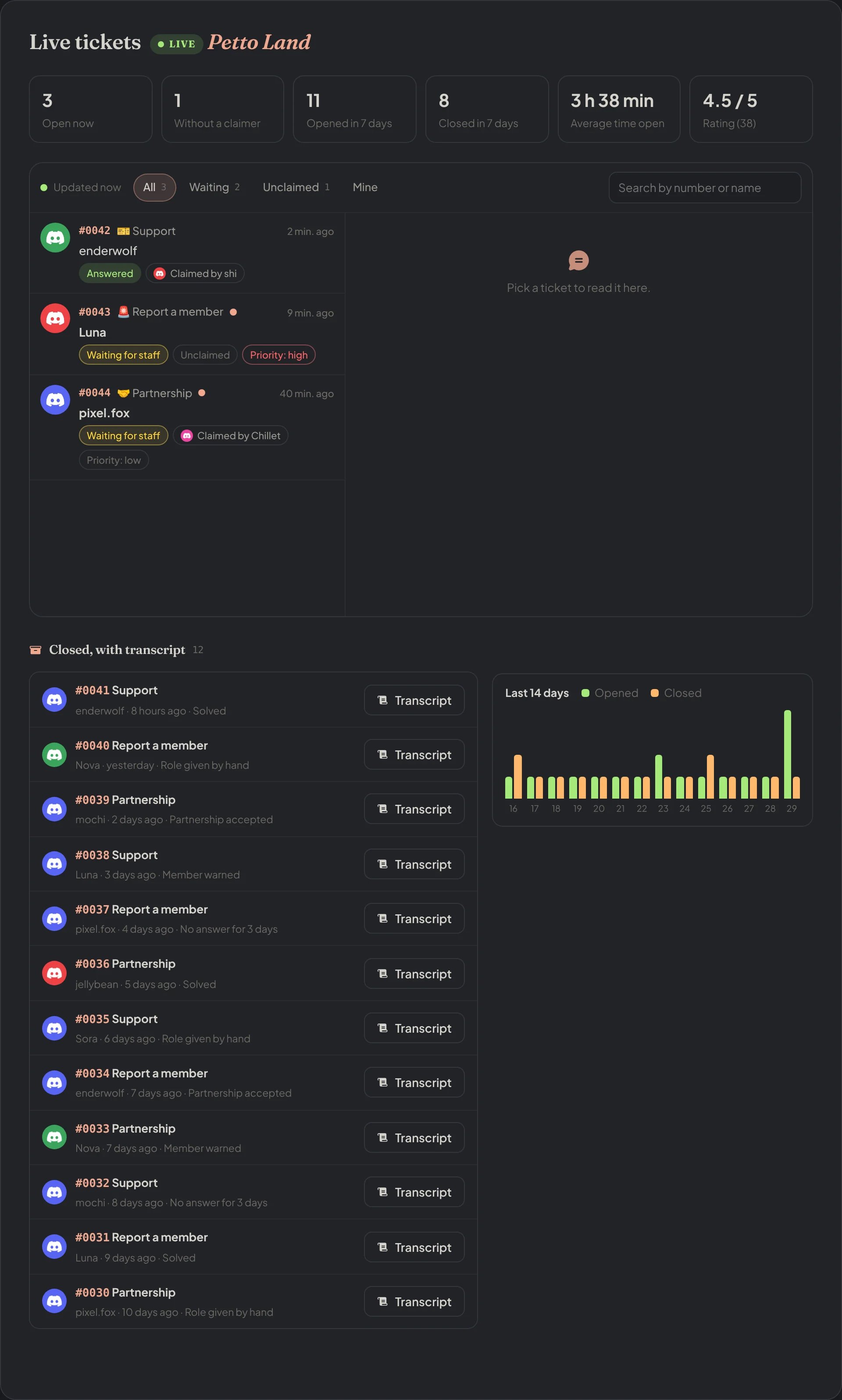
Dashboard → Community → Live tickets: the numbers, the open tickets and the closed ones with a transcript.
Ticket AI (soon)
The AI assistant for tickets is a closed beta: only the servers the Petto team turned it on for see an AI assistant page under Community → Tickets, and only there it can greet members and write first answers in tickets. Other servers have no such page yet. It will be a separate Premium product, sold on its own and not included in the Premium plan.!ticket stats (Manage Server) shows the numbers of your tickets: how many are open and unclaimed, opened and closed in the last 7 and 30 days, the average time a ticket stays open, the average rating and who claims the most.
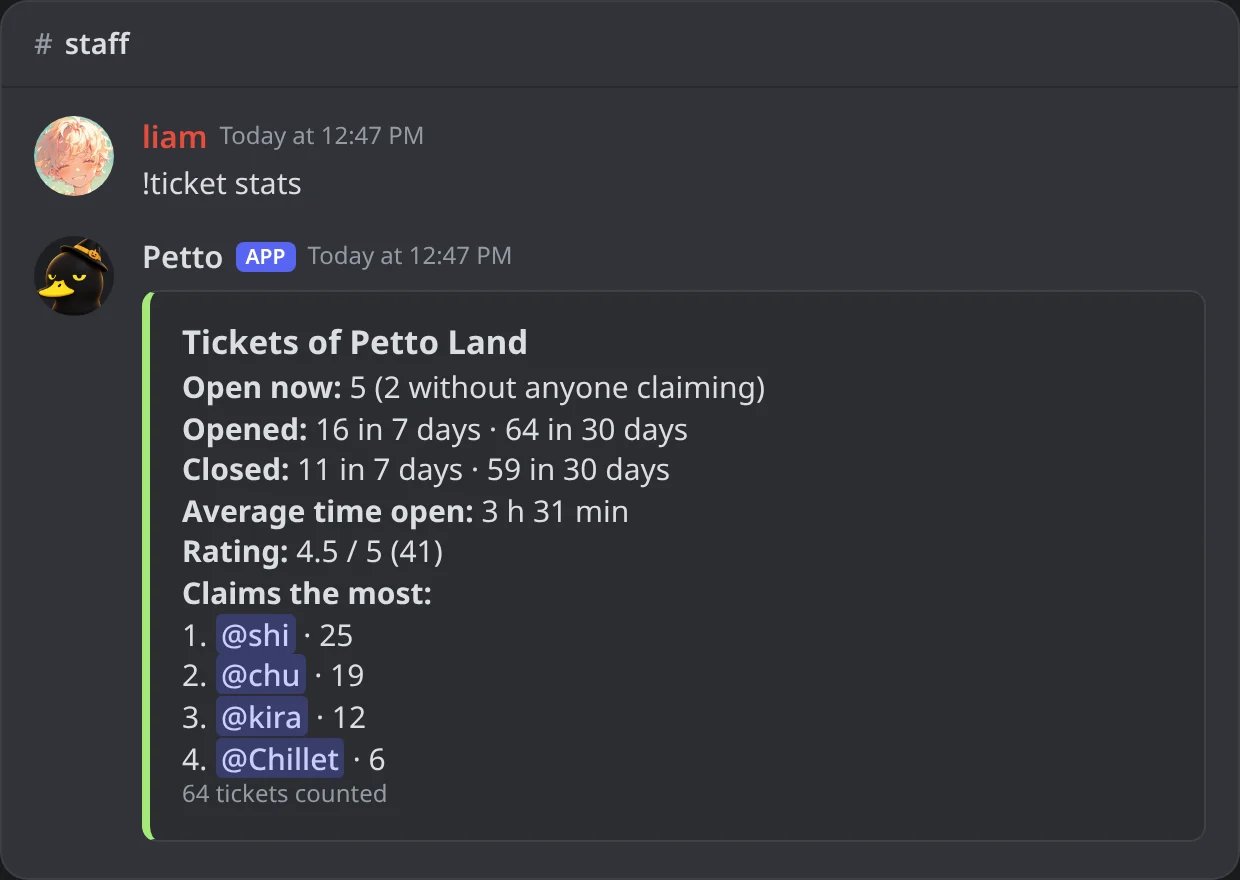
In Discord: the numbers of the tickets of the server.
From <server> line and have info, delete and report buttons: see DMs from Petto.
Transcripts
A transcript is the saved conversation of a ticket. It is made when the ticket closes, or when staff press the transcript button. In Ticket settings > Transcripts you choose:- Transcripts channel: every transcript is also sent there, apart from the logs. Empty means it is not used.
- How it is sent: automatic (a link, or the file if the server has no link), only the link, only the HTML file, or both. It applies to the logs, the transcripts channel and the message to the opener (who only gets it if the option to send it on close is on).
Ticket settings: Transcripts
Ticket settings: Transcripts
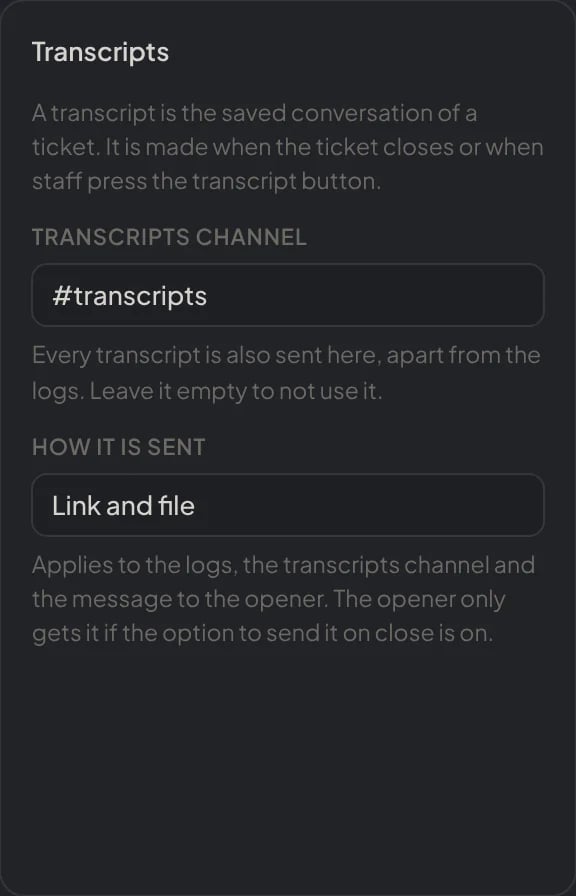
Dashboard → Community → Ticket Settings: the Transcripts card.
The transcripts channel
The transcripts channel
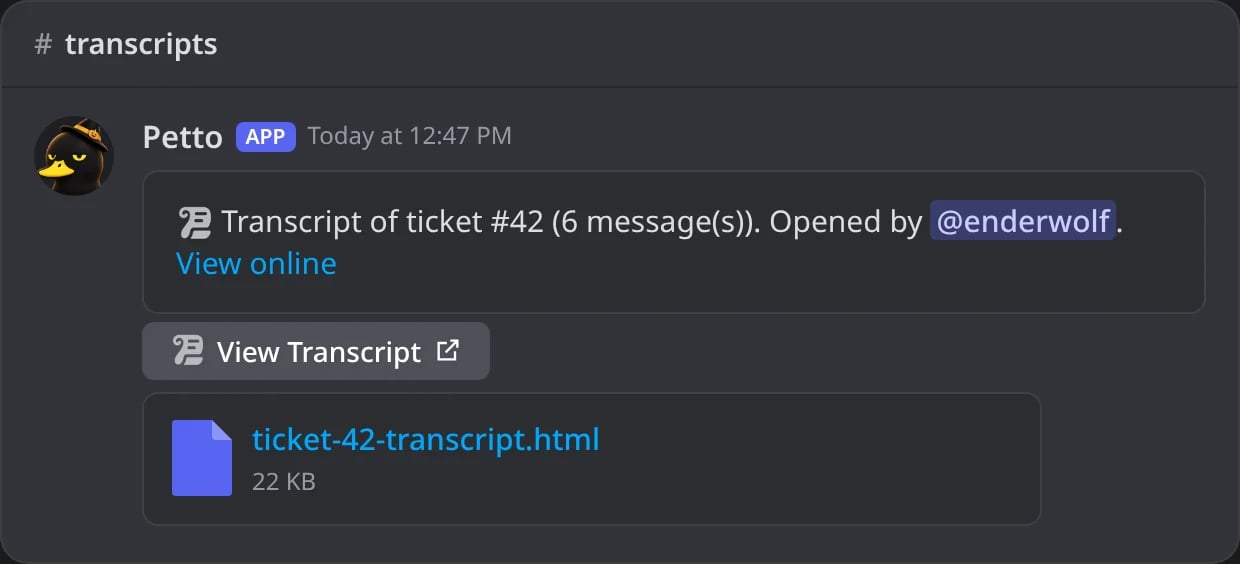
In Discord: the transcript of a closed ticket in the transcripts channel, with the link and the file.
The DM to who opened it
The DM to who opened it
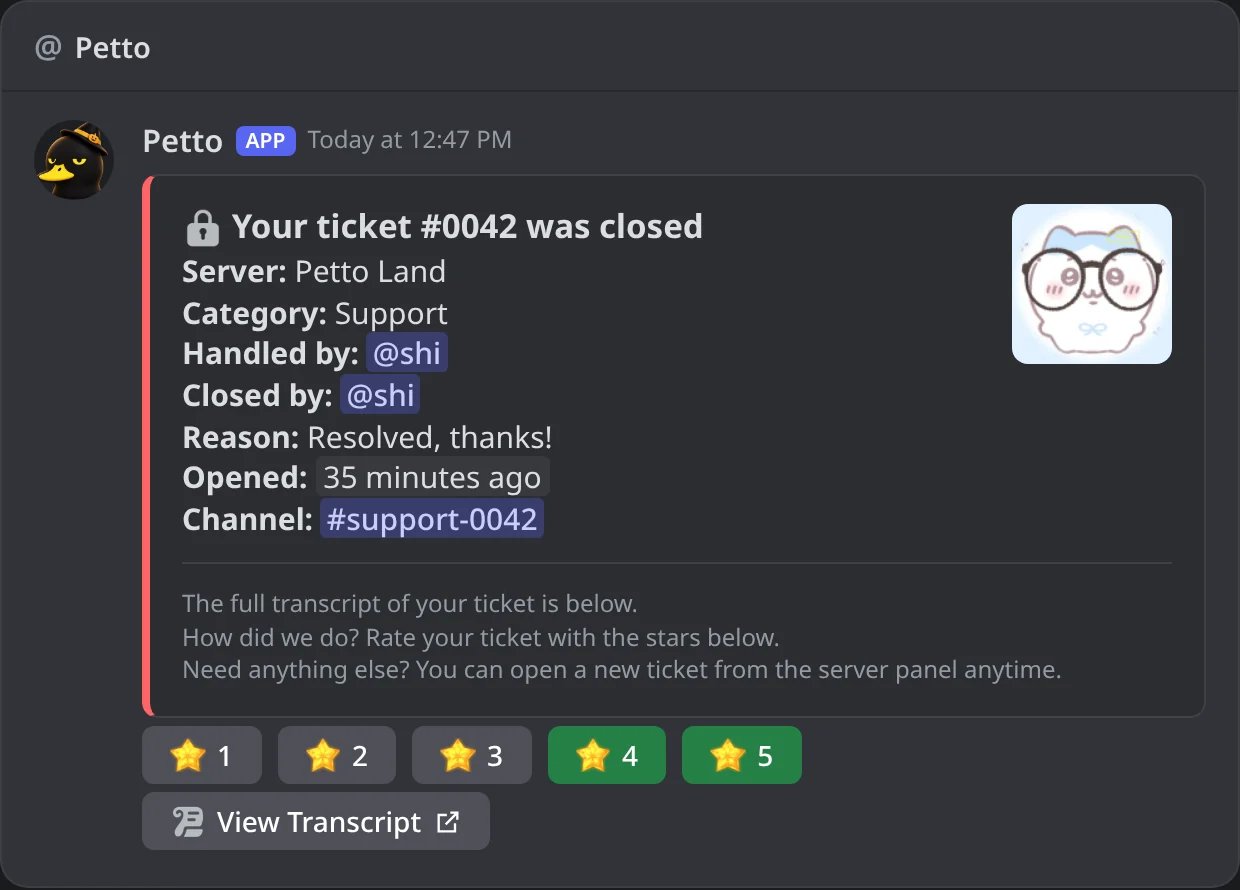
In Discord: the DM the member gets when the ticket closes.
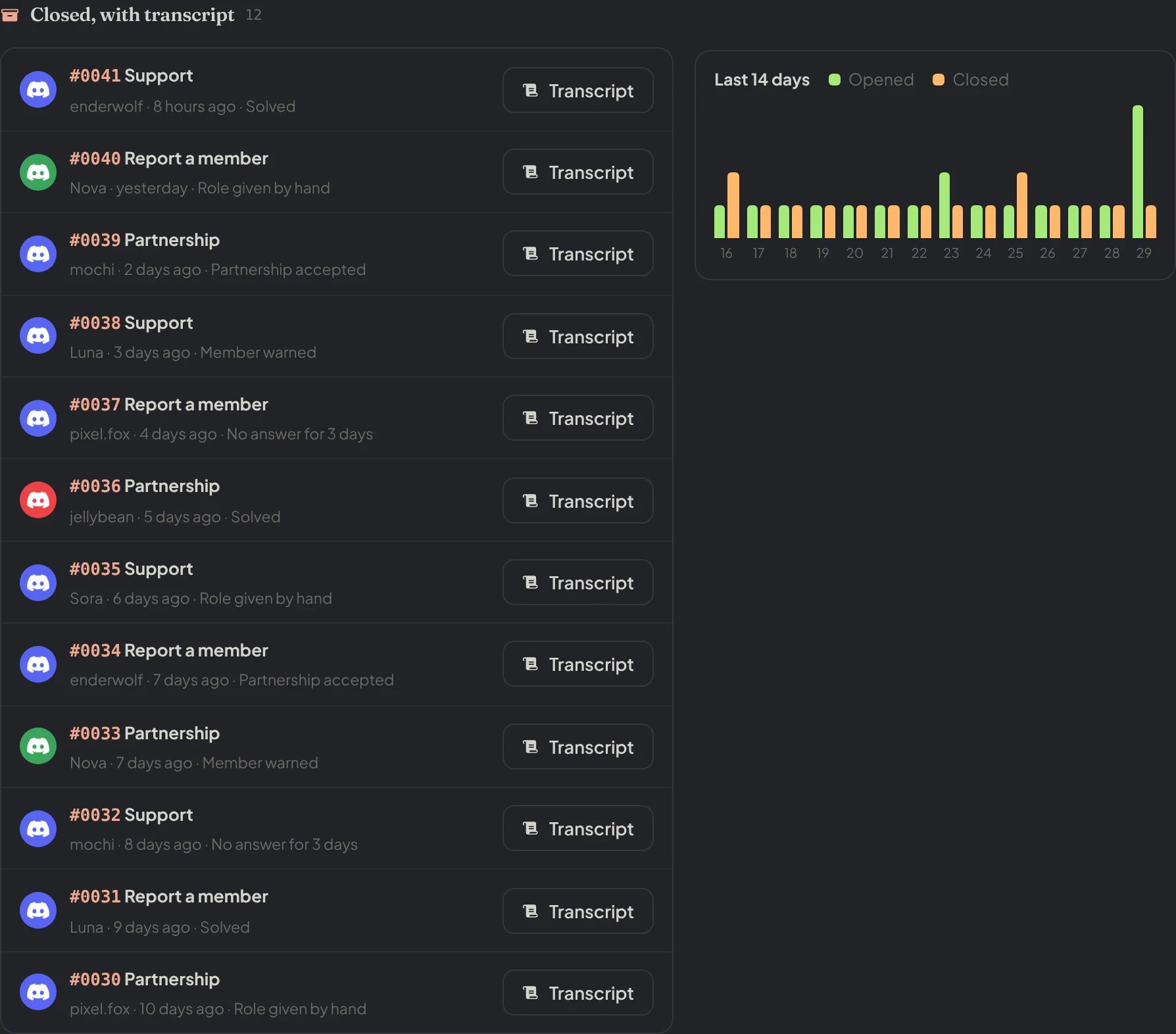
Dashboard → Community → Live tickets: the closed tickets with a transcript.
Forms
A form is a short questionnaire (a Discord pop-up) shown to the member before the ticket opens, so staff get the details they need up front. Create a form once and attach it to any category.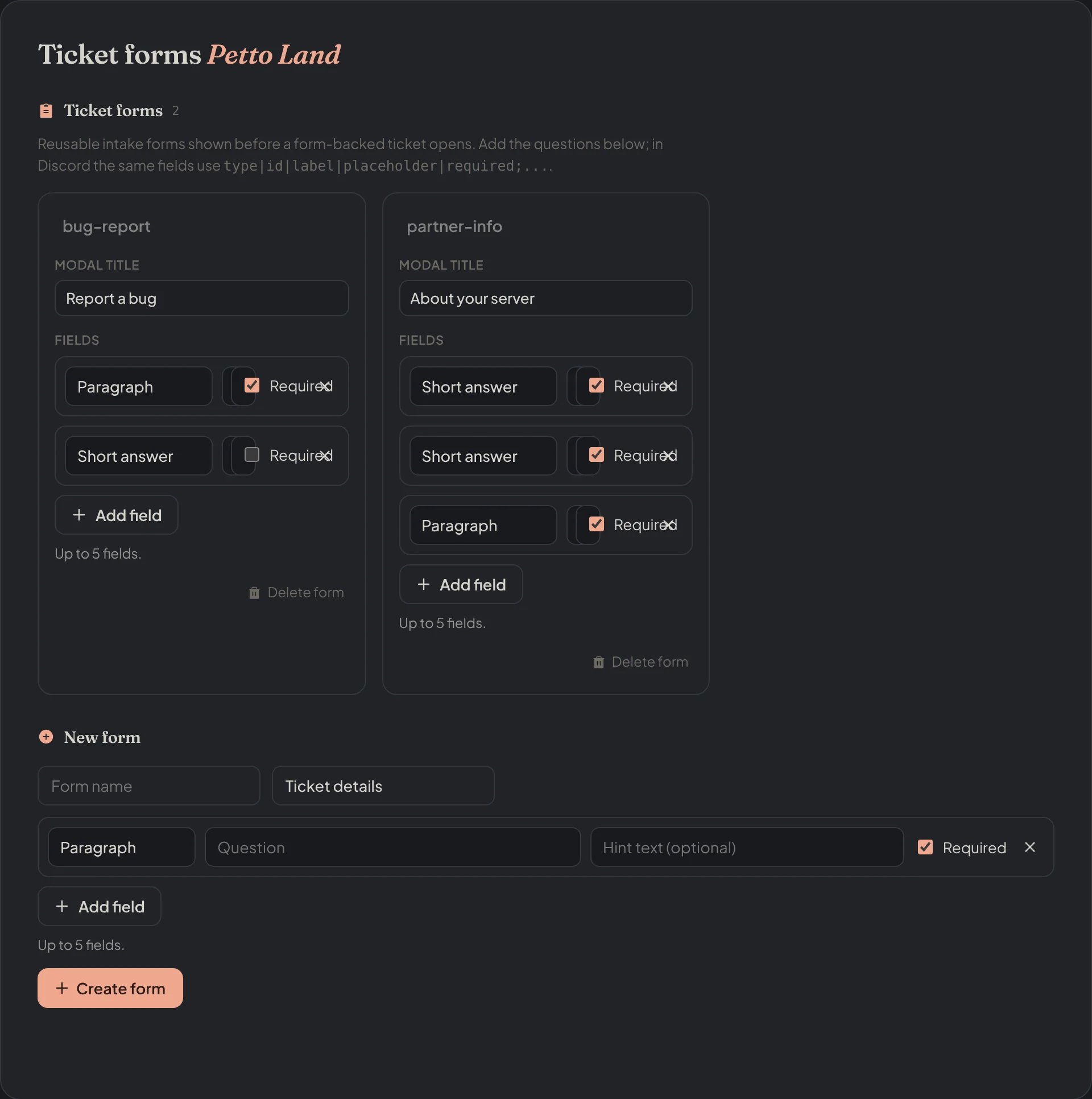
Dashboard → Community → Ticket Forms: the forms and their fields.
!ticket form create
!ticket form create
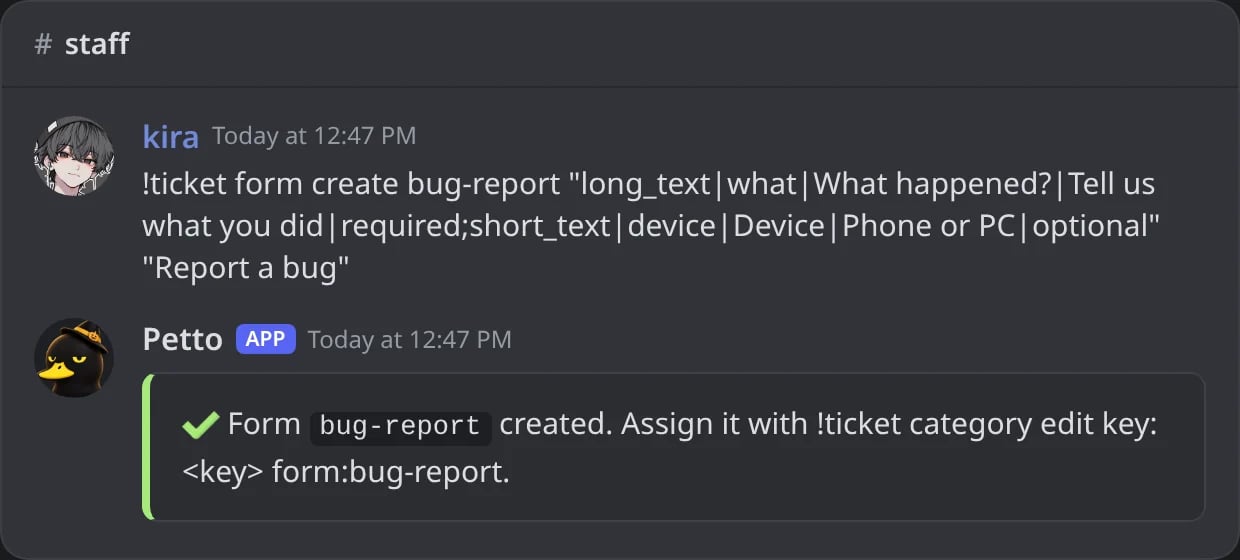
In Discord: a form made from its fields.
!ticket form edit
!ticket form edit
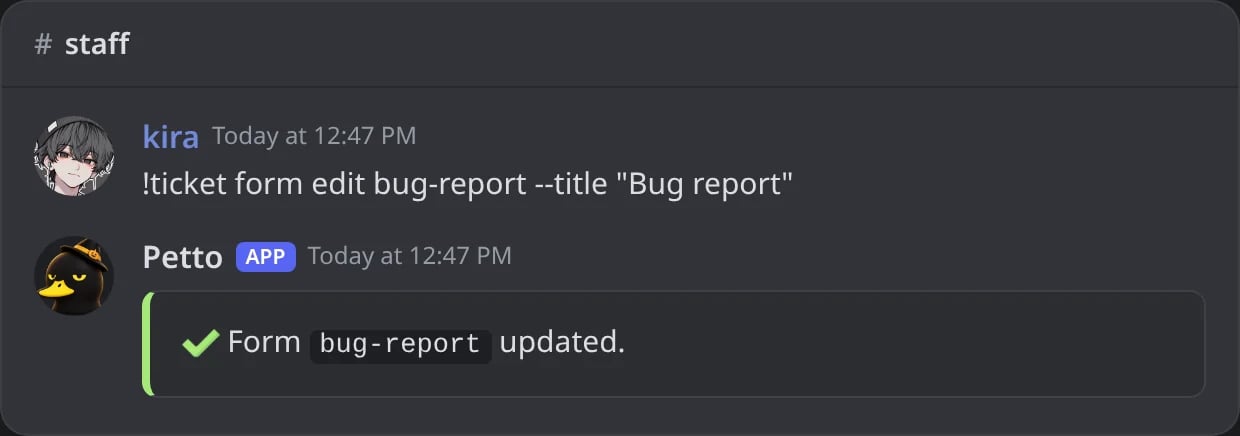
In Discord: a new title for a form.
!ticket form delete
!ticket form delete
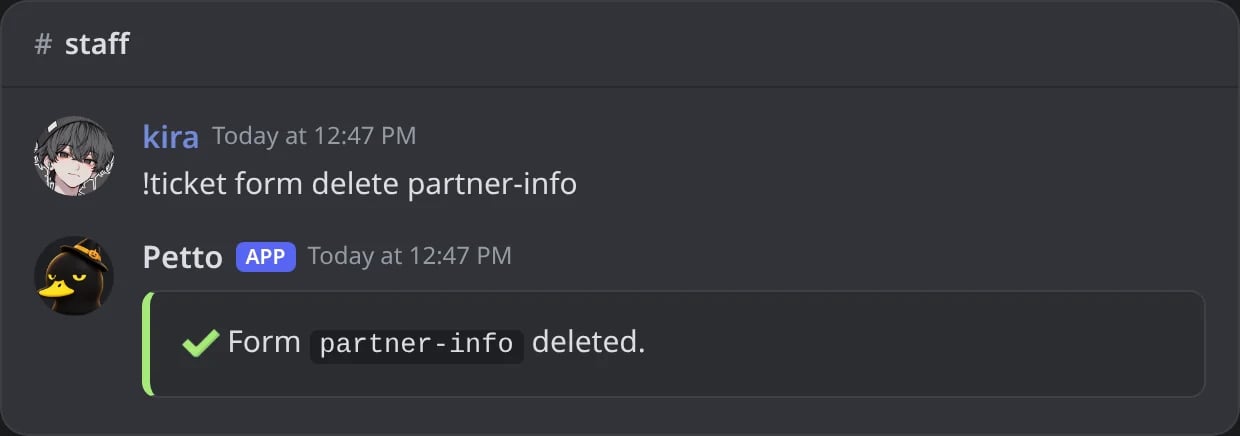
In Discord: a form deleted.
!ticket form list
!ticket form list
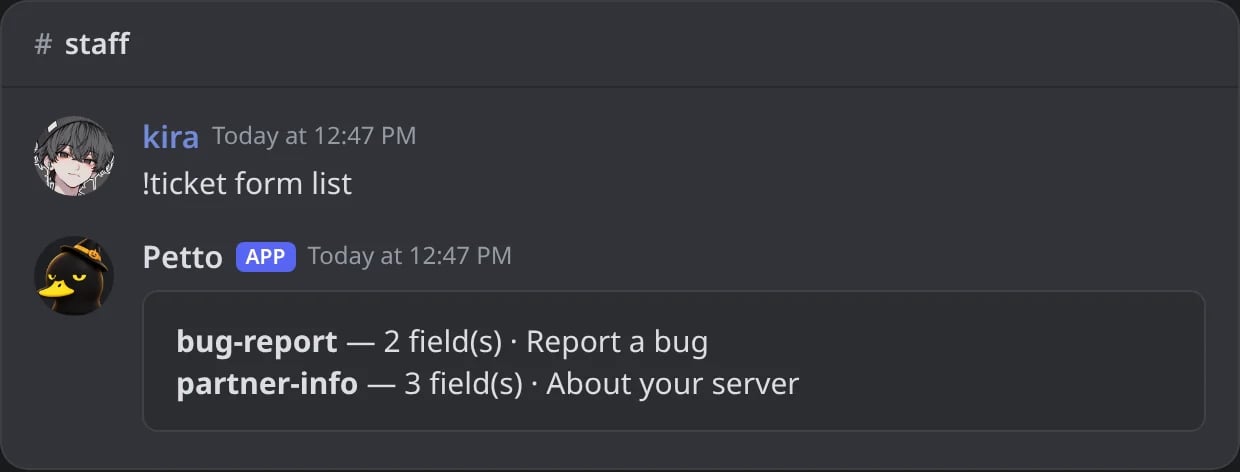
In Discord: the ticket forms of the server.
!ticket form create <name> (and !ticket form edit <name>), without fields, opens a panel where you add questions with a button (short answer, paragraph, choices, file upload, member, role or channel picker, or a text), set a hint and whether each one is required, remove the last one, change the title and save. The dashboard has a fuller builder, with every kind of question. The fields text below still works for anyone who prefers it.
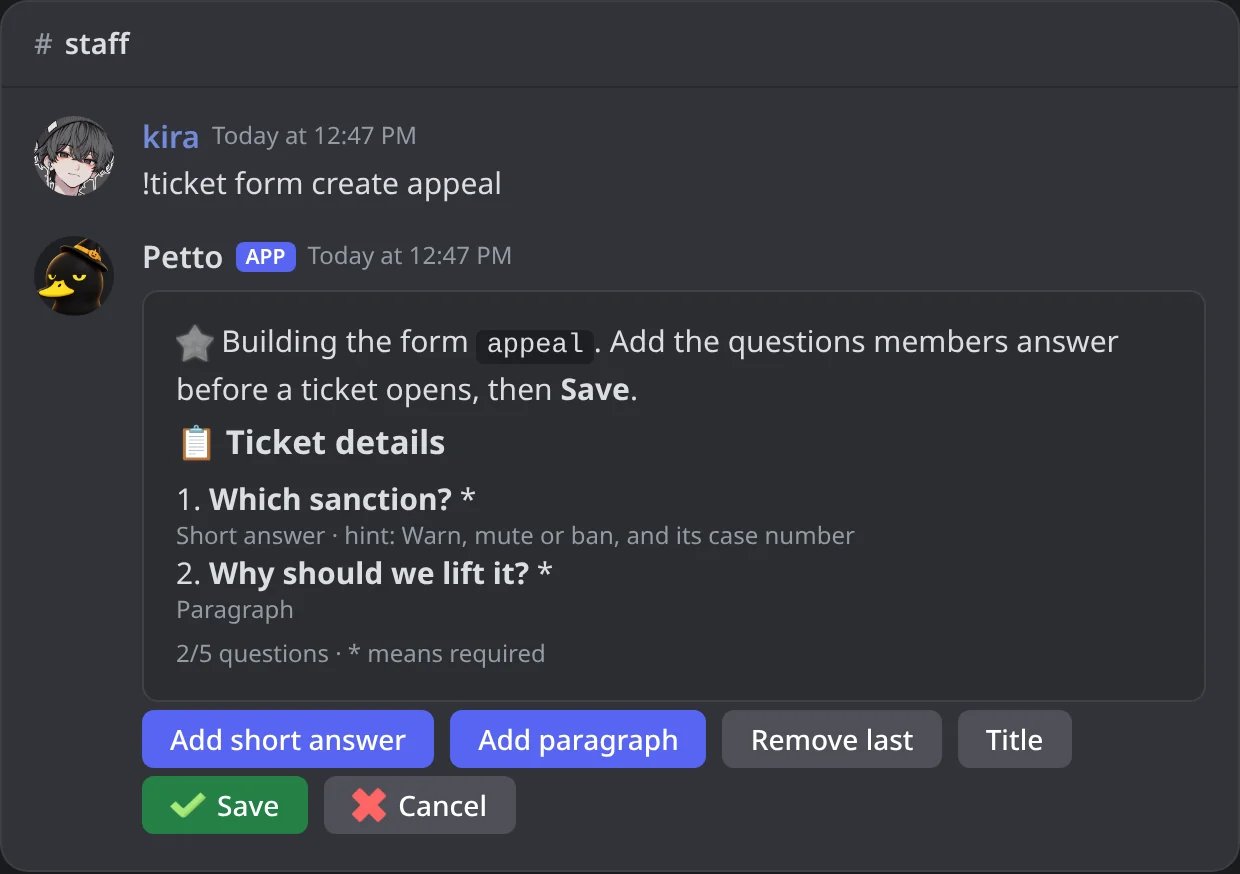
In Discord: the form builder with two questions.
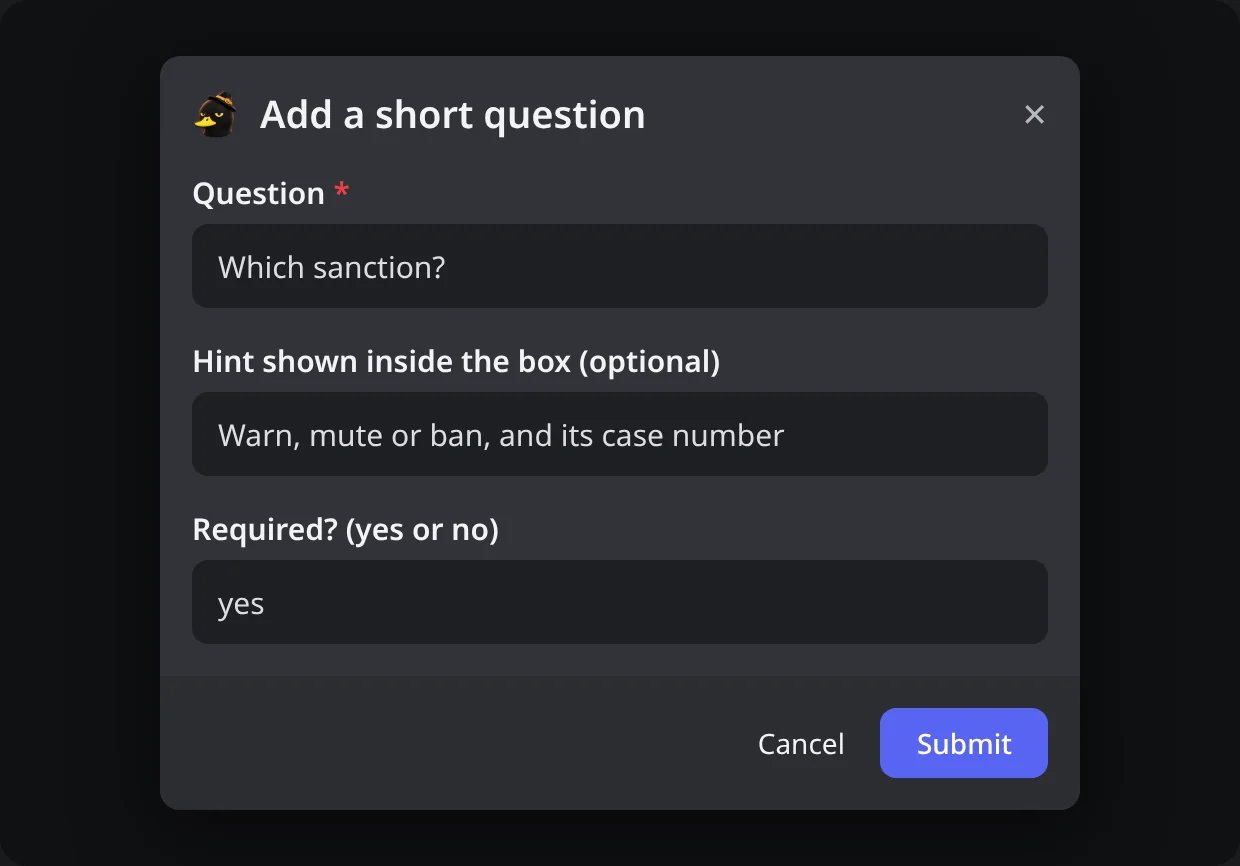
In Discord: Add short answer asks for the question, a hint and whether it is required.
fields are 1 to 5 fields separated by ;, and each field is type|id|label|placeholder|required:
title is the title of the pop-up, up to 45 characters (default “Ticket details”). The answers are posted in the new ticket, and saved with it.
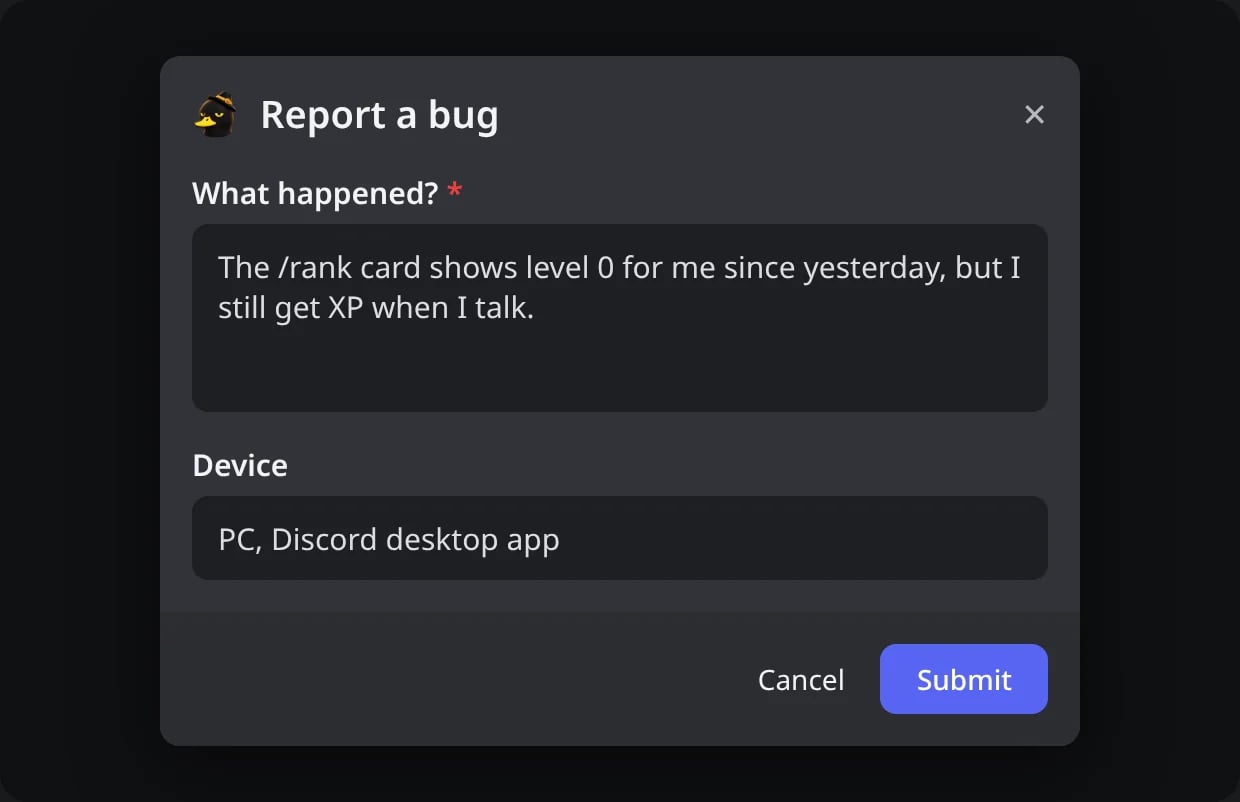
In Discord: the form a member fills before the ticket opens.
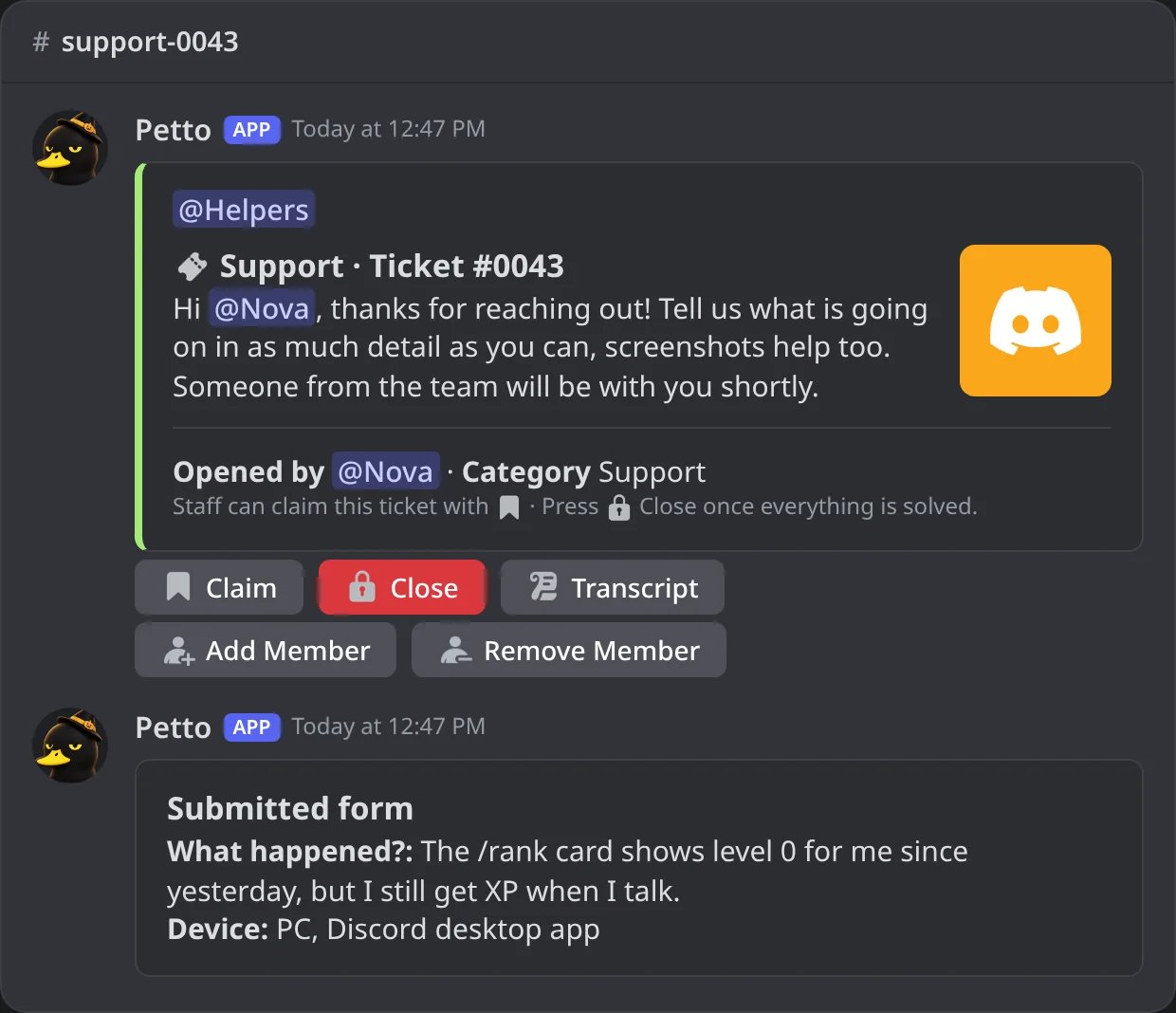
In Discord: the answers, posted in the new ticket.
Kinds of question
Besides short answers and paragraphs, a question can be any of these. A form still holds at most 5 parts (a text that only informs counts as one, it is a Discord limit) and at least one of them has to be something members answer.Pictures and files
Discord’s links to the files a member uploads in a form can stop working, so Petto copies each file into the ticket: it downloads it (only from public addresses, up to 8 MB per file, never more than the server’s upload limit) and uploads it again in the ticket channel, where it stays as long as the ticket does. A ticket copies up to 10 files.- Pictures (PNG, JPG, GIF and WebP) are drawn in the answers as a gallery.
- Other files are shown as files, with their name and size, ready to download.
- A question set to pictures only checks the type and the first bytes of each file. Anything else is refused with a private message in the form, and no ticket is opened.
- If a file cannot be copied (it is too big, the download failed or the ticket already has 10 files), the answers keep its link, name and size and say that the link may stop working.
How the answers look
The answers are posted in the new ticket, after the welcome message, and nobody is notified by them: mentions of members, roles and channels are shown but do not ping, and@everyone never works. A long answer is cut at 1000 characters, and when there is a lot of text, many files or a lot of weight, the answers continue in more cards. The transcript shows the same card, with the pictures drawn once and the files as links, and file names are shown as plain text.
In the dashboard (Community > Ticket Forms) each question has its own kind, the choices are written one per line, a file upload says whether it takes pictures only or any file and how many (1 to 5), a question can be required, the arrows move it up or down, and a preview shows the Discord window. It saves forms the same way as before, and the forms you already have keep working as they are.
Using a ticket
Ticket buttons fix themselves. A button pressed late, or on a ticket whose channel is already gone, no longer shows an error. If something really fails, Petto tells the member to try again and that the team was told.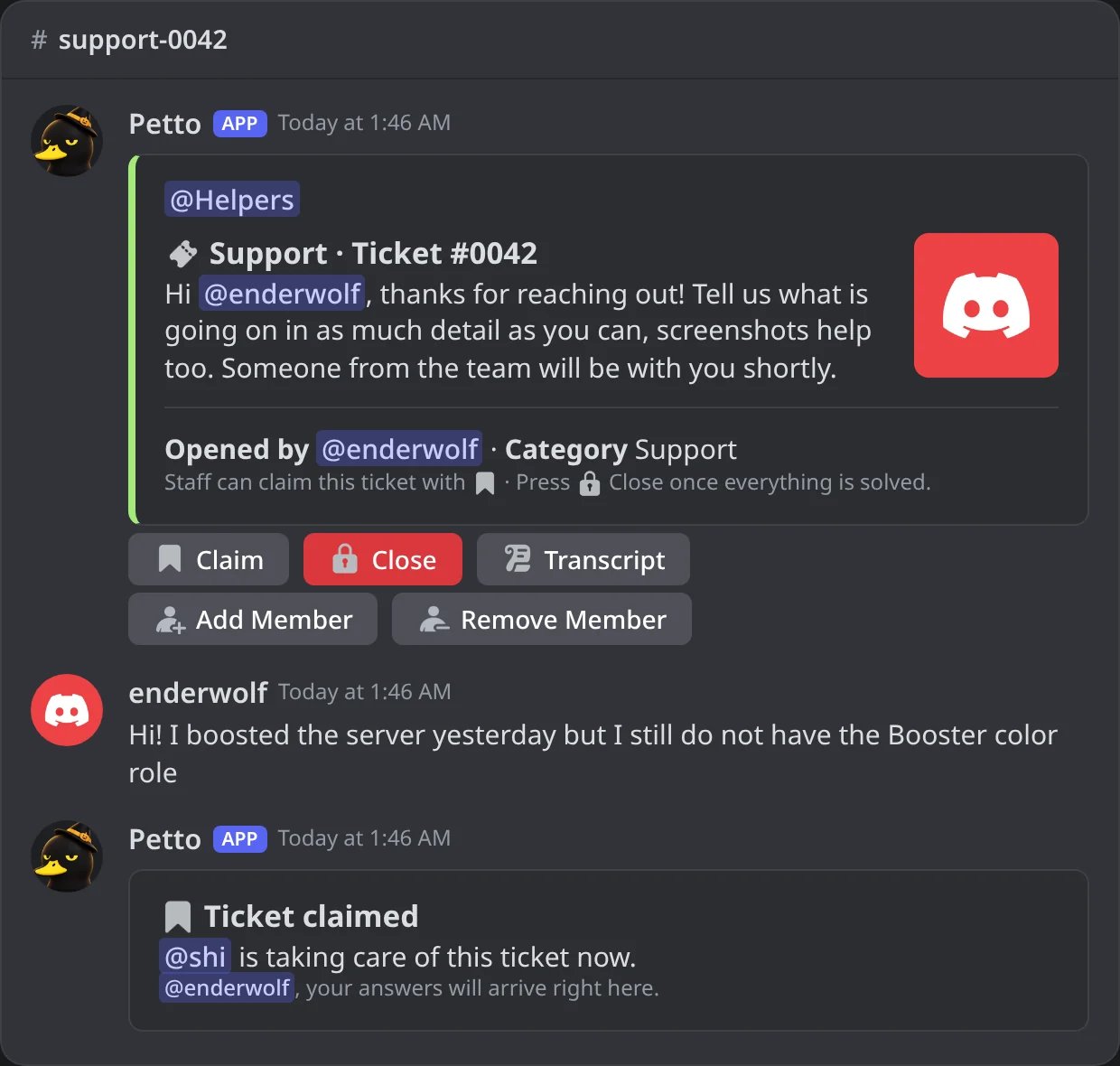
In Discord: a new ticket, the member's first message and a staff member claiming it.
!ticket open
!ticket open
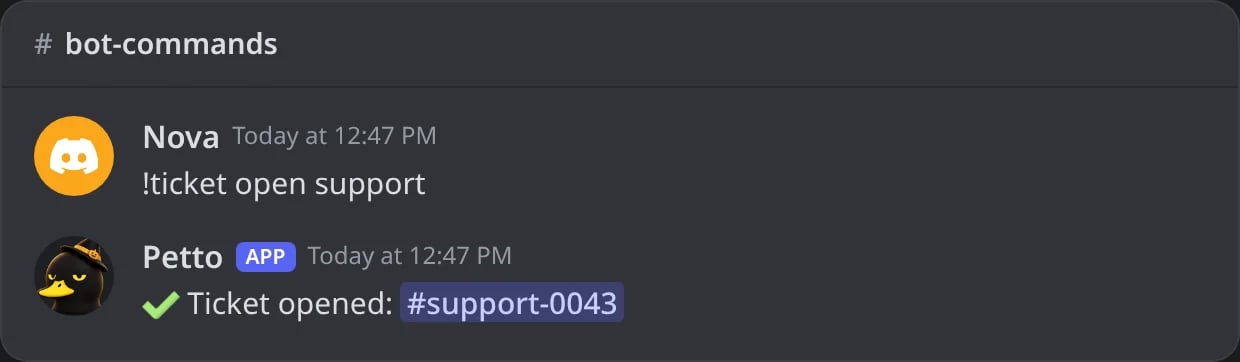
In Discord: a ticket opened without a panel.
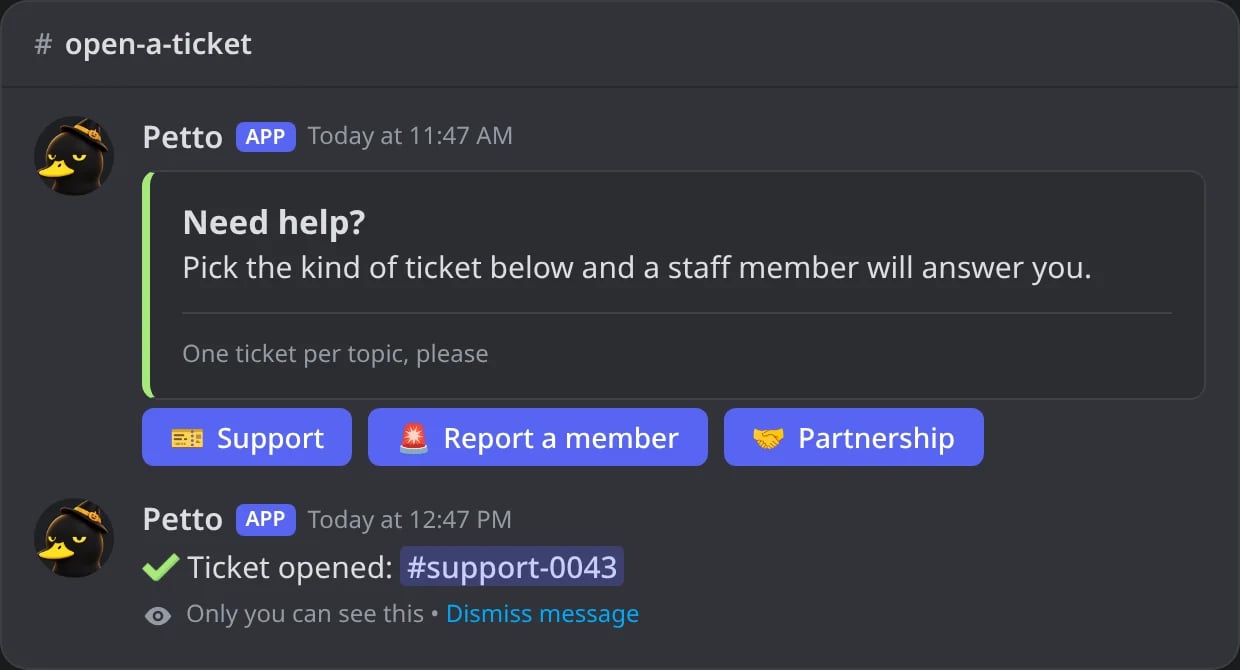
In Discord: a member presses Support on the panel.
!ticket claim
!ticket claim
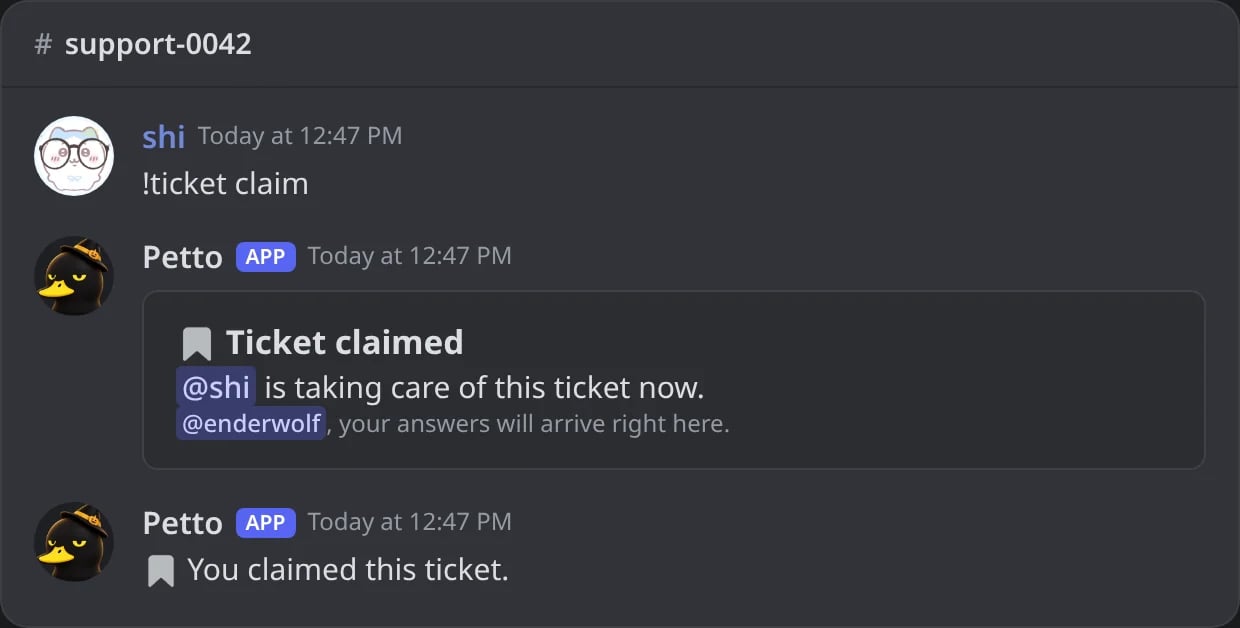
In Discord: a ticket claimed.
!ticket unclaim
!ticket unclaim
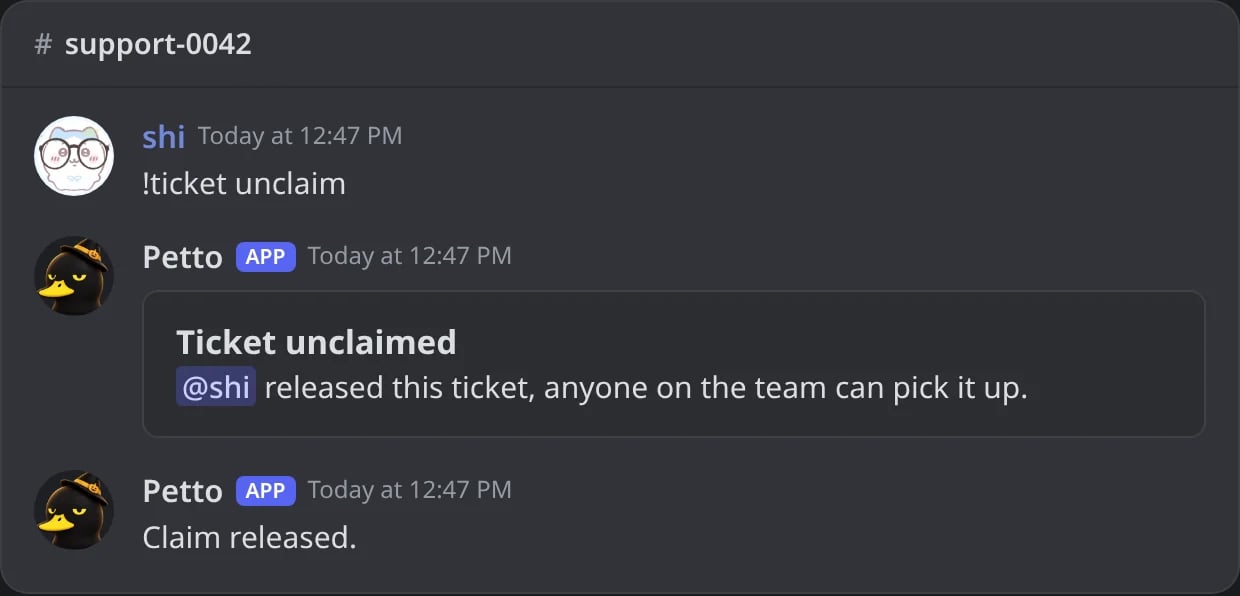
In Discord: a claim released.
!ticket close
!ticket close
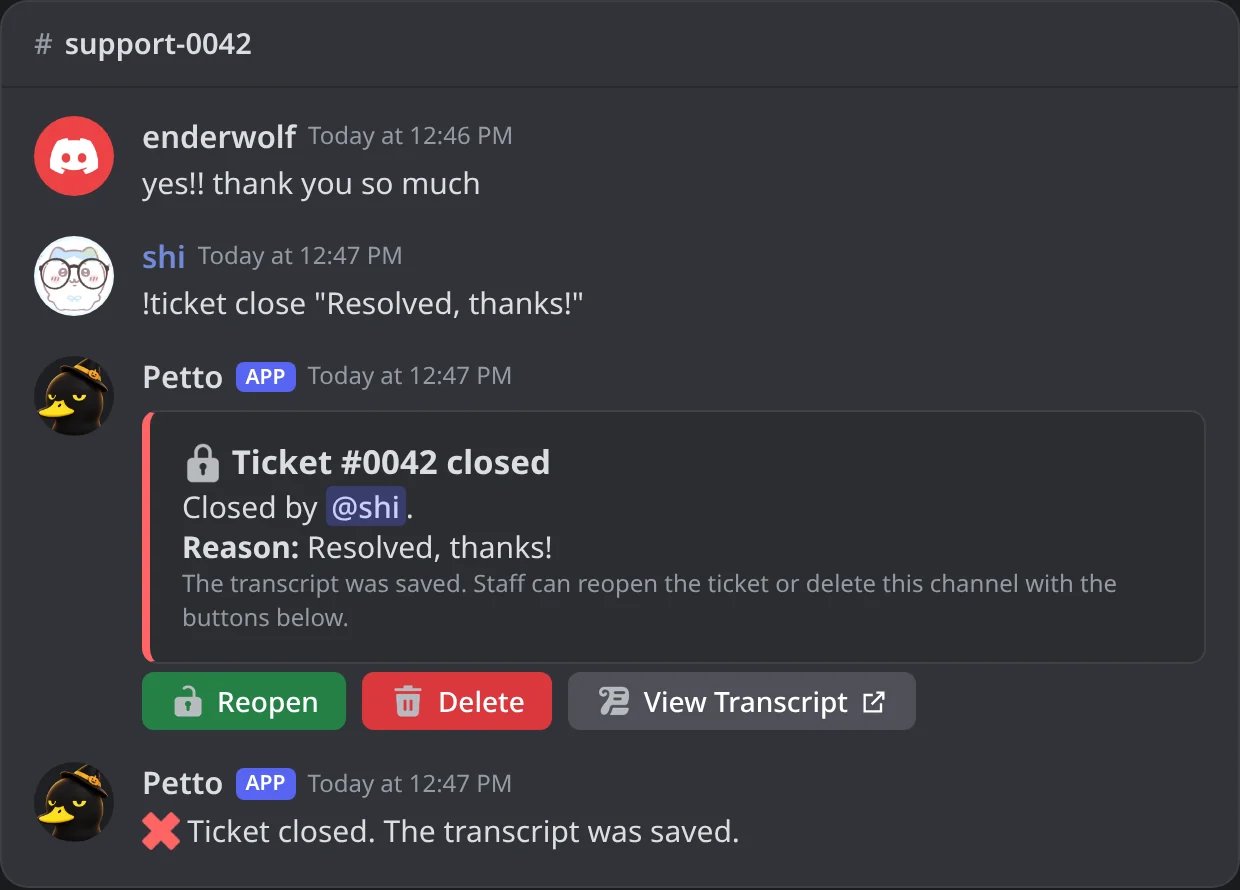
In Discord: a ticket closed with a reason.
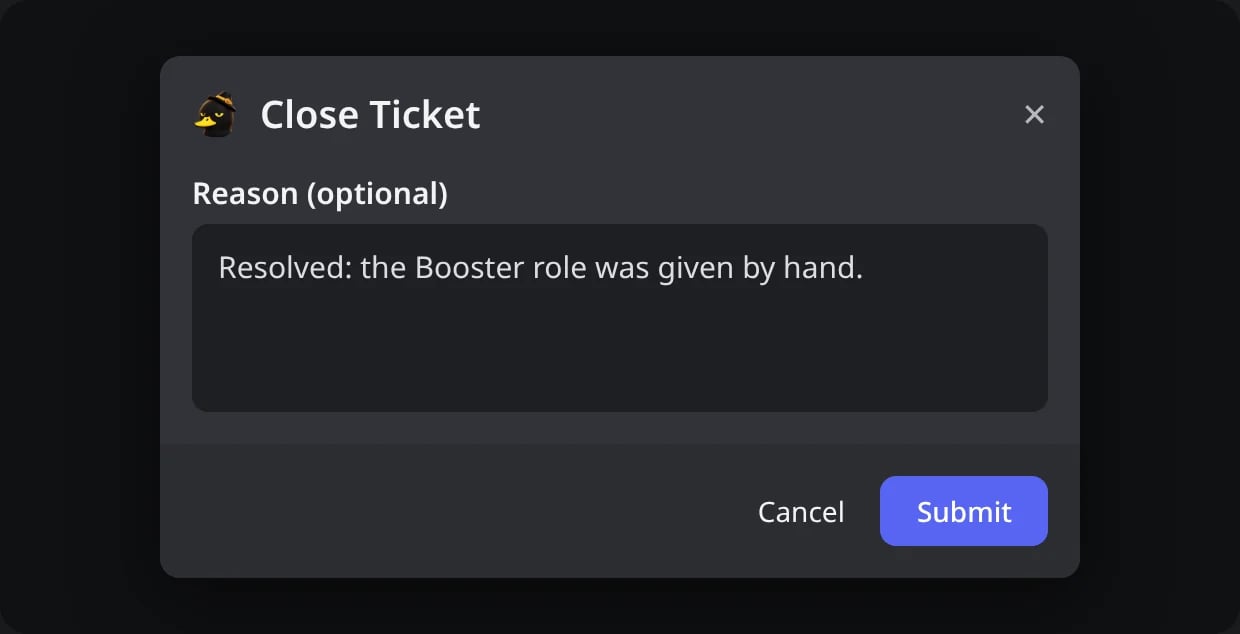
In Discord: the Close button asks for an optional reason.
!ticket reopen
!ticket reopen
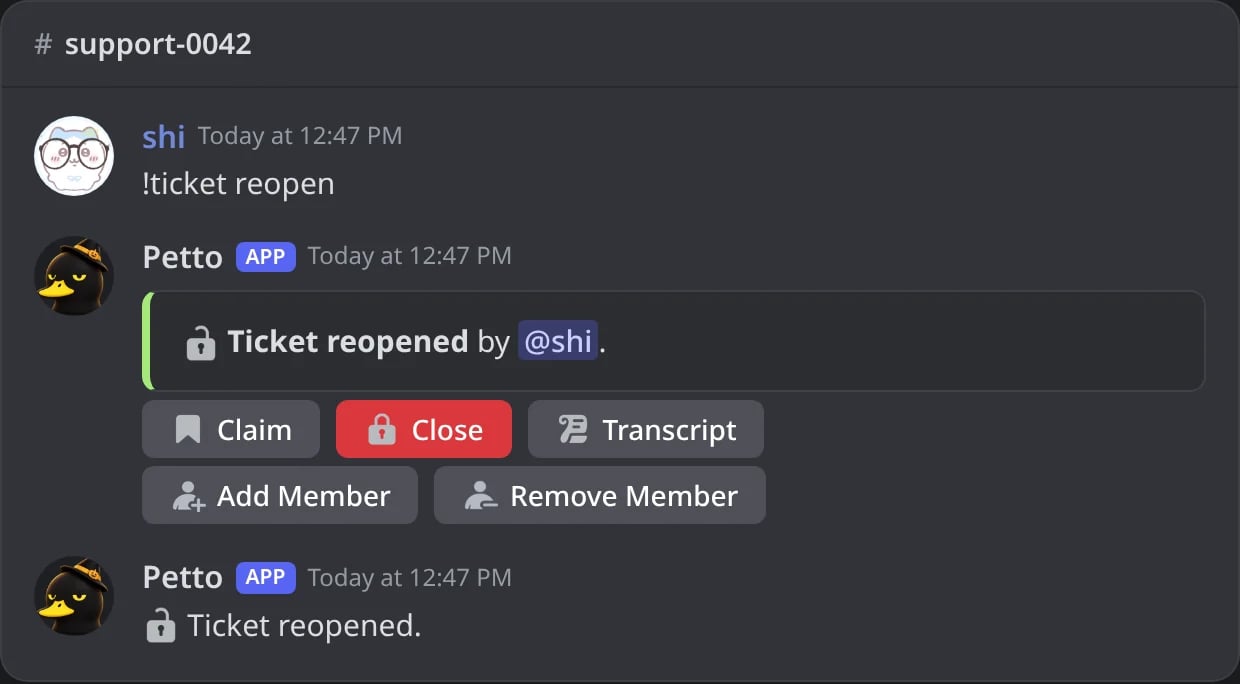
In Discord: a closed ticket opened again.
!ticket delete
!ticket delete
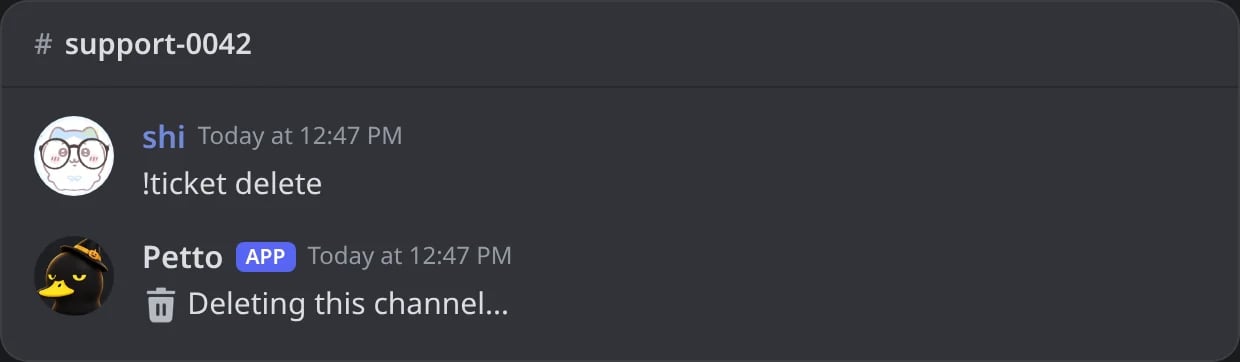
In Discord: the channel of a closed ticket deleted.
!ticket add
!ticket add
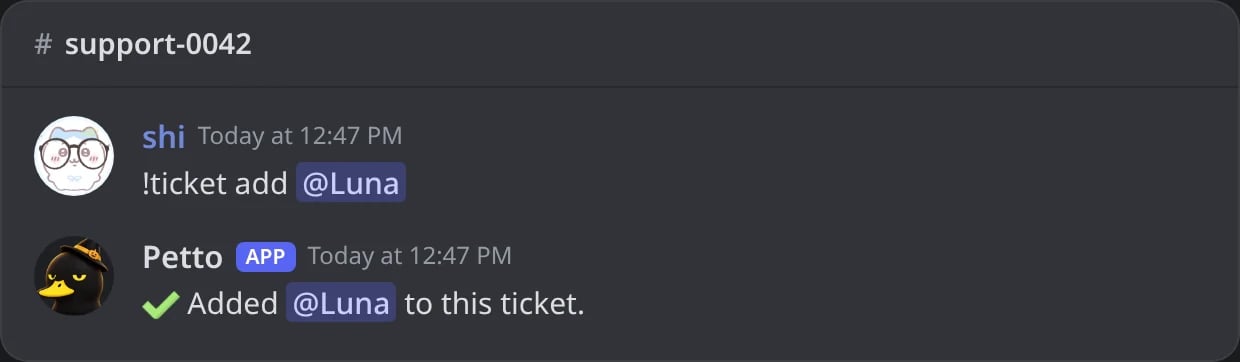
In Discord: a member added to the ticket.
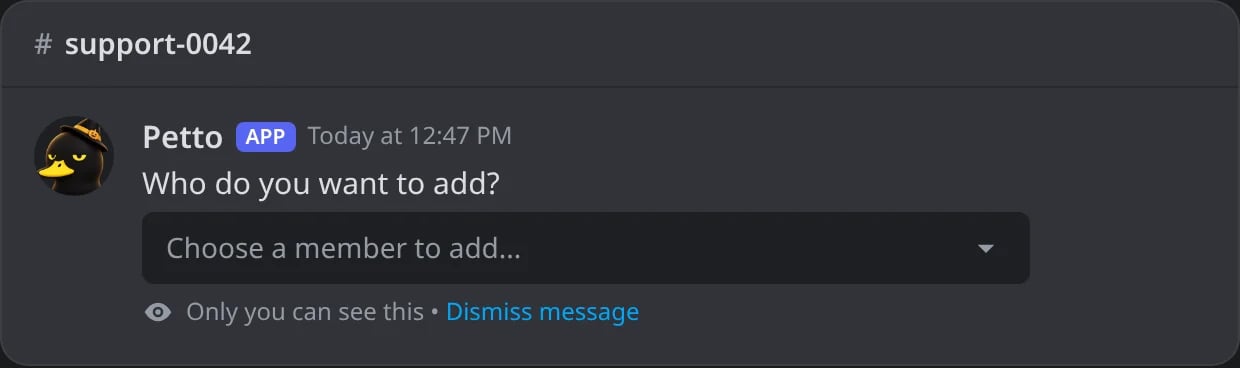
In Discord: the Add Member button asks who.
!ticket remove
!ticket remove
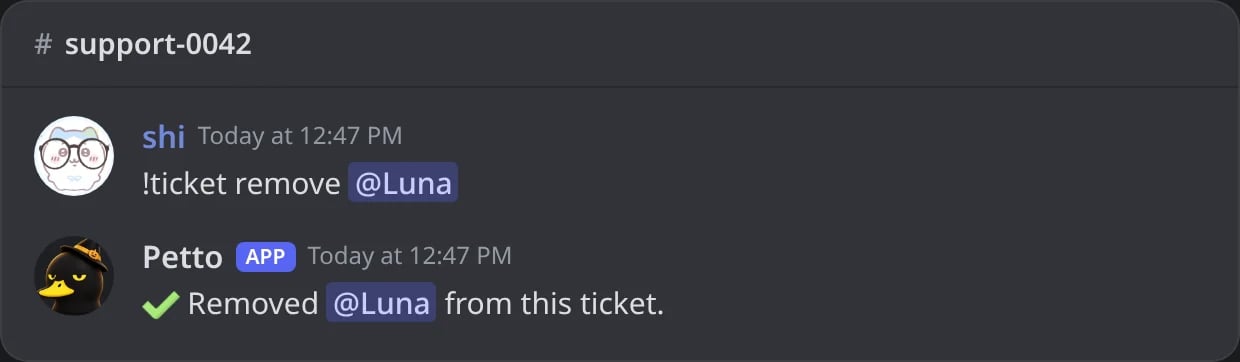
In Discord: a member taken out of the ticket.
!ticket rename
!ticket rename
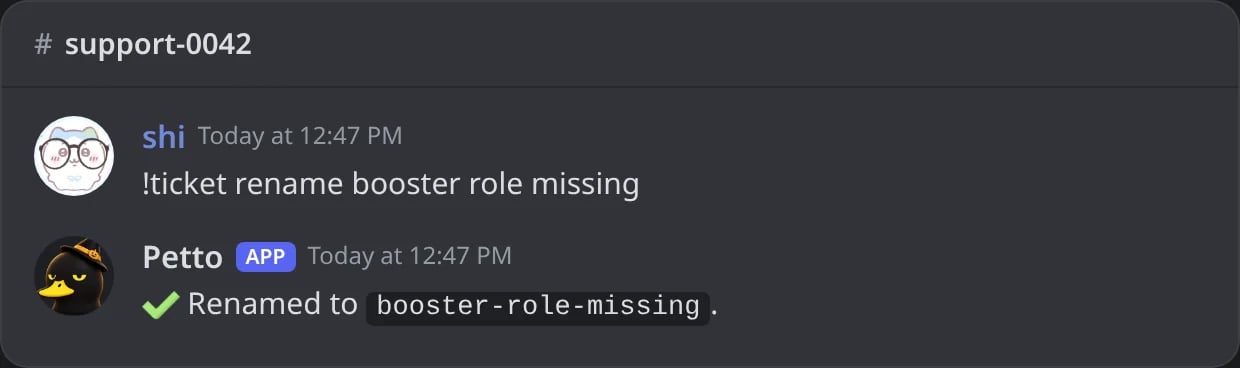
In Discord: a ticket renamed.
!ticket transcript
!ticket transcript
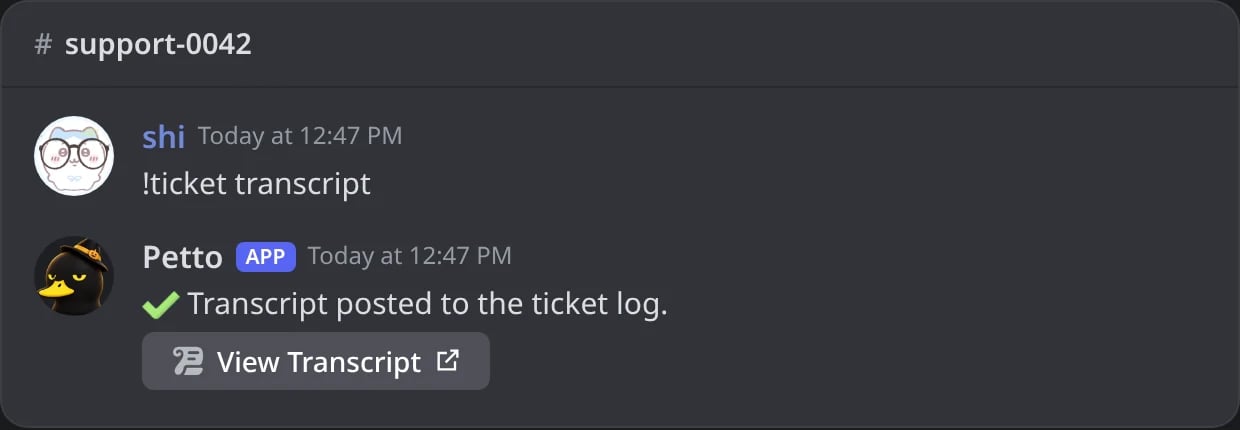
In Discord: a transcript posted without closing.
!ticket info
!ticket info
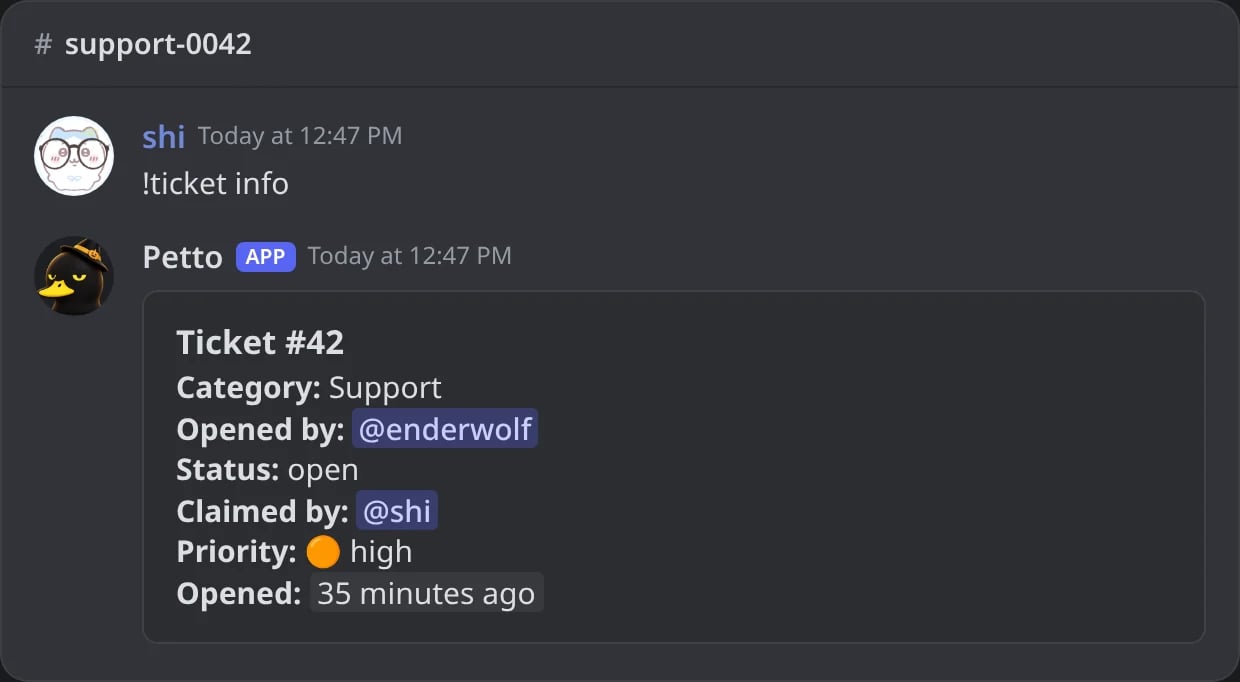
In Discord: what Petto knows of the ticket.
Staff tools inside a ticket
!ticket priority
!ticket priority
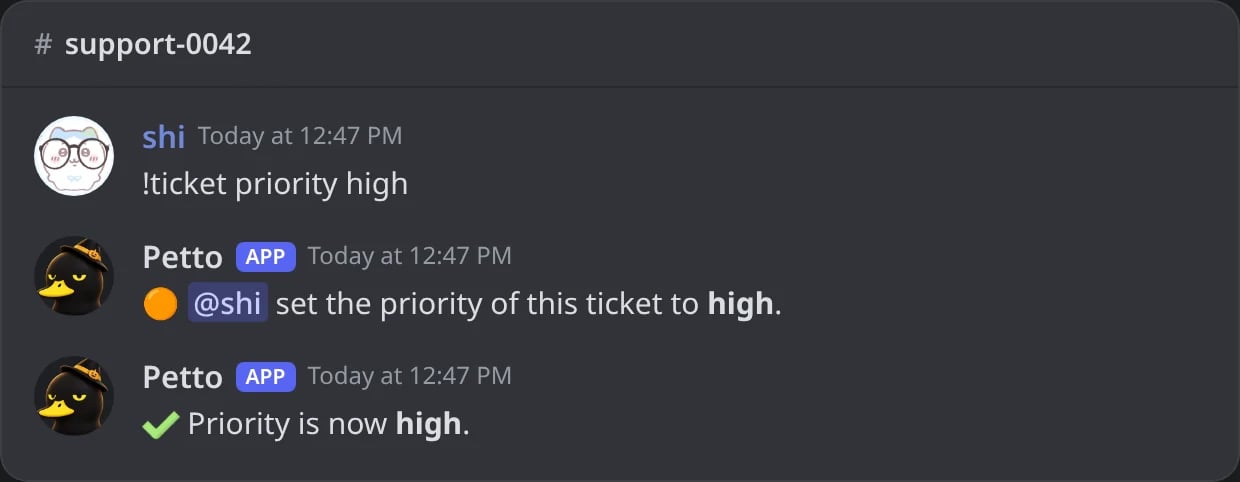
In Discord: the priority of a ticket.
!ticket transfer
!ticket transfer
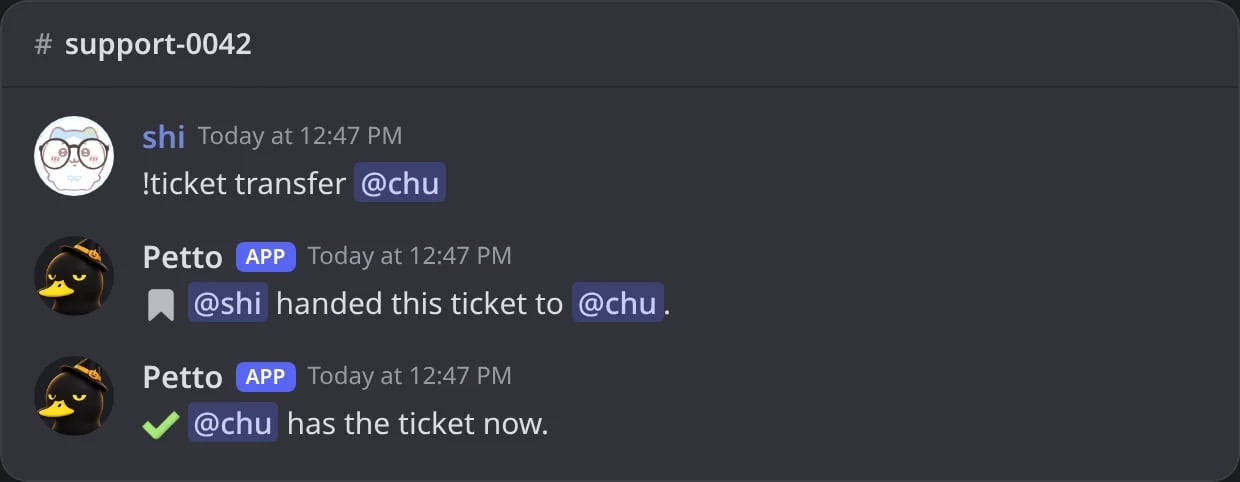
In Discord: a ticket handed to another staff member.
!ticket note
!ticket note
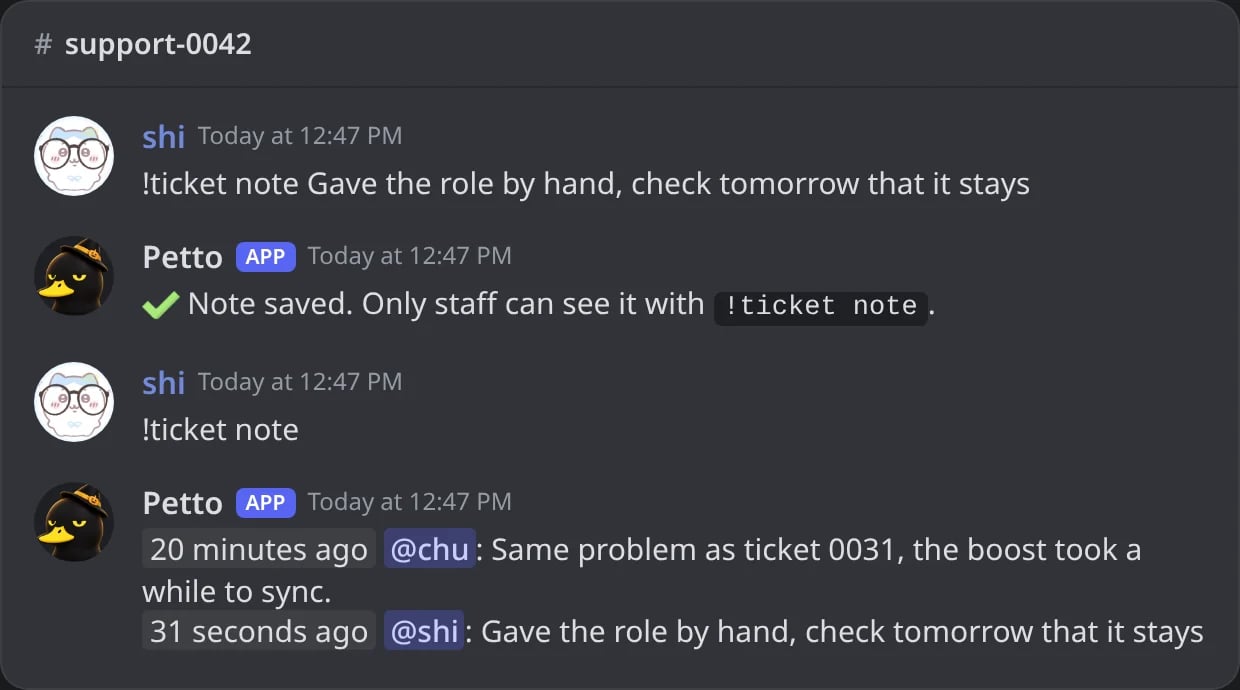
In Discord: a private note saved, then the notes read.
!ticket request-close
!ticket request-close
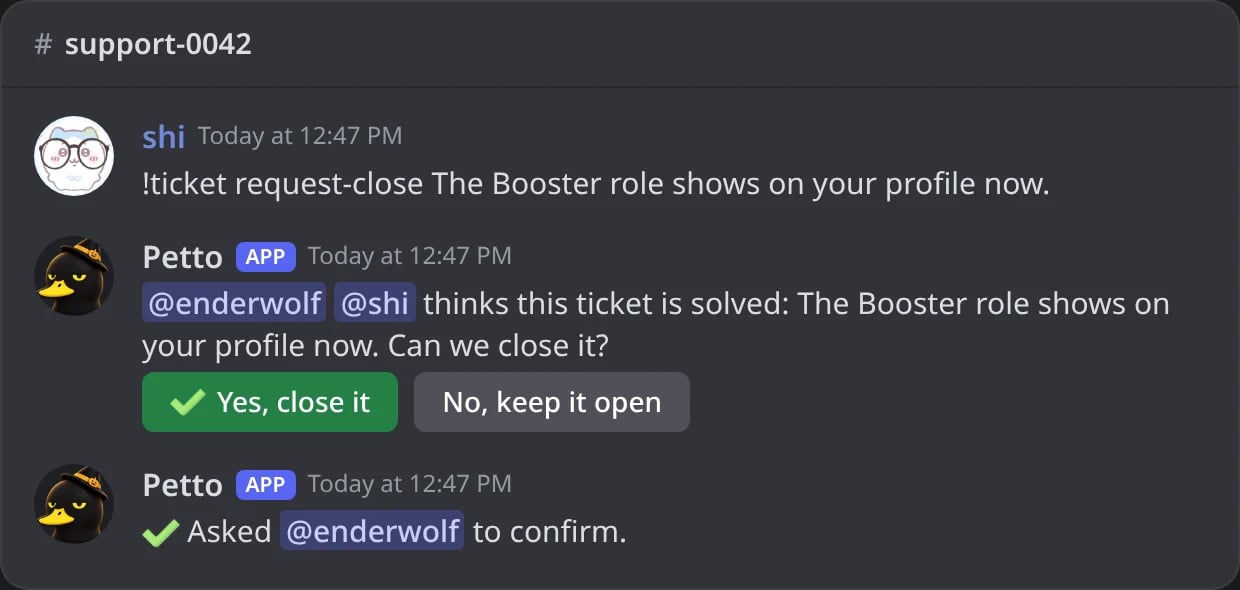
In Discord: the member is asked if the ticket can be closed.
Yes, close it
Yes, close it
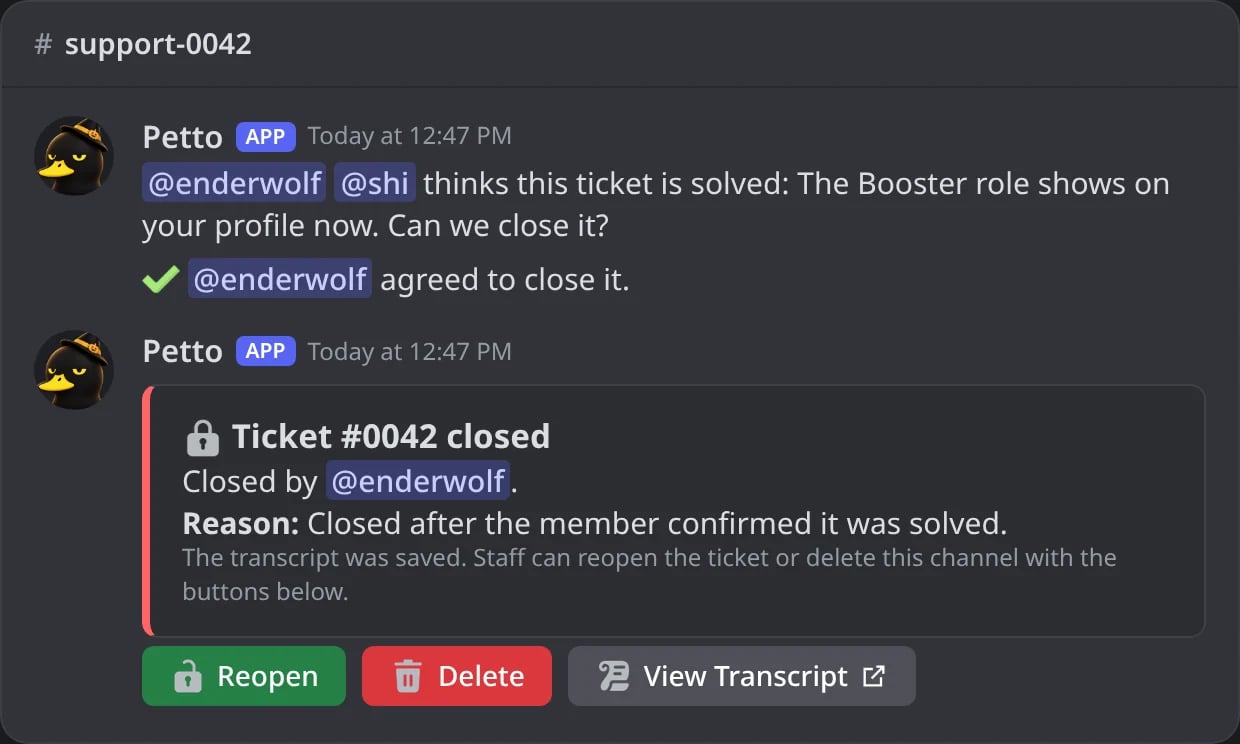
In Discord: the member agrees and the ticket closes.
priority is shown in !ticket info. transfer hands the ticket to another staff member of the category. note saves a private note for staff (write one, or run it without text to read them). request-close asks the member with Yes/No buttons whether the ticket can be closed.
open works without a panel at all. close generates a shareable transcript link automatically, transcript posts one without closing. claim/unclaim, reopen, delete, and rename are staff-only.
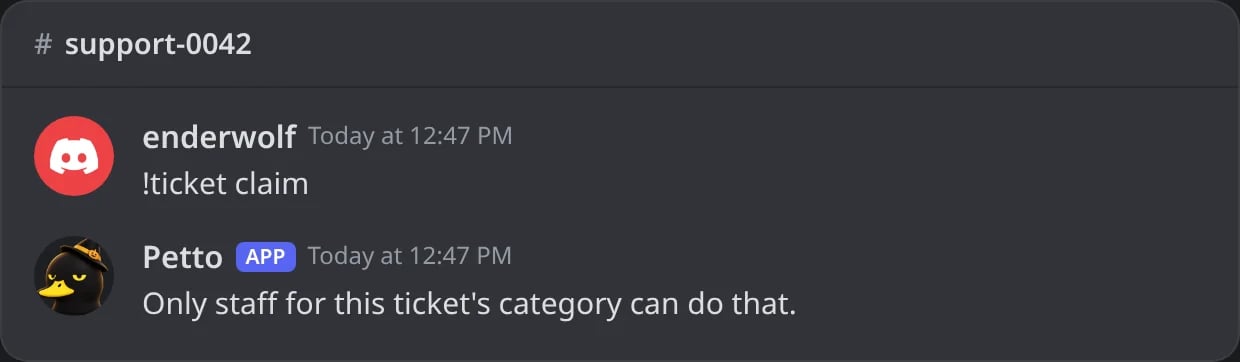
In Discord: a member tries a staff-only command.
Limits
A Free server can have 25 ticket types and a Premium server 50.!ticket category add, !ticket setup and the dashboard all count them the same way, and the setup says how many more fit before it creates anything. A panel still shows at most 5 buttons or 25 dropdown options, as Discord allows. See Premium. A ticket form holds up to 5 parts, with files up to 8 MB each (see Forms).
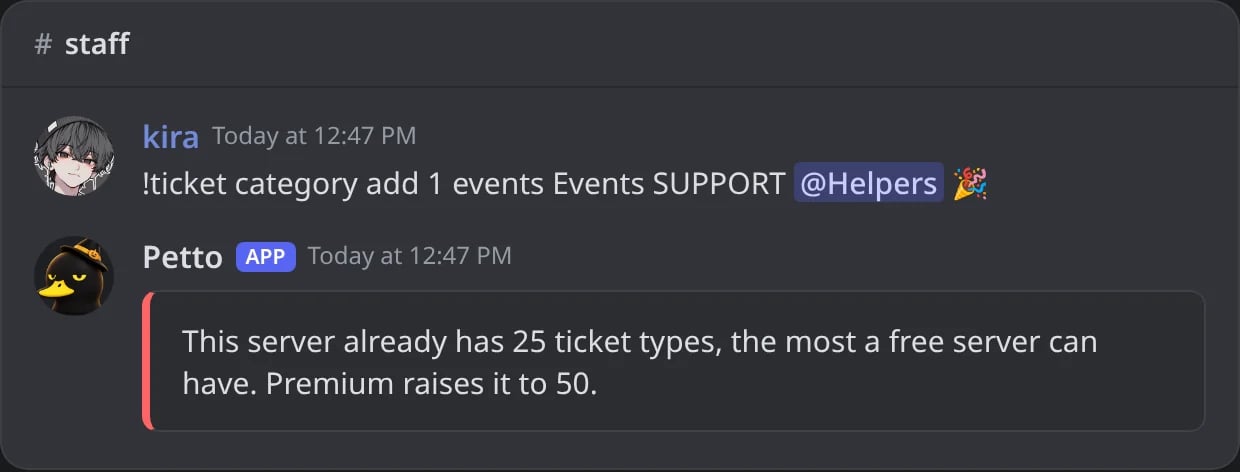
In Discord: a free server with 25 ticket types tries to add one more.