
!backup, its menu and the dashboard’s Backups page say so, and the scheduled backups are not taken. The backups you already have and your schedule are kept as they are.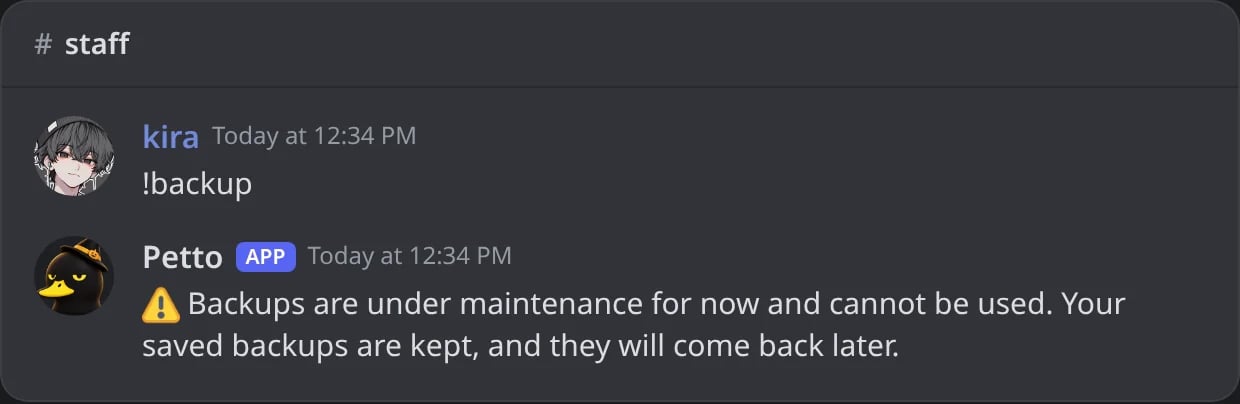
In Discord: while backups are under maintenance, !backup says so and does nothing else.
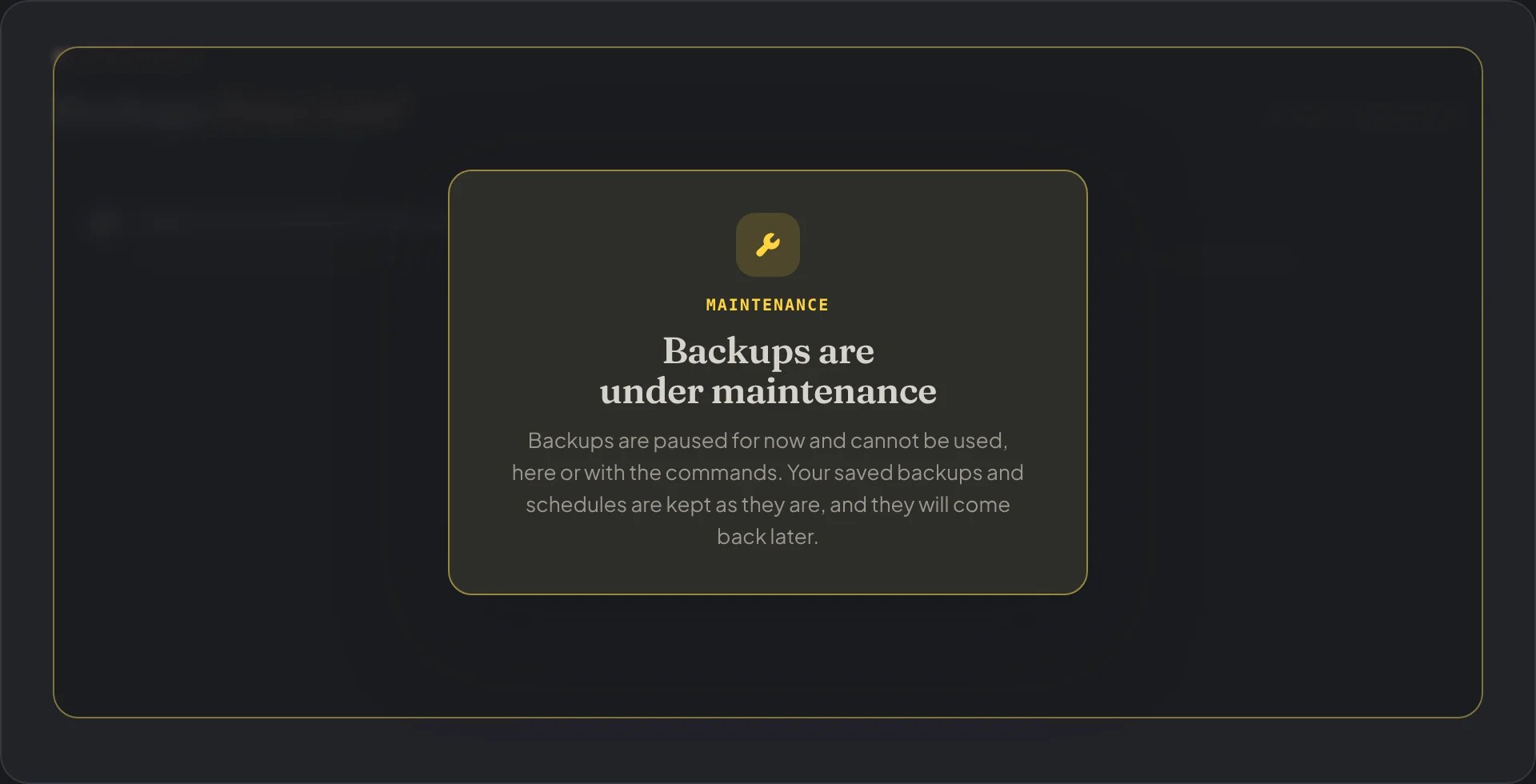
Dashboard → Backups: the same notice on the dashboard.
What a backup keeps
- Roles: name, color, icon, permissions, position, and whether they are shown separately or can be mentioned.
- Channels and categories: names, order, topics, slowmode, voice settings, forum tags and defaults, and the permissions of each one.
- Emojis and stickers (the animated Lottie stickers cannot be uploaded again, so a restore skips them).
- AutoMod rules of Discord, with their exceptions and actions.
- Server settings: name, icon and banner, description, language, verification level, notifications, system channel options and the special channels (rules, updates, AFK, safety alerts).
Commands
Open the menu
!backup (!backups and !serverbackup work too).
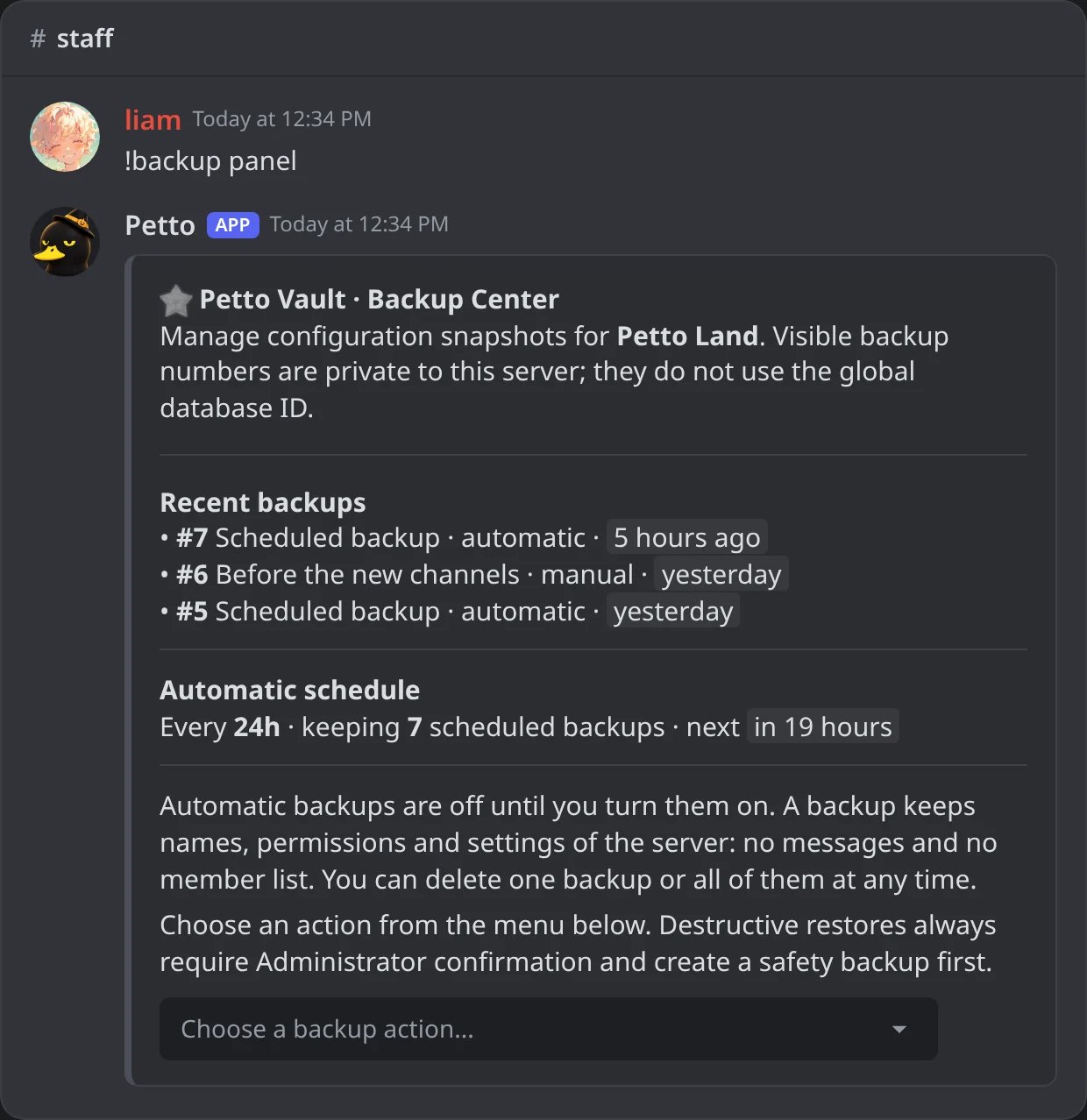
In Discord: the Backup Center of !backup panel.
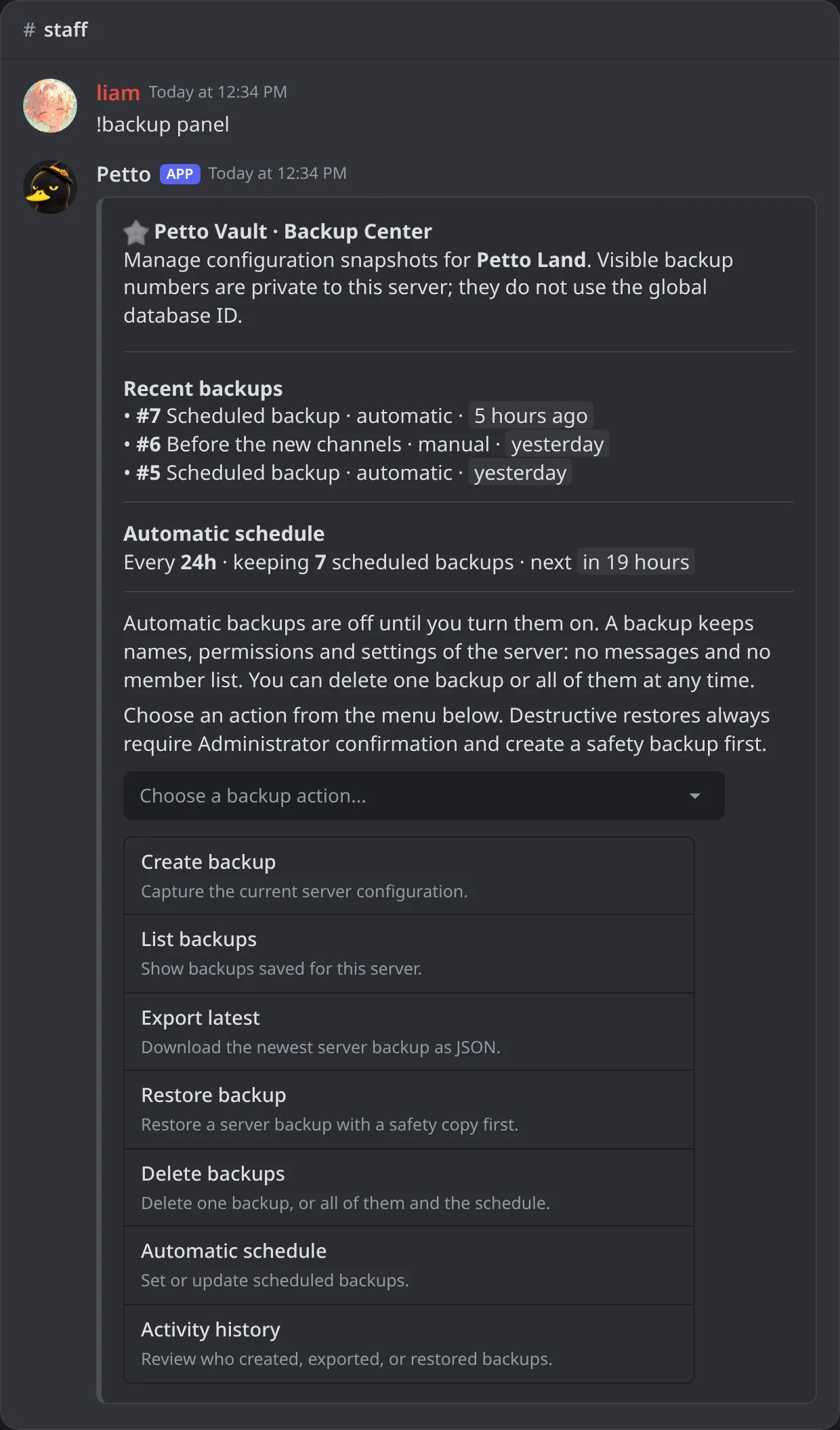
In Discord: the menu of !backup panel, open.
Create, list and export
!backup create
!backup create
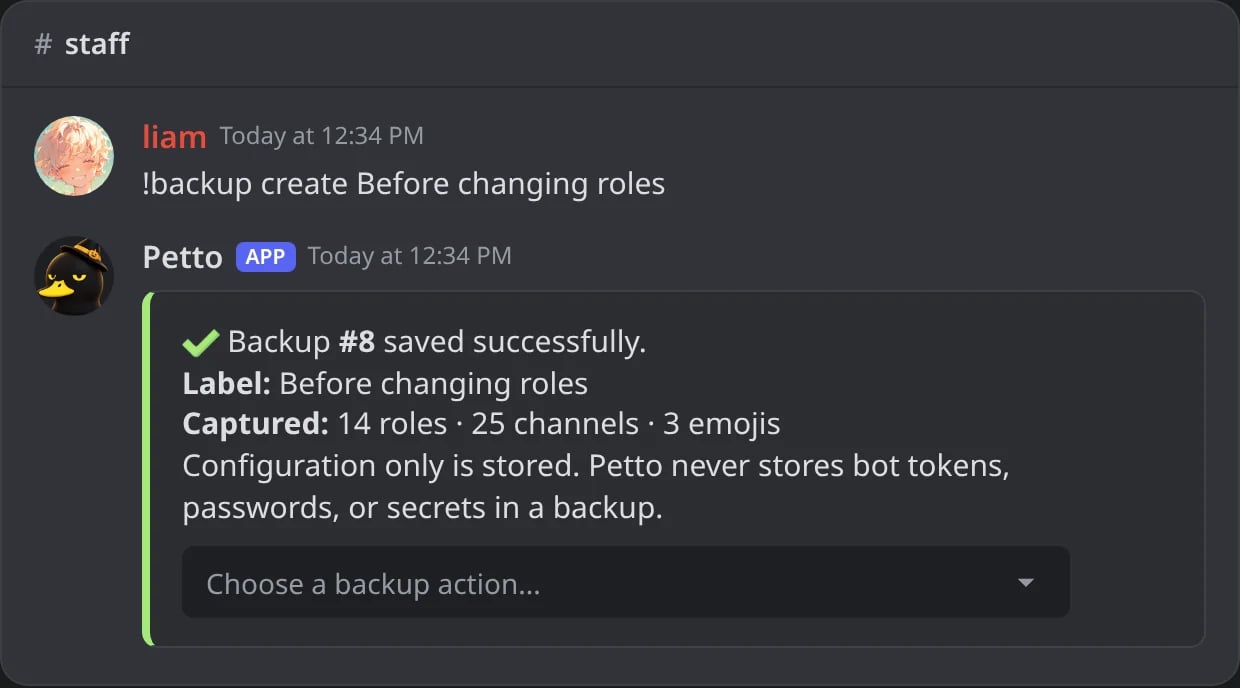
In Discord: !backup create with a name: the number and what was captured.
!backup list
!backup list
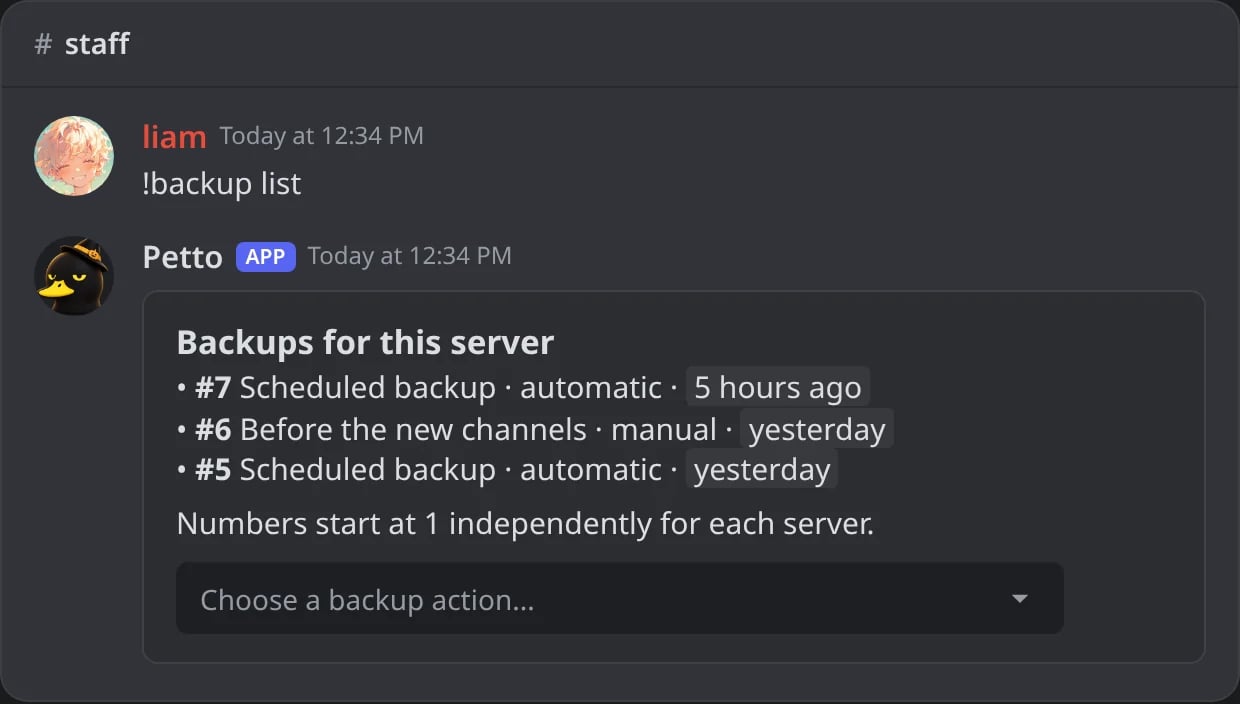
In Discord: !backup list: number, name, automatic or manual, and when.
!backup export
!backup export
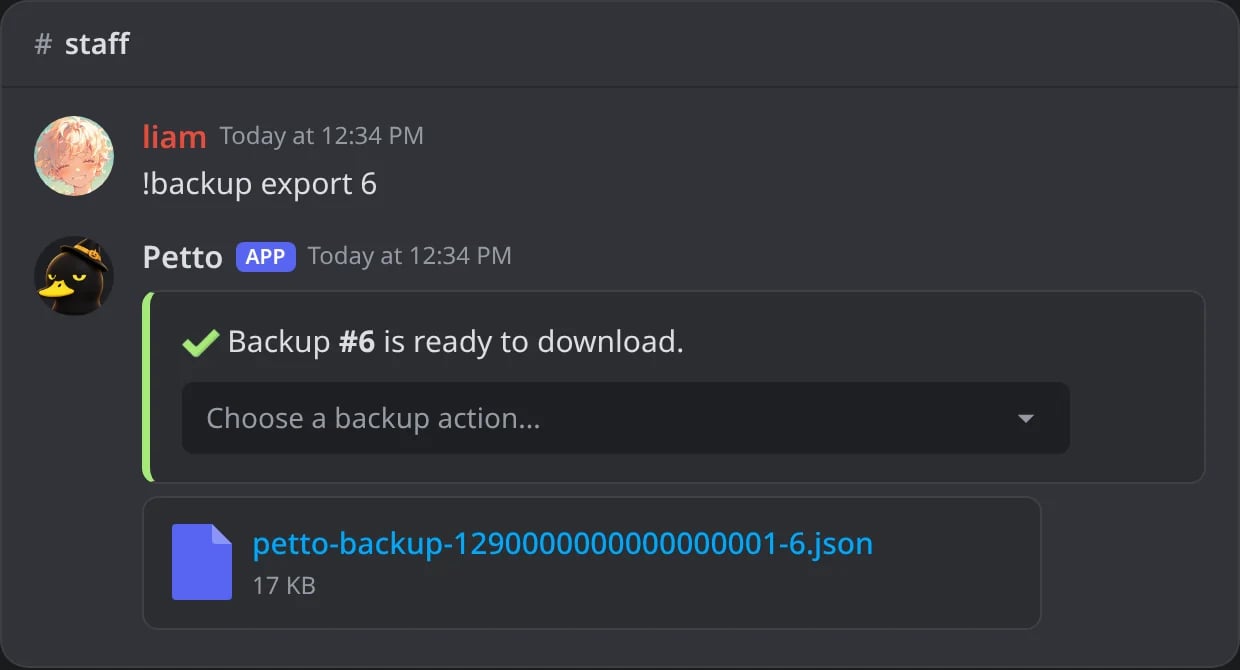
In Discord: !backup export: the backup as a JSON file.
export gives you a JSON file with the captured configuration.
Restore a backup
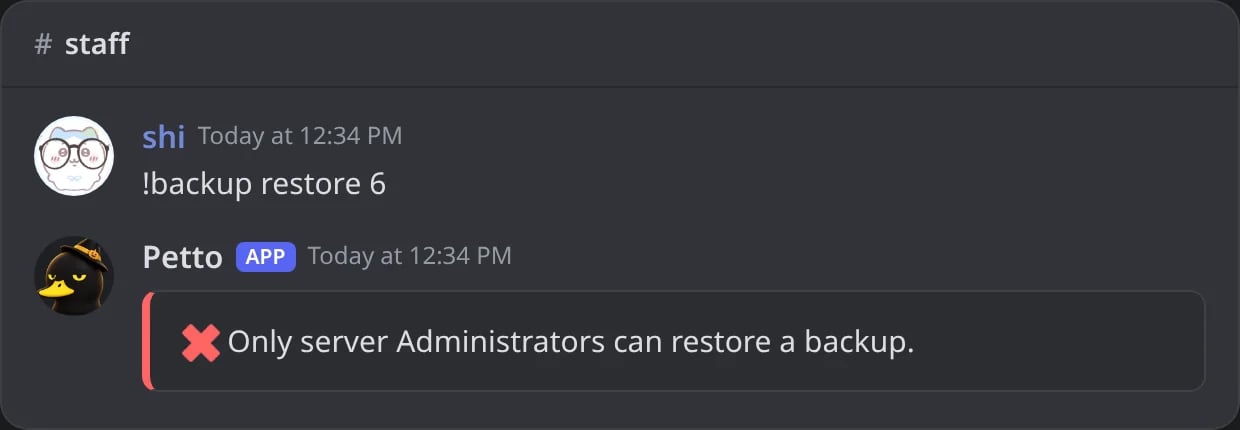
In Discord: a member without Administrator cannot restore.
- Preview. Petto shows how many roles, channels and emojis it would create or update and, in
replacemode, the names of the channels and roles it would delete. - Human check. A picture with letters, like the one of the verification. Type the letters to continue.
- Safety backup. Petto saves the server as it is right now, so you can go back. Its number is shown at the end.
- Live progress. One message shows the phase and how far it is, with a Stop restore button. Only one restore runs at a time in a server.
1. Preview (merge)
1. Preview (merge)
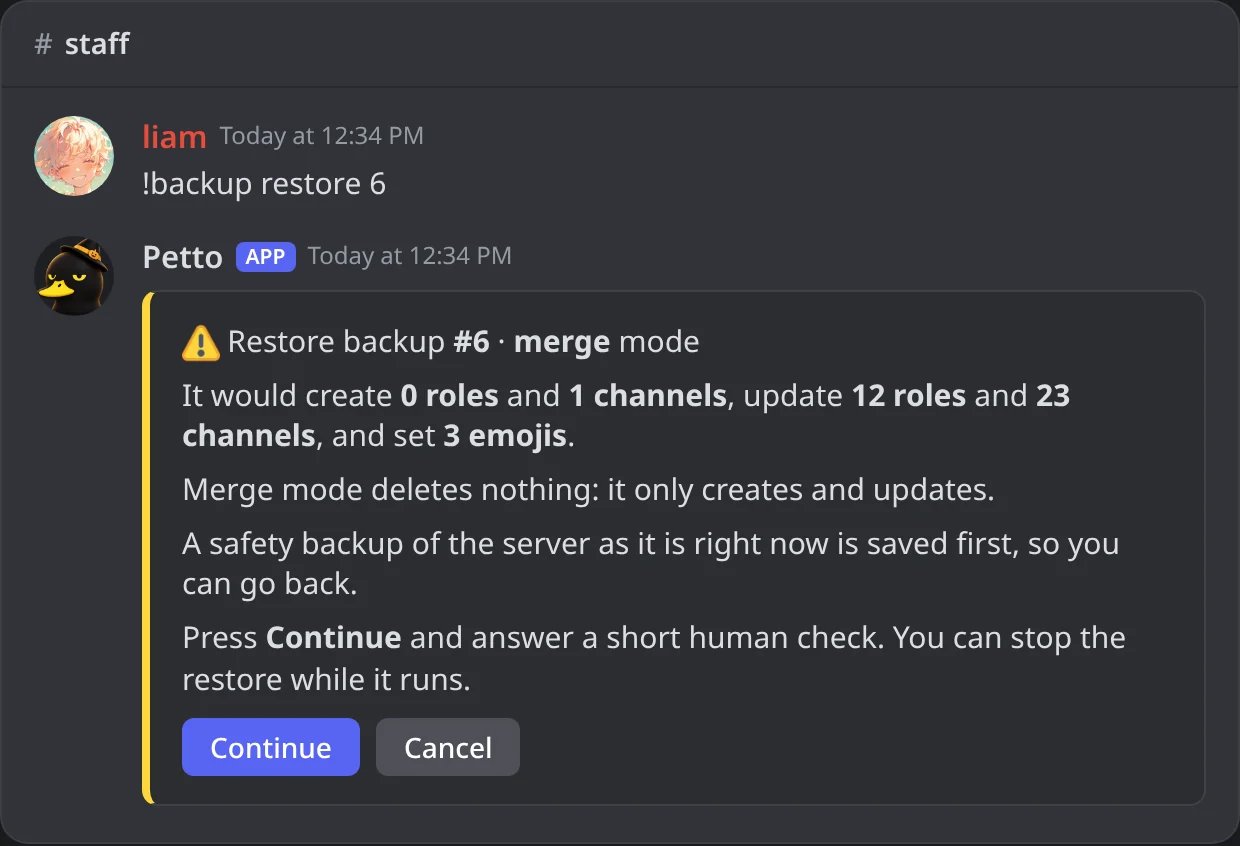
In Discord: the preview of a merge: what would be created and updated, nothing deleted.
1. Preview (replace)
1. Preview (replace)
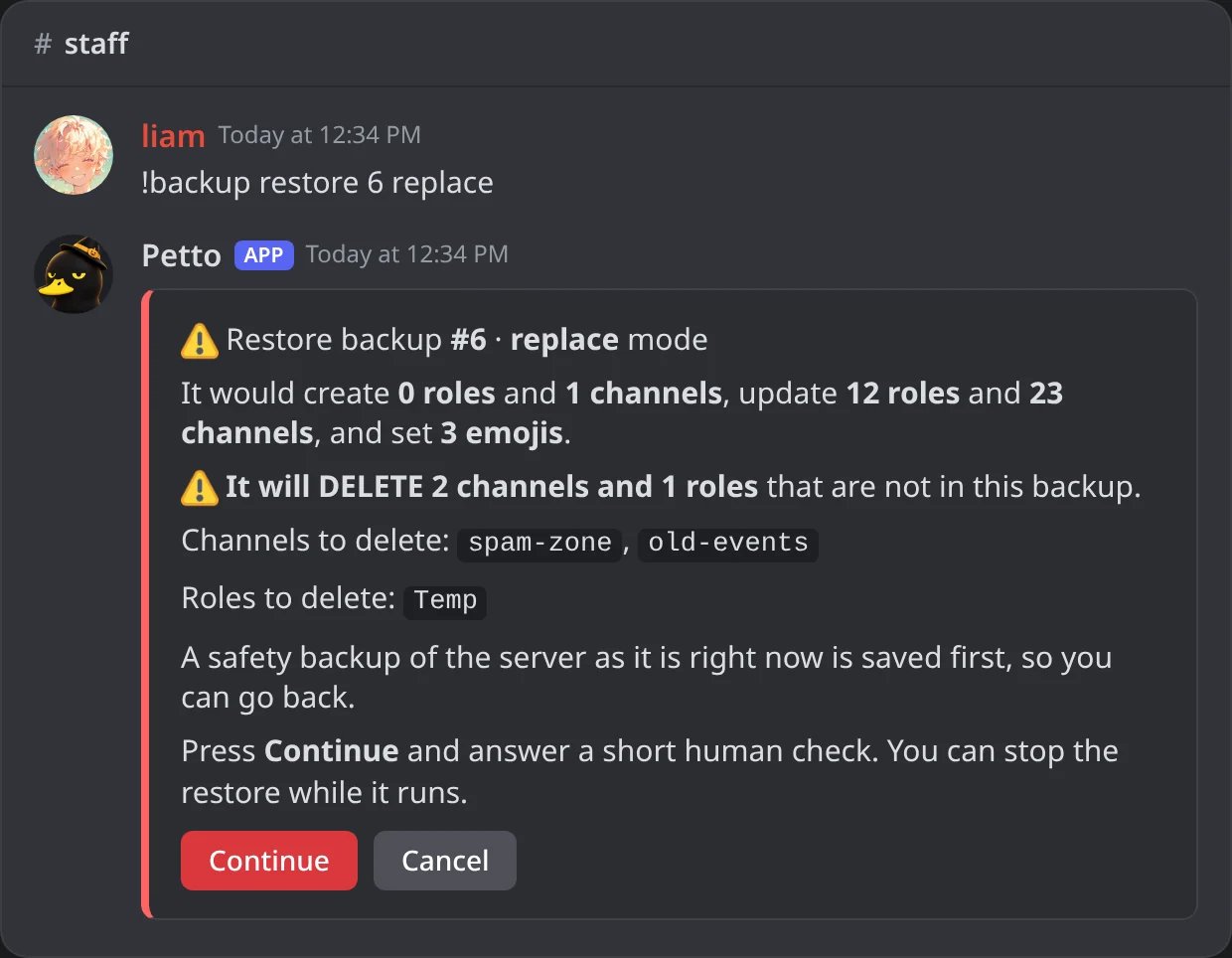
In Discord: in replace mode the preview names what would be deleted.
2. Human check
2. Human check
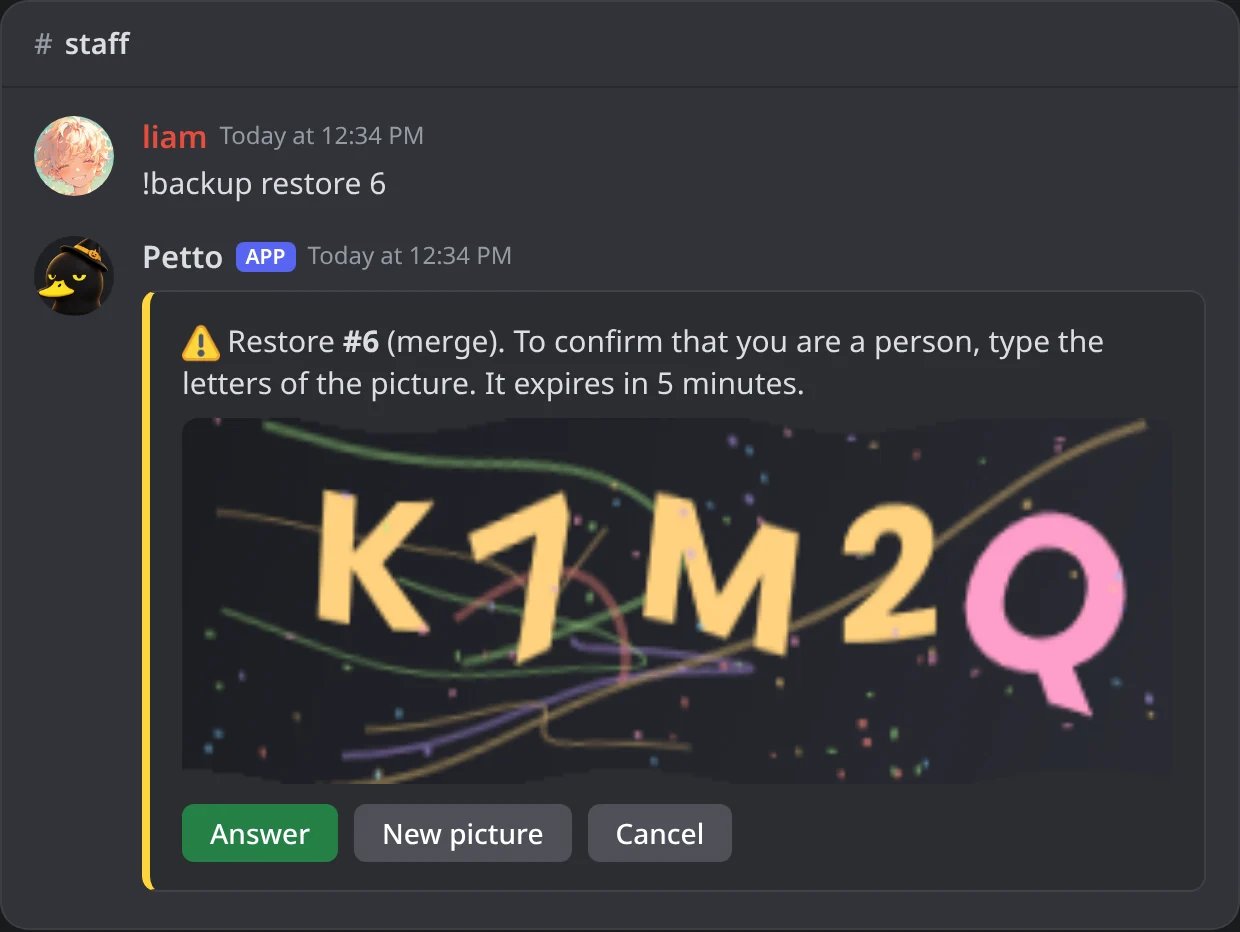
In Discord: after Continue: the picture with letters.
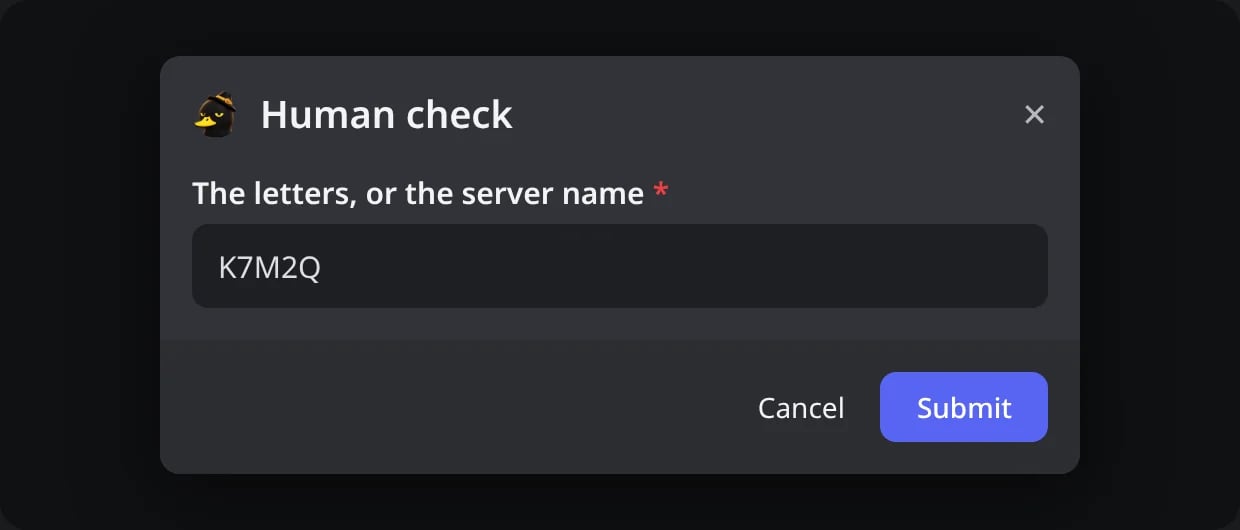
In Discord: the box where the letters are typed.
3 and 4. Safety backup and live progress
3 and 4. Safety backup and live progress
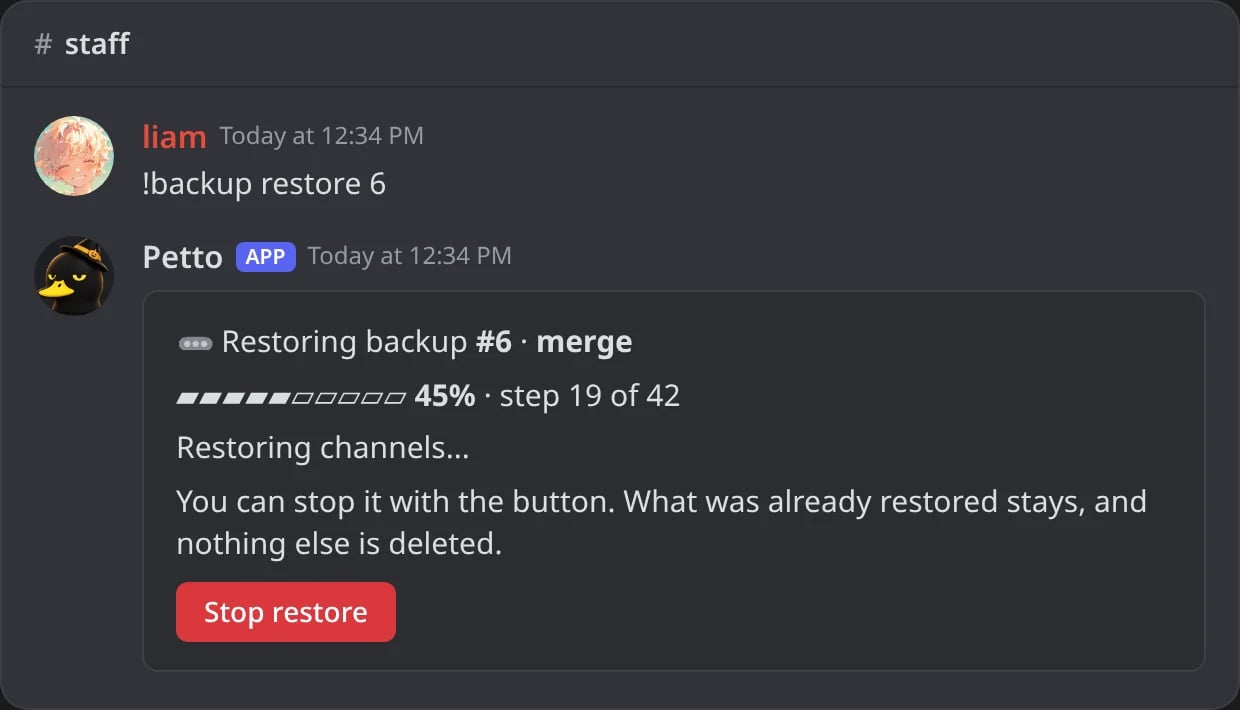
In Discord: one message shows the phase, how far it is and Stop restore.
The end
The end
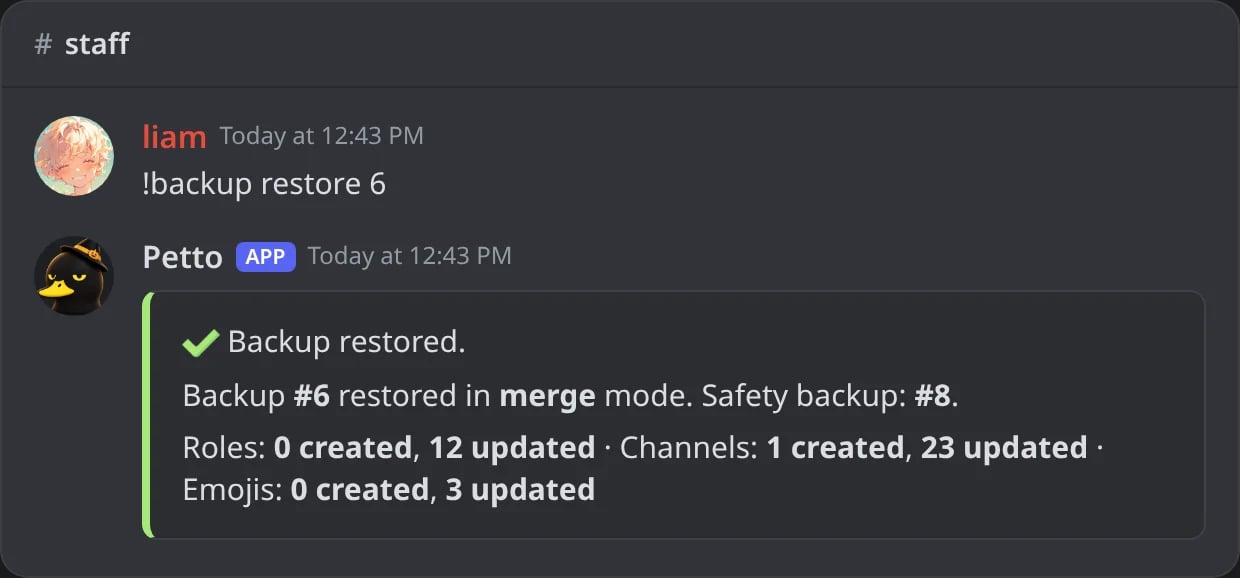
In Discord: the end of the restore, with the number of the safety backup.
mode can be:
merge(the safe one): creates what is missing and updates what exists. It deletes nothing.replace: also deletes the channels and roles that are not in the backup.
Turn on automatic backups
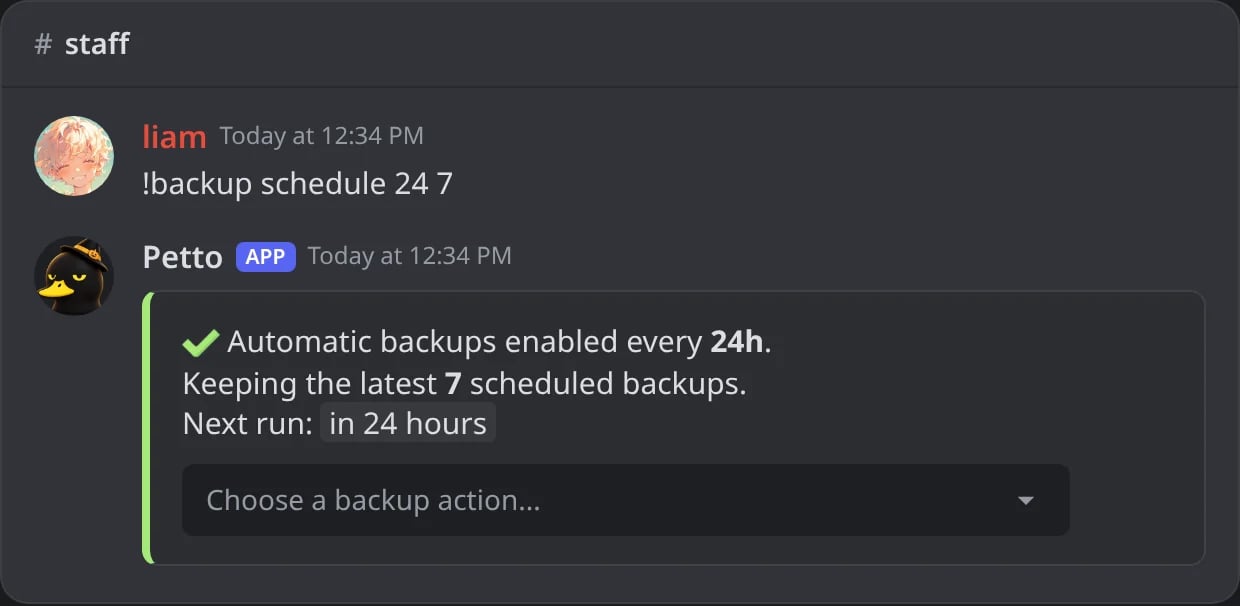
In Discord: !backup schedule 24 7: every 24 hours, keeping 7.
hours goes from 1 to 168 and keep from 1 to 30 (7 when you leave it out). Example: !backup schedule 24 7 takes a backup every 24 hours and keeps the last 7 automatic ones. To turn them off:
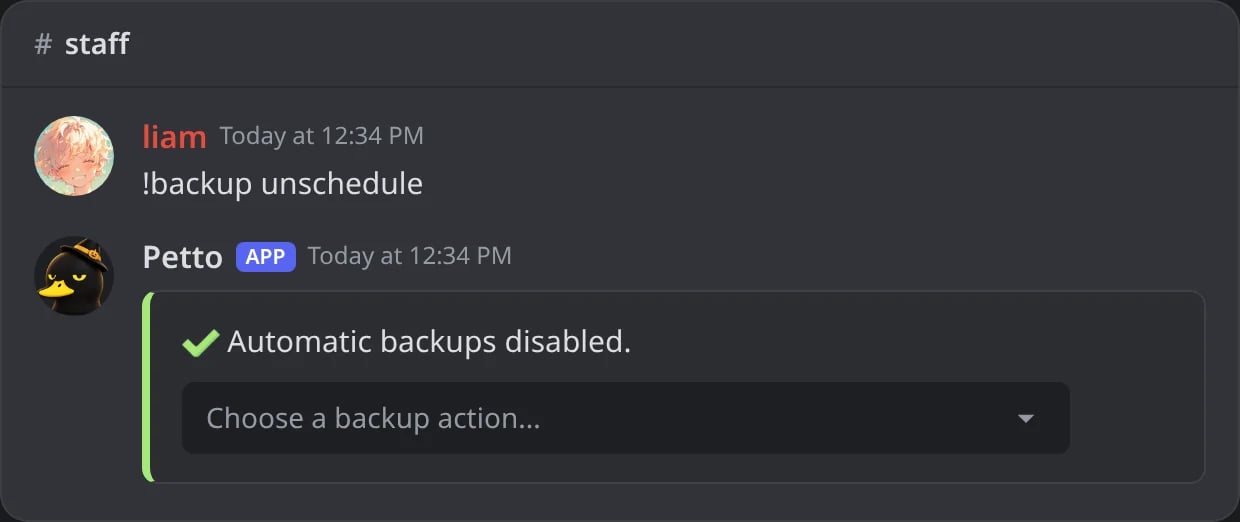
In Discord: !backup unschedule.
Delete backups
ALL).
!backup delete <id>
!backup delete <id>
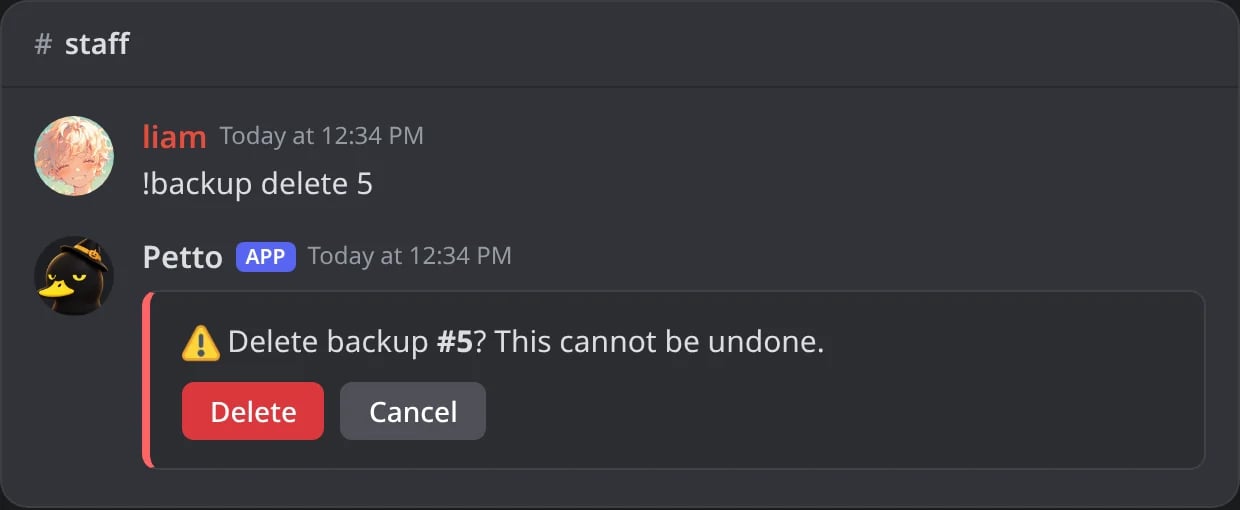
In Discord: Petto asks before deleting a backup.
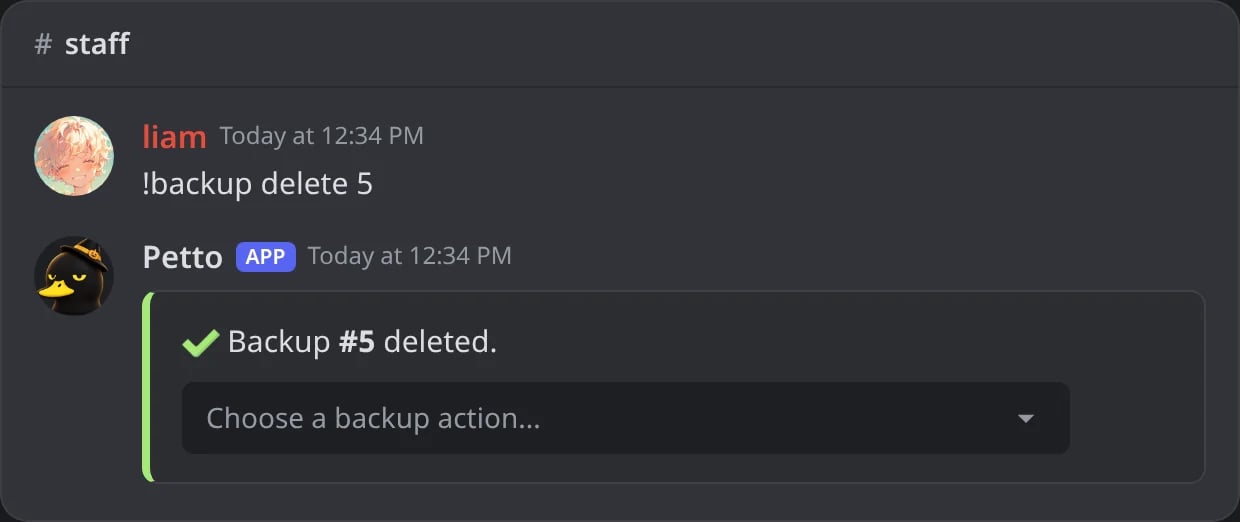
In Discord: after Delete.
!backup delete --all true
!backup delete --all true
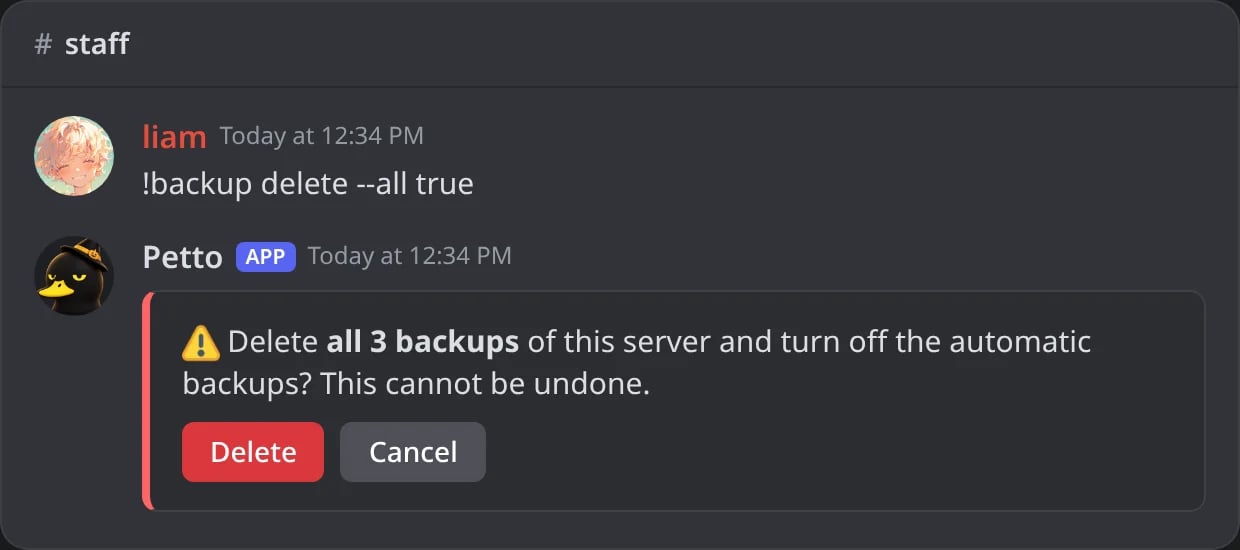
In Discord: deleting every backup also turns off the automatic ones.
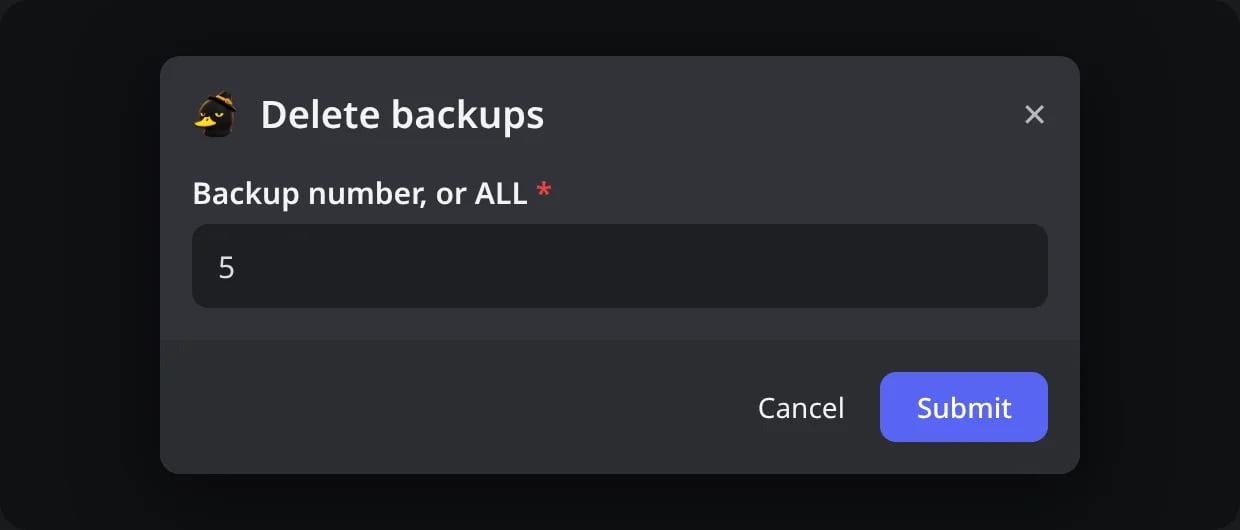
In Discord: in the menu, Delete backups asks for a number or ALL.
Review the activity
limit.
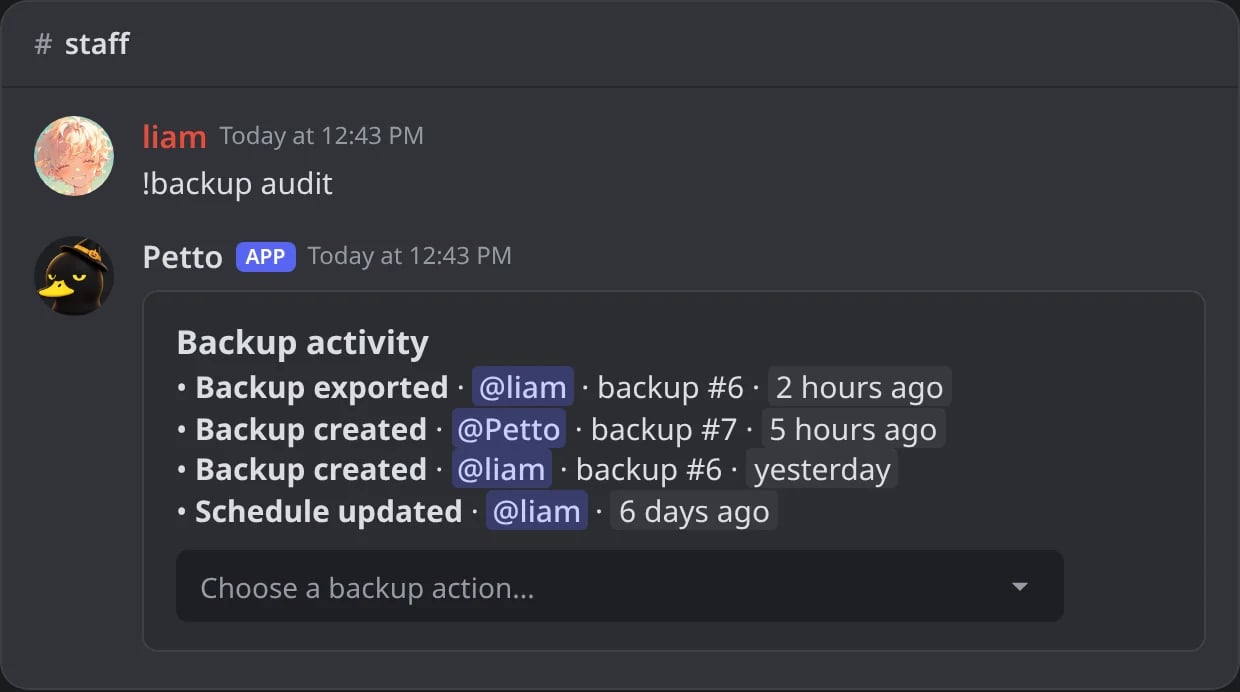
In Discord: !backup audit: who did what, and when.
Use it from the dashboard
Dashboard → Backups does the same: create, export, schedule, review the activity and delete. Restore opens a dialog with the same steps (mode, what to bring back, preview, human check) and then shows live progress with a Stop restore button.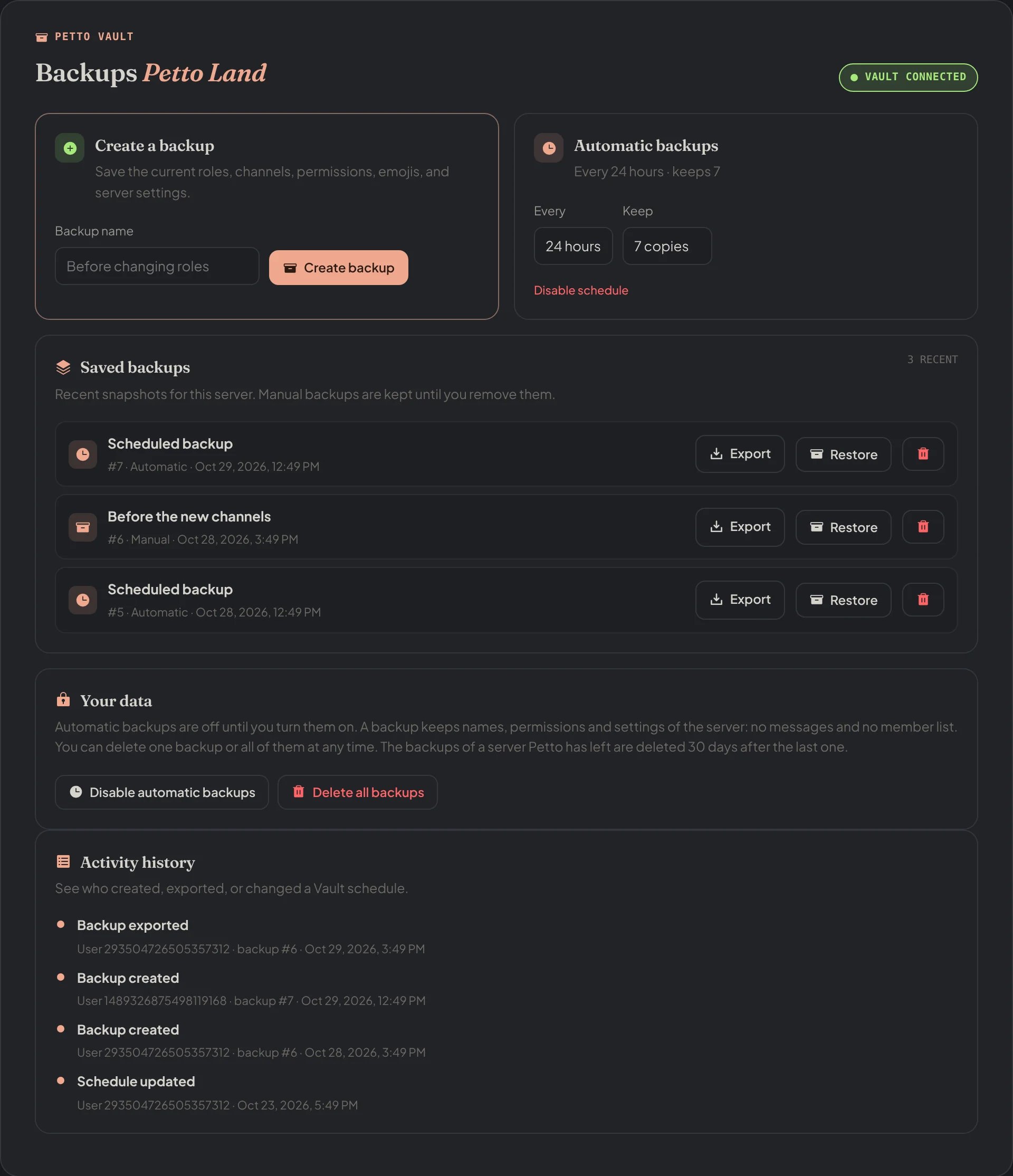
Dashboard → Backups: create, schedule, the saved backups with Export, Restore and delete, Your data and the activity.
Preview
Preview
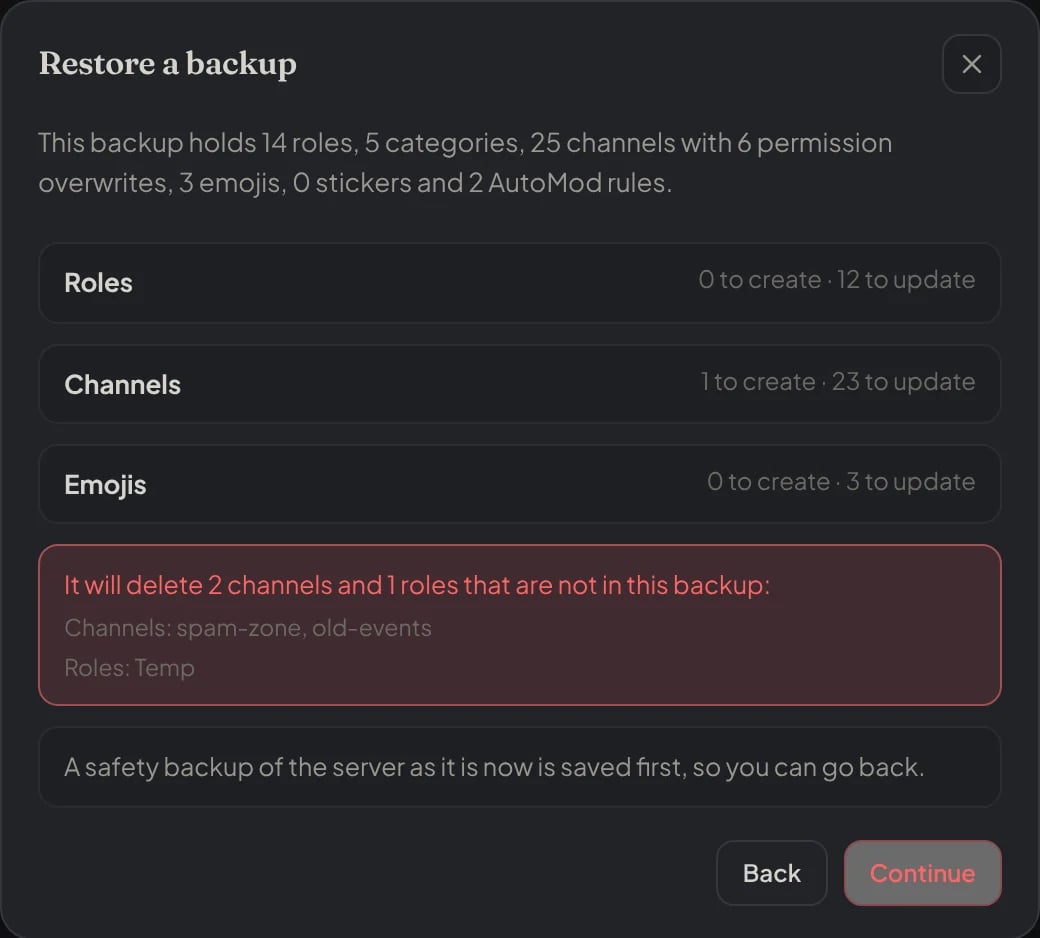
Dashboard → Backups → Restore: what the backup holds, what would be created and updated, and what replace would delete.
Human check
Human check
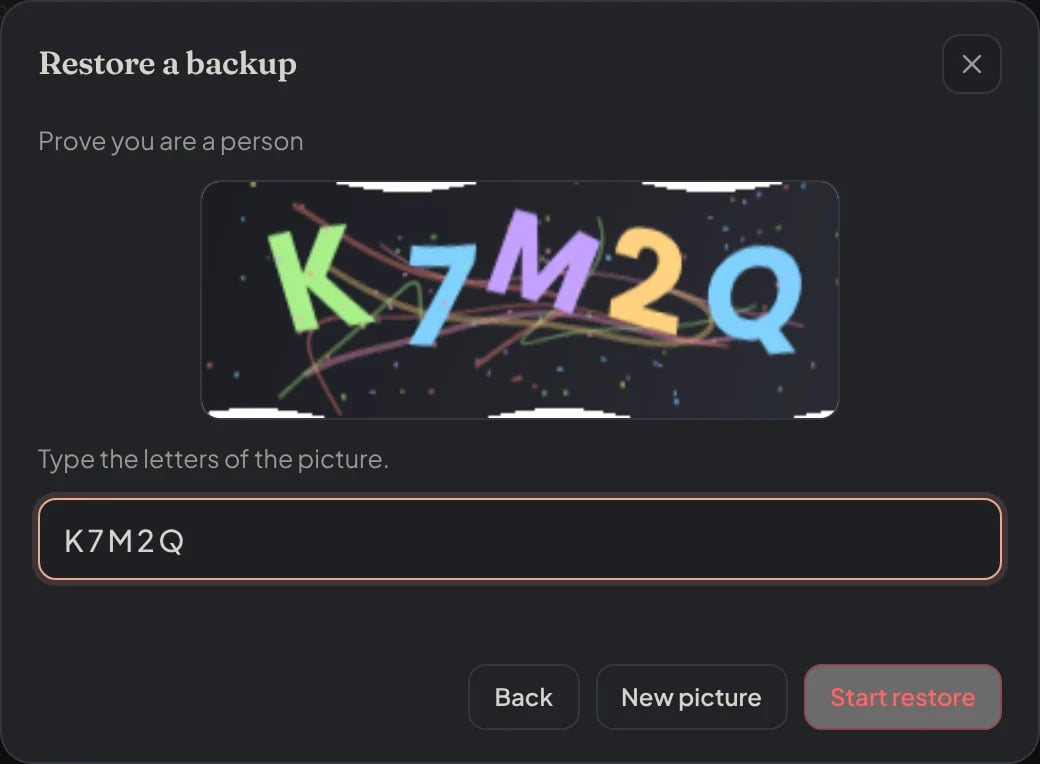
Dashboard → Backups → Restore: type the letters of the picture, then Start restore.
Live progress
Live progress
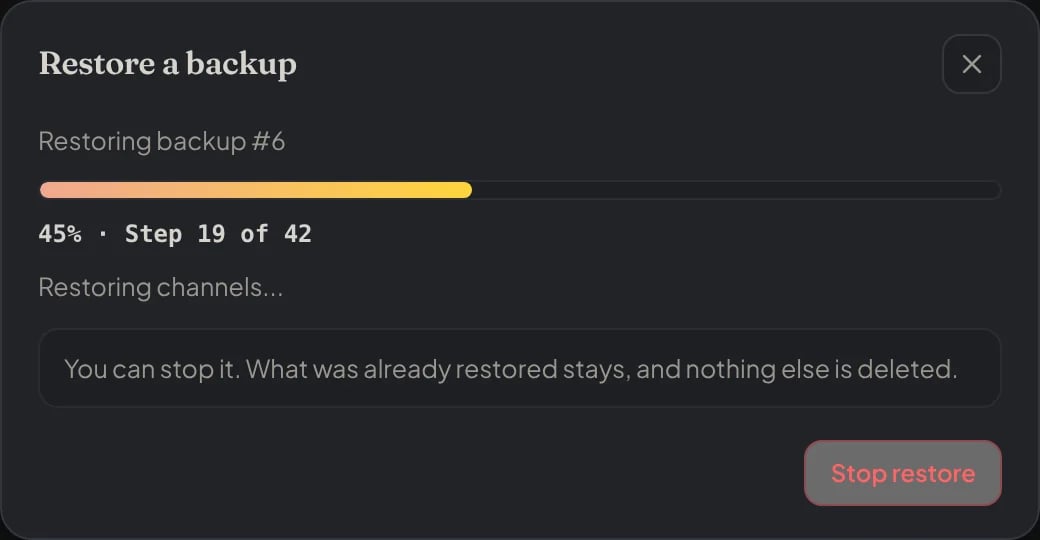
Dashboard → Backups → Restore: the progress of the restore, with Stop restore.
The end
The end
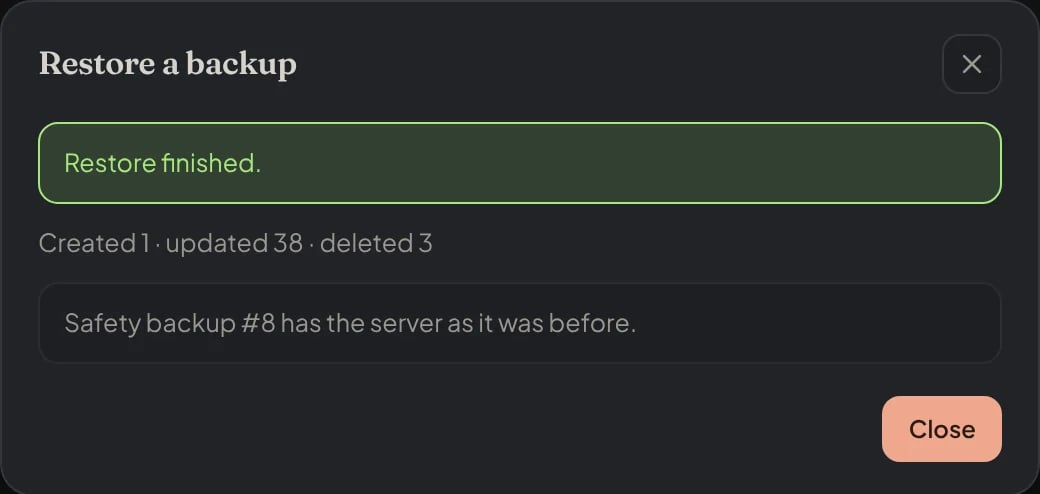
Dashboard → Backups → Restore: the end, with what changed and the safety backup.
Delete a backup
Delete a backup
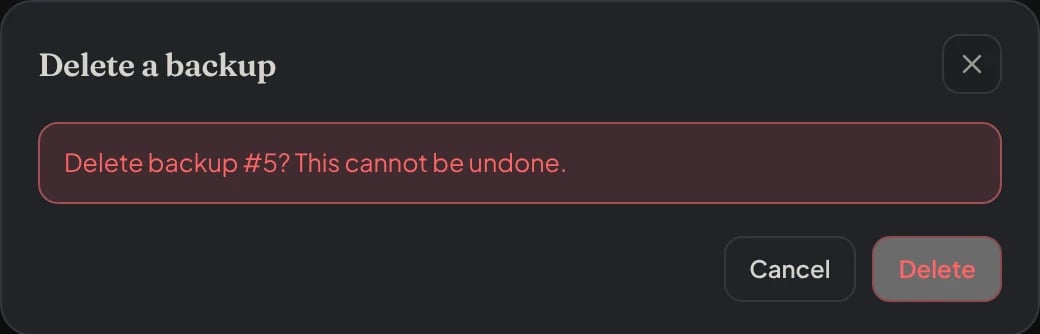
Dashboard → Backups: deleting one backup asks first.
Restore only some parts
In the dashboard you can choose what to bring back. Untick what should stay as it is now:- Roles
- Channels, categories and permissions
- Server settings
- Emojis
- Stickers
- AutoMod rules
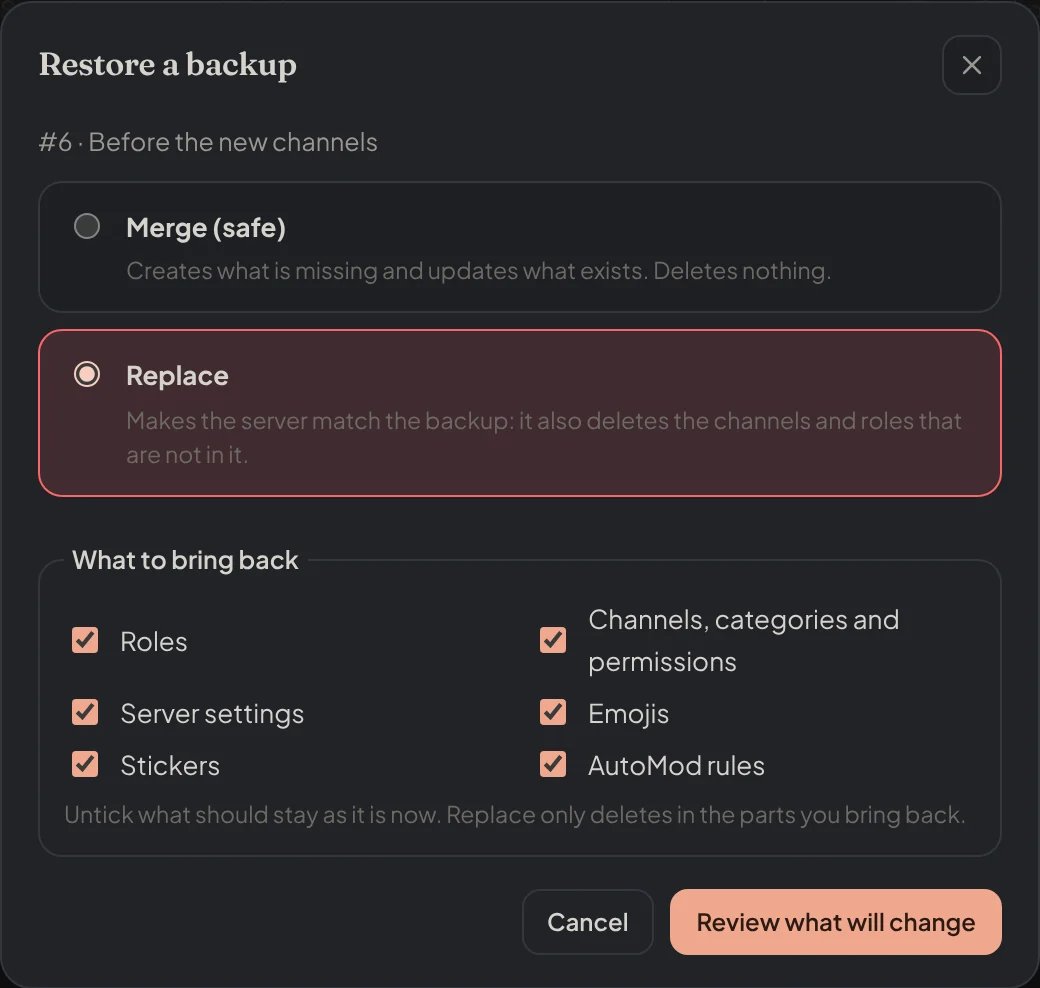
Dashboard → Backups → Restore: the mode and What to bring back.
replace only deletes inside the parts you bring back, so restoring only the channels never deletes a role. The preview also says what the backup holds: roles, categories, channels, permission overwrites, emojis, stickers and AutoMod rules.
The Your data card says what is kept and lets you turn off the automatic backups or delete everything.
The dashboard never talks to the database directly. The actions go through the bot, which checks in Discord that you have Manage Server or Administrator in that server (restoring and deleting need Administrator).
Dedicated database
Vault uses its own PostgreSQL connection throughPETTO_VAULT_DATABASE_URL. Set the password as a private variable on the host and never publish it in the repository. The bot and the dashboard share a private secret: