
Overview
Build flexible role menus without slash commands. Petto supports classic emoji reactions and clickable buttons, with independent toggle, add-only, or remove-only behavior for every role binding. Use them so members choose their own colours, pings or interests, or to give the member role when someone accepts the rules. The quickest way is the builder of the dashboard; the commands work on any message too.Commands
!reactionrole add (reaction)
!reactionrole add (reaction)
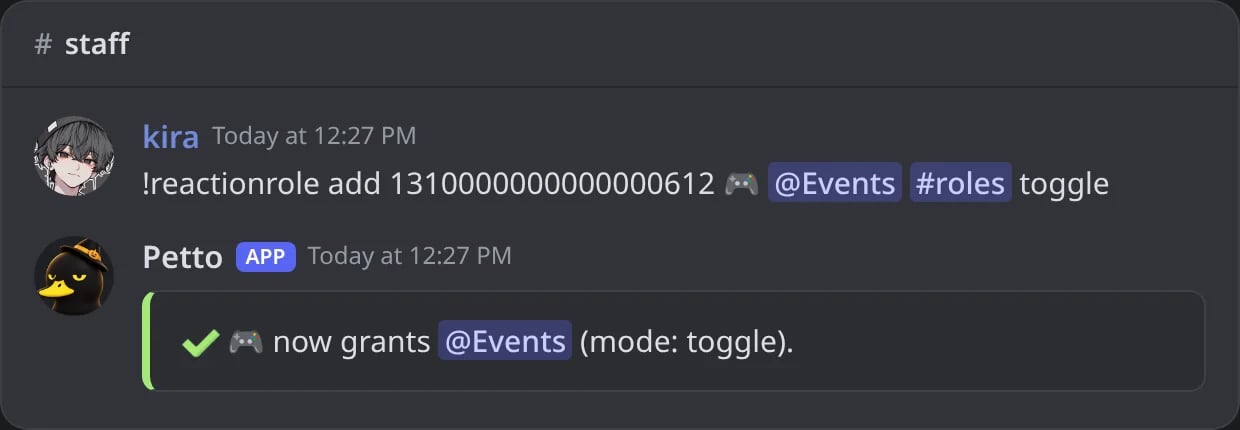
In Discord: an emoji of a message bound to a role.
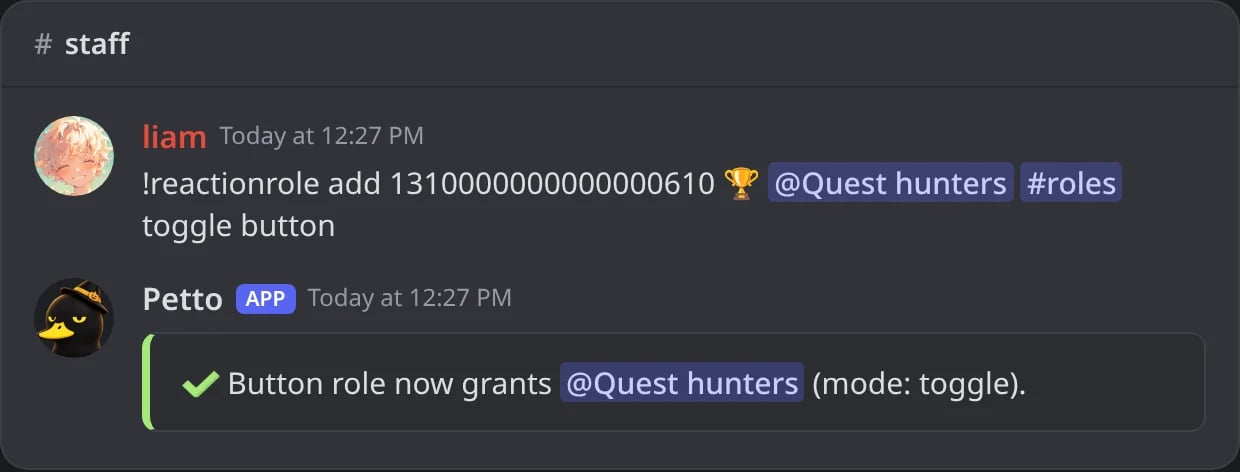
In Discord: a button added to the color menu.
!reactionrole remove
!reactionrole remove

In Discord: a binding removed, and the answer when the emoji is no longer bound.
!reactionrole list
!reactionrole list
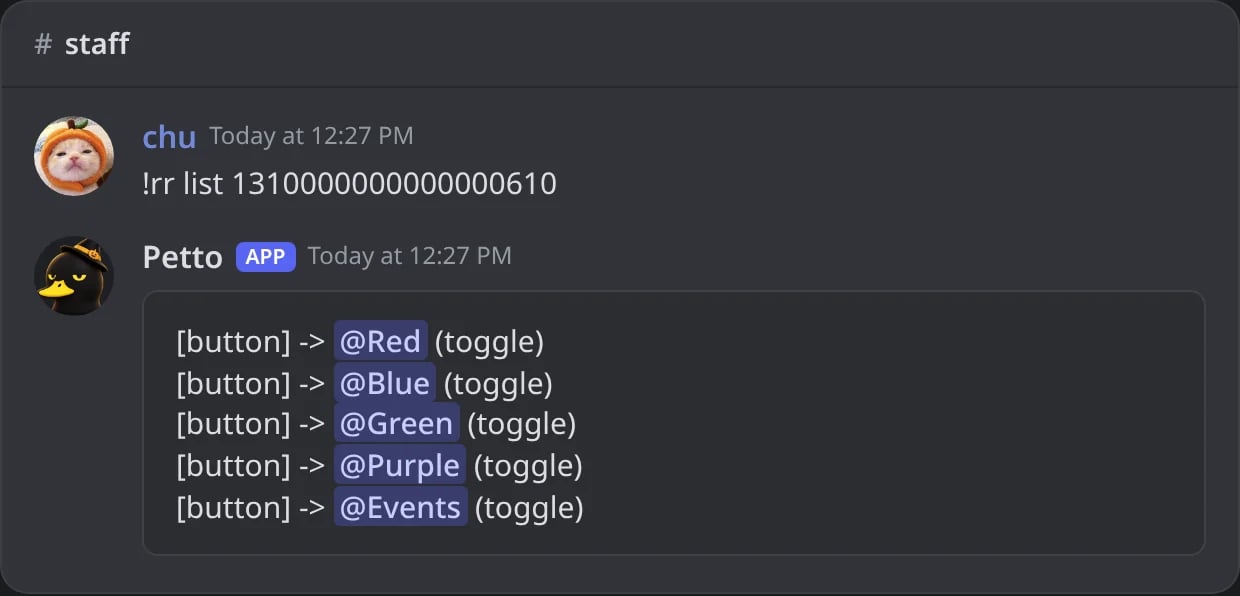
In Discord: the roles of a message, listed with !rr.
!reactionrole clear
!reactionrole clear
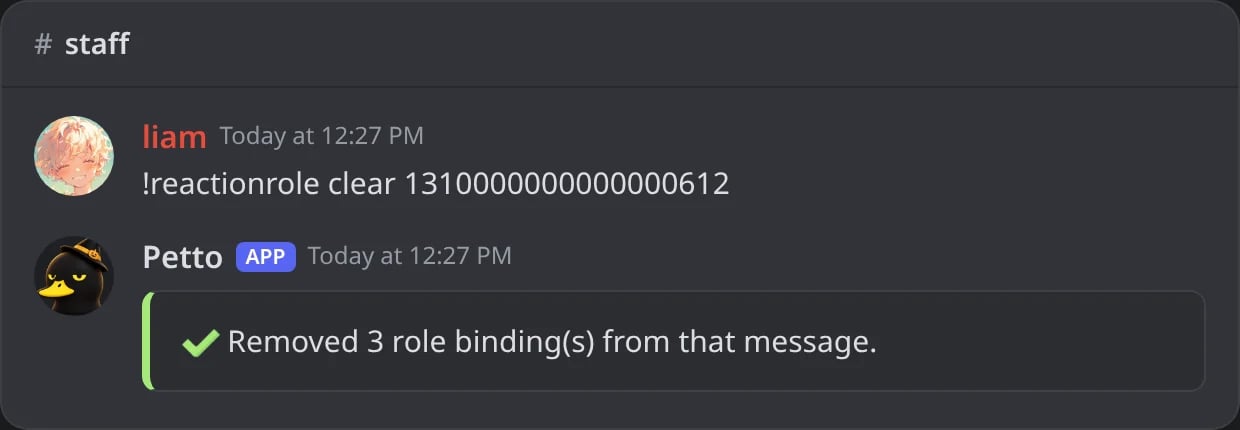
In Discord: every binding of a message removed at once.
When it does not work
When it does not work

In Discord: an emoji already bound, a message that is not found, and a member without Manage Roles.
channel defaults to the current channel. emoji accepts both custom and default emoji.
type is reaction by default. Use button to turn the message into a clickable role menu; one message can contain up to 25 Petto buttons across five rows. label is the button text and defaults to the role name. Button mode cannot be added to a message that already has another component panel, such as a ticket or VoiceMaster panel.
Short name: !rr. !reactionroleconfig shows every reaction and button role of the server and the commands to change them.

In Discord: the card of !reactionroleconfig with the roles of Petto Land and the commands.
Dashboard builder
The quickest way to make a role menu is the builder in the dashboard: Automation → Reaction roles → Create a role menu.Pick the channel and write the message

Dashboard → Automation → Reaction Roles → Create reaction role: the channel and the message, with the embed of the color menu.
Add rows of buttons

Dashboard → Automation → Reaction Roles → Create reaction role: the rows of buttons, each with its name, color, role, behavior and emoji.
Pick emojis
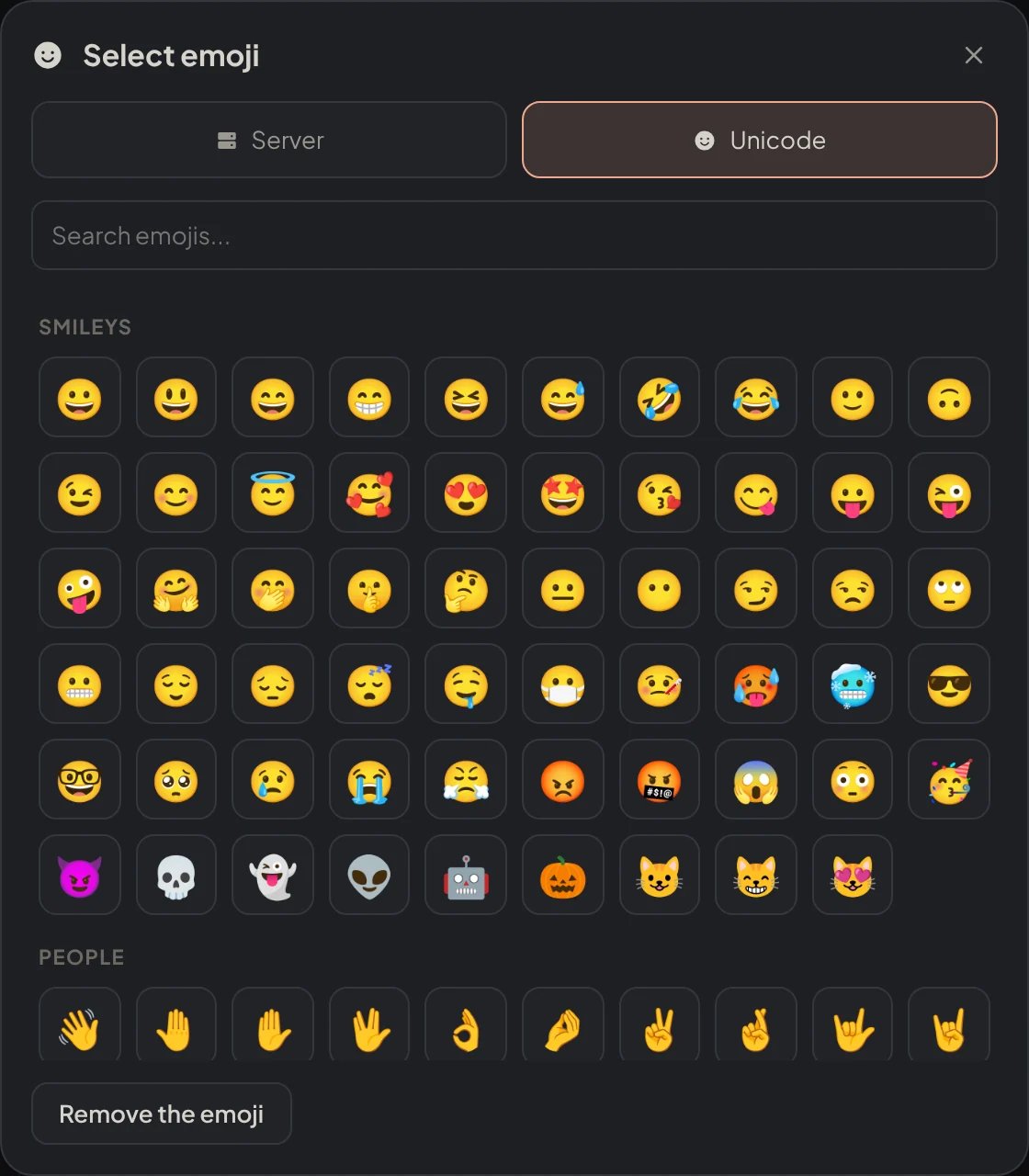
Dashboard → Automation → Reaction Roles → Create reaction role: the emoji picker on its Unicode tab.
Save
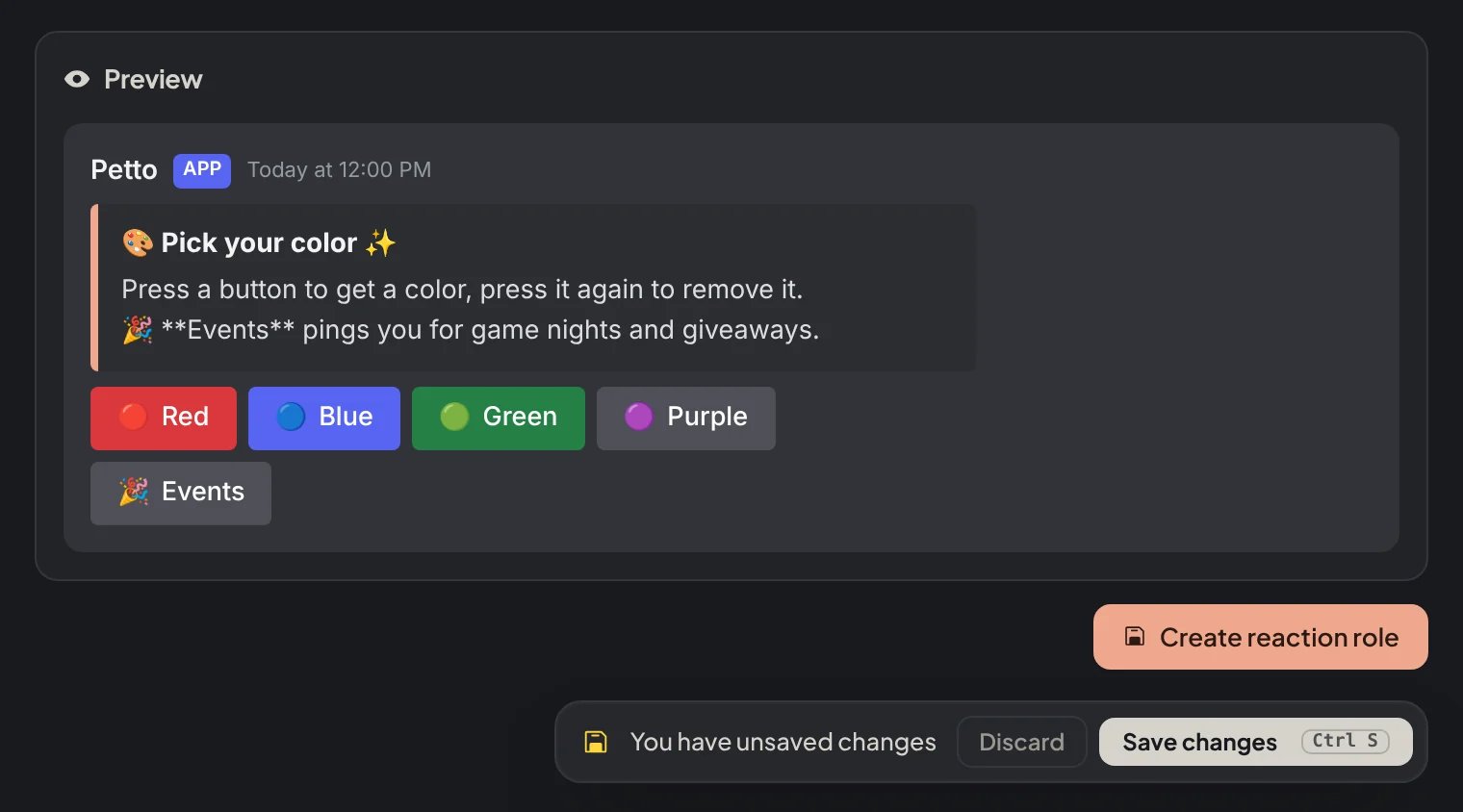
Dashboard → Automation → Reaction Roles → Create reaction role: the preview of the message, the button that posts it and the bar of unsaved changes.
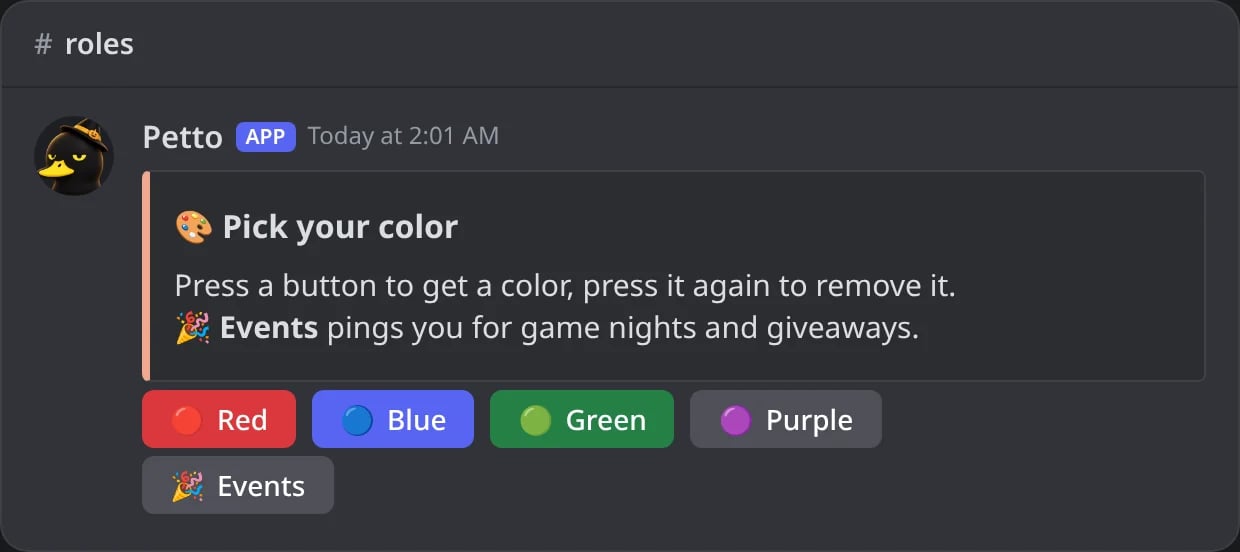
In Discord: a role menu with an embed and two rows of buttons, as the builder posts it.
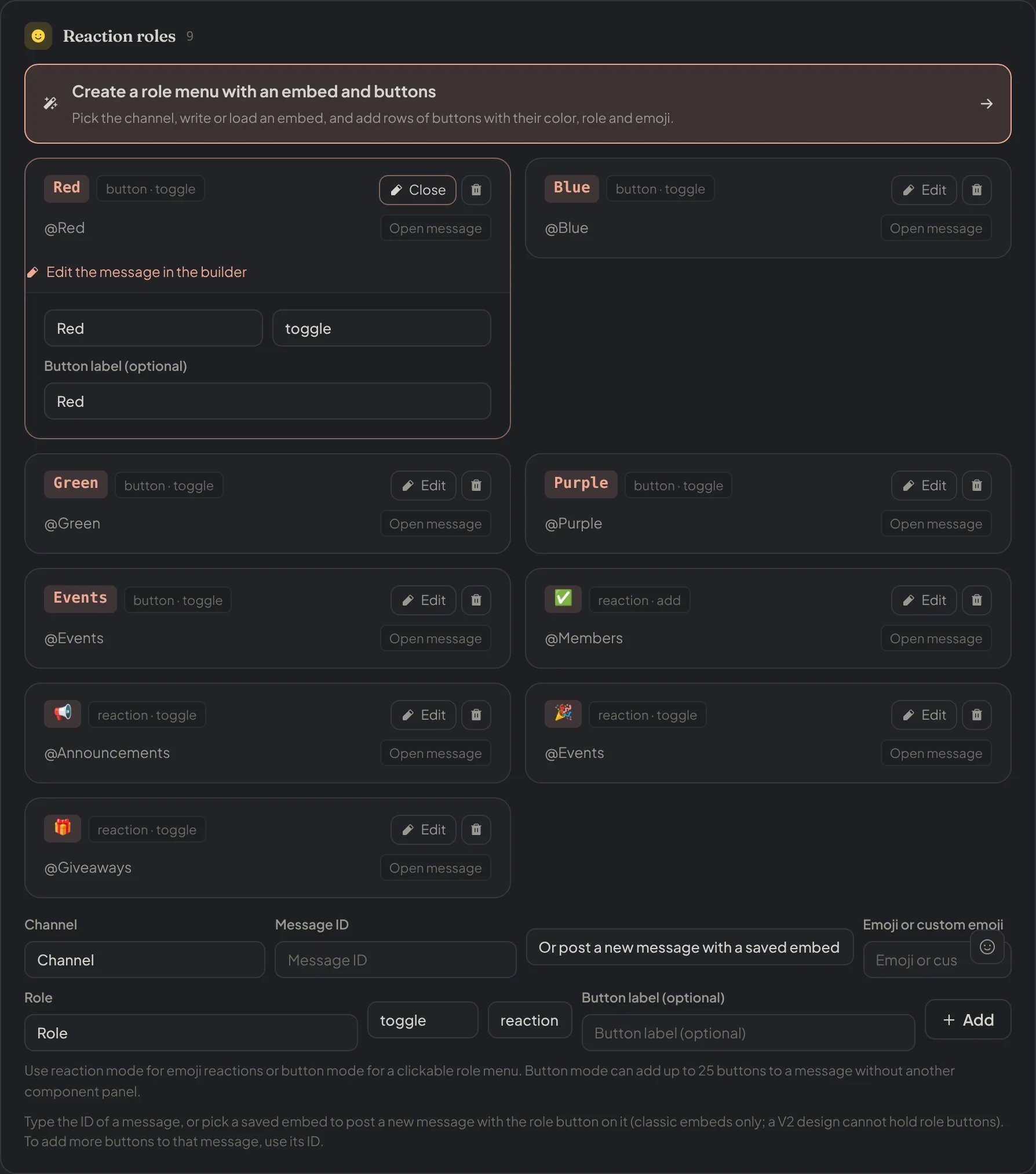
Dashboard → Automation → Reaction Roles: the role bindings of the server, one of them open with Edit the message in the builder.
Buttons from commands
!reactionrole add also takes embed (with message_id set to new, posts a message from a saved embed), style (button color) and row (1 to 5) so command-made menus can use the same layout.
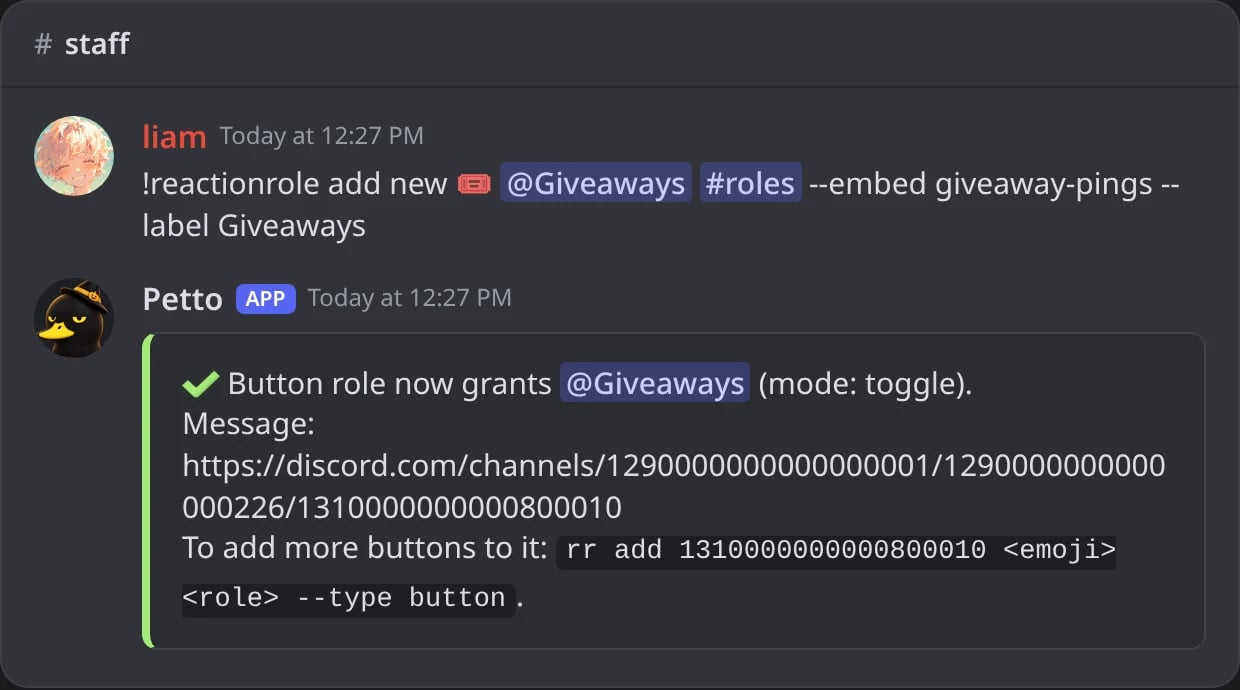
In Discord: a new message posted from a saved embed, with its first button.
Examples
- Ping roles with reactions
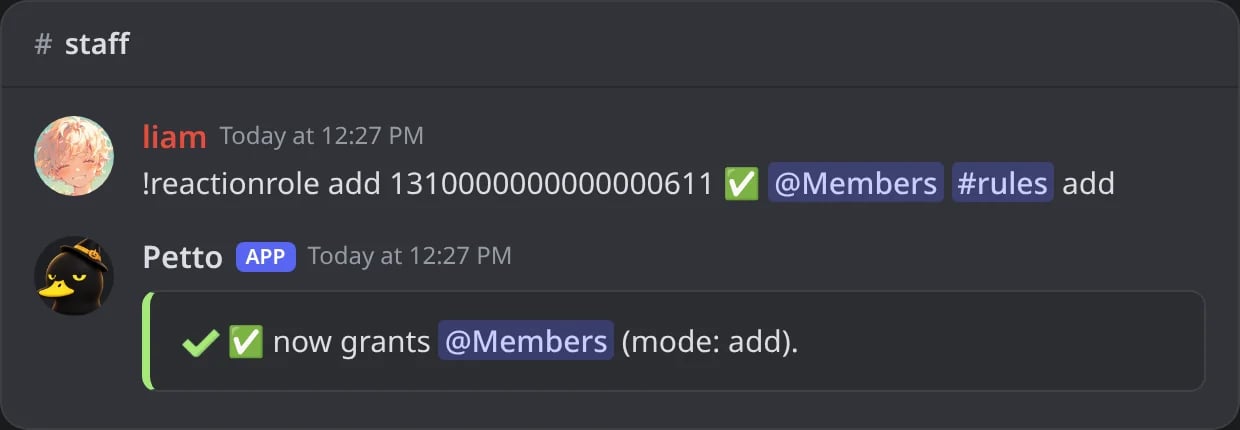
- Accept the rules
Make the menu message
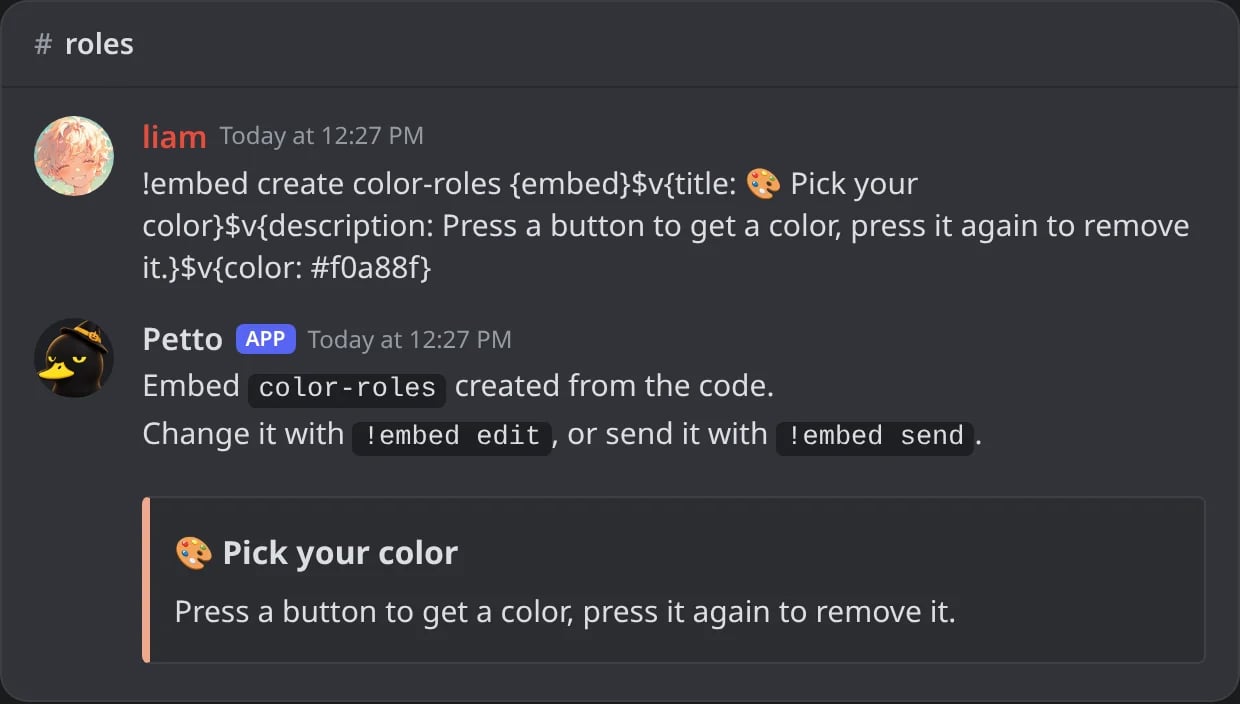
In Discord: the saved embed of the menu, made with !embed create.
Post it with the first button
new posts the saved embed in #roles and puts the button on it. Copy the ID of that message for the next buttons.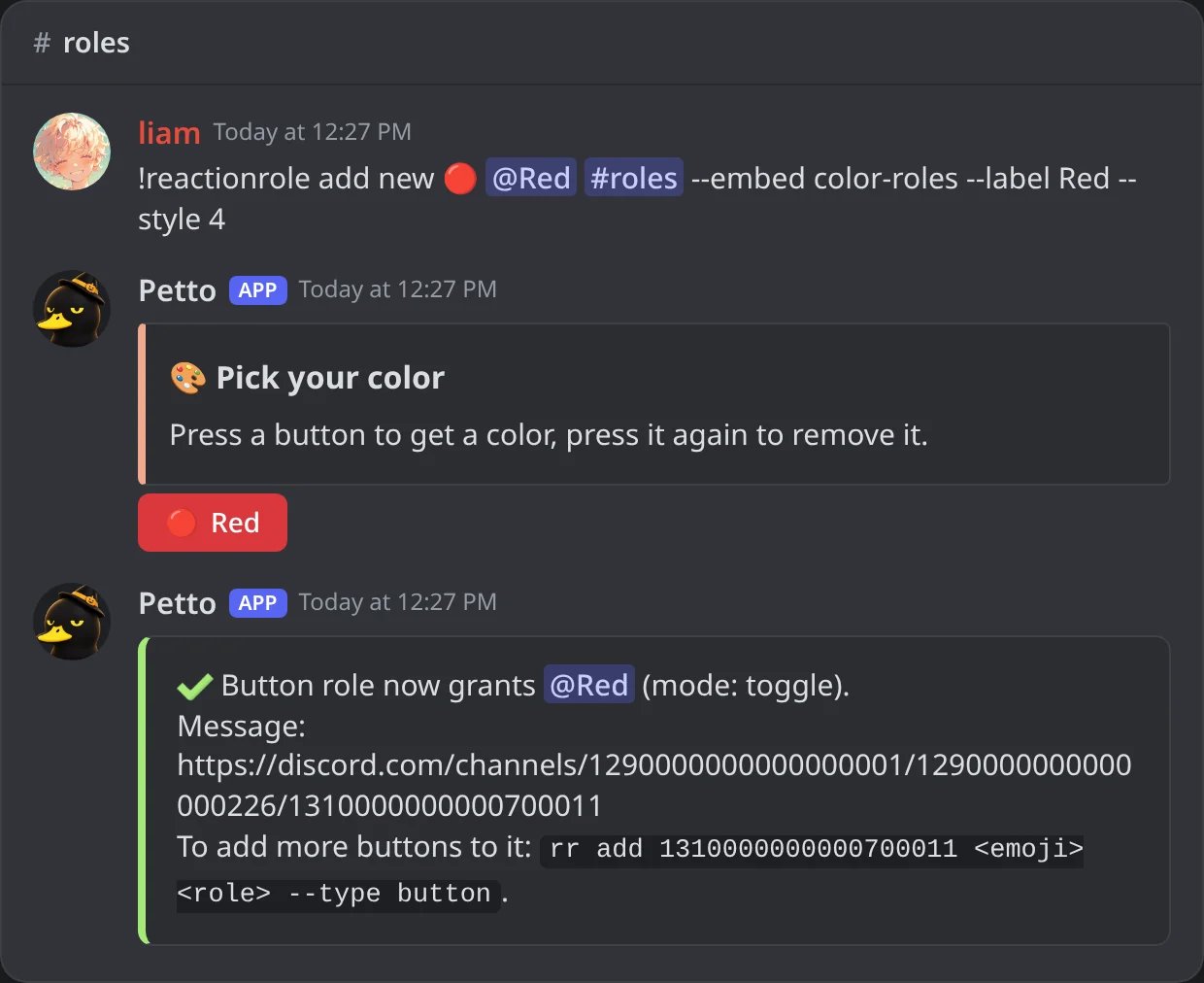
In Discord: the embed posted in #roles with its Red button.
Add the other buttons

In Discord: the same message with its second button, Blue.
style is the button color: 1 blurple, 2 gray, 3 green, 4 red.
new can use variables, filled for whoever runs the command, so server ones like {server_name} or {server_membercount} make the most sense there.
Modes
Toggle (default)
Toggle (default)
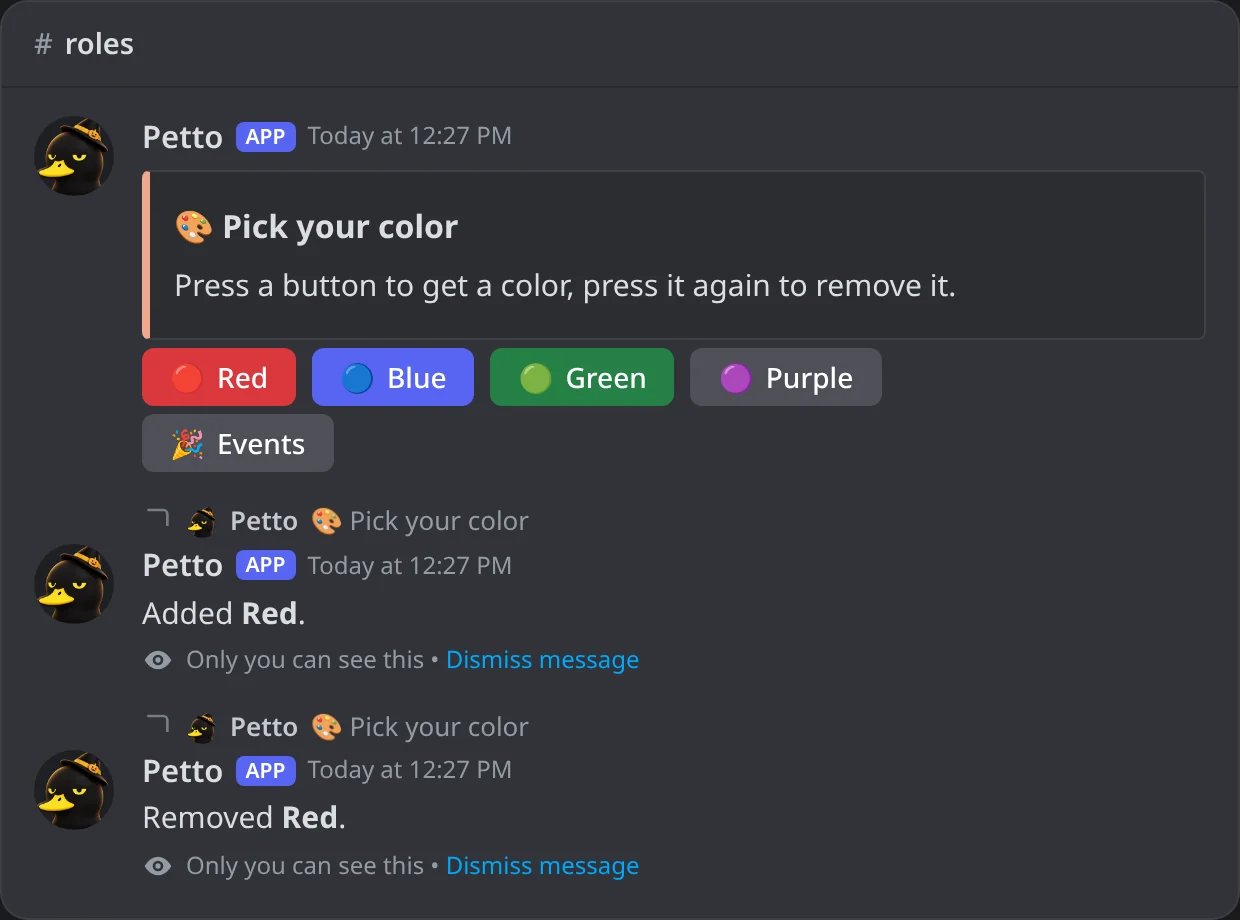
In Discord: nova presses Red twice: the role is given, then taken away. Only nova sees the answers.
Add only
Add only

In Discord: Events in add mode: the second press does not take the role away.
Remove only
Remove only
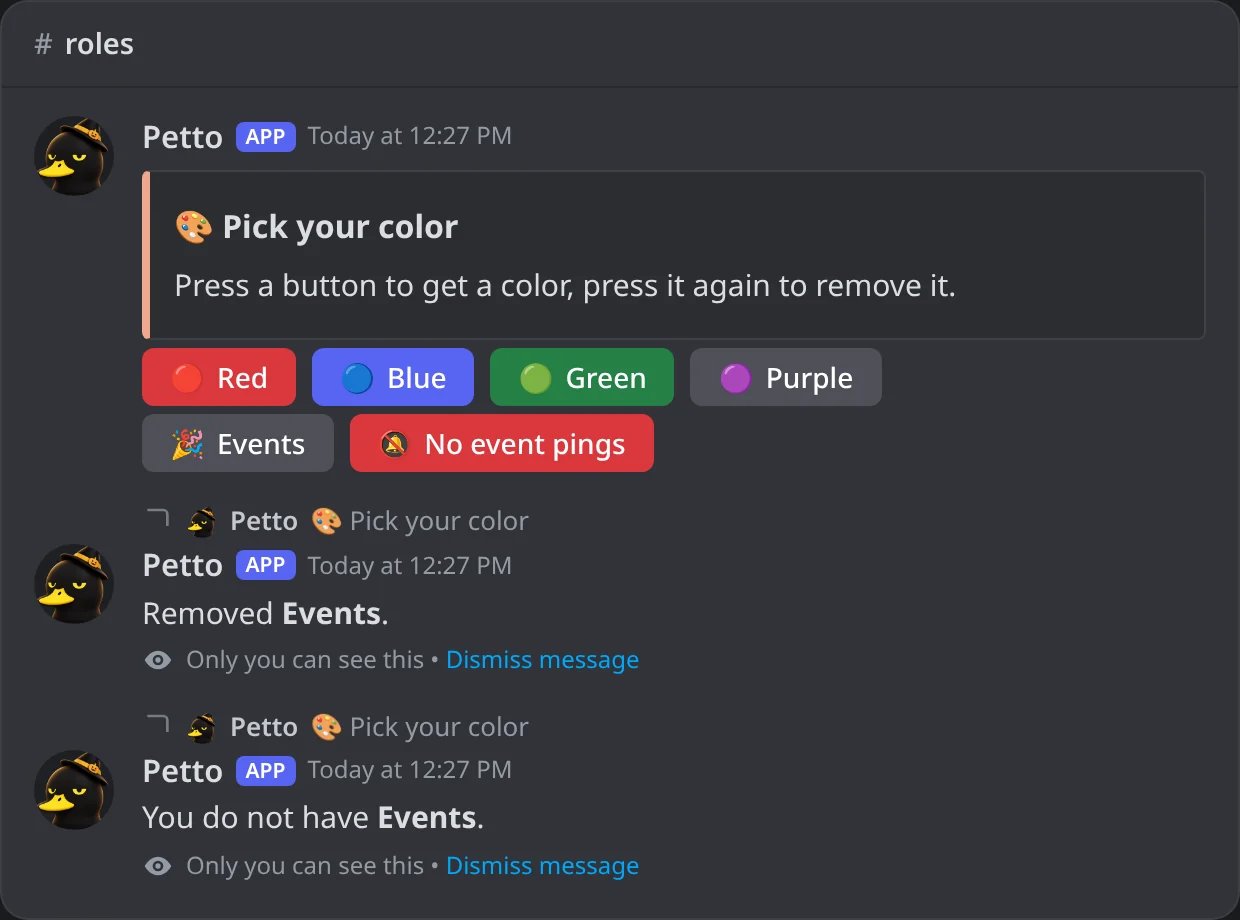
In Discord: a No event pings button in remove mode: it only takes the role away.